

For best results with Connector queries, use a powerful, reasoning-capable
model. Cassidy supports models from OpenAI, Anthropic, and Google — see
Choose the right AI model for current
recommendations.
Set up the HubSpot Connector
1
Select your Agent
Navigate to Agents, find the Agent you want to configure, click … and select Edit.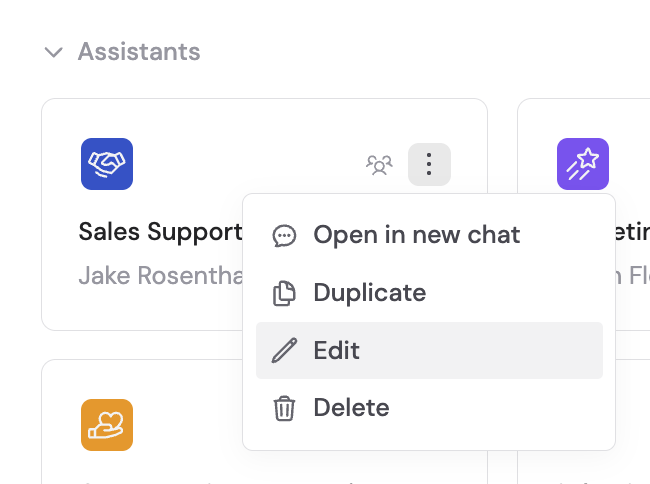
2
Navigate to Connectors
In the Setup tab, scroll to the Connectors section.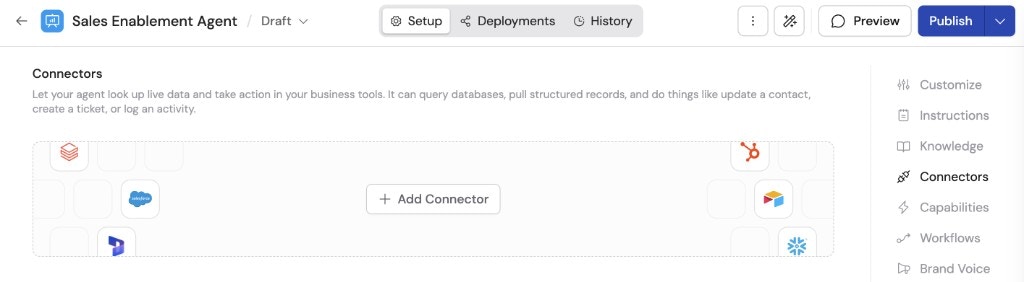
3
Add HubSpot
Click + Add Connector and click + Add on the HubSpot option.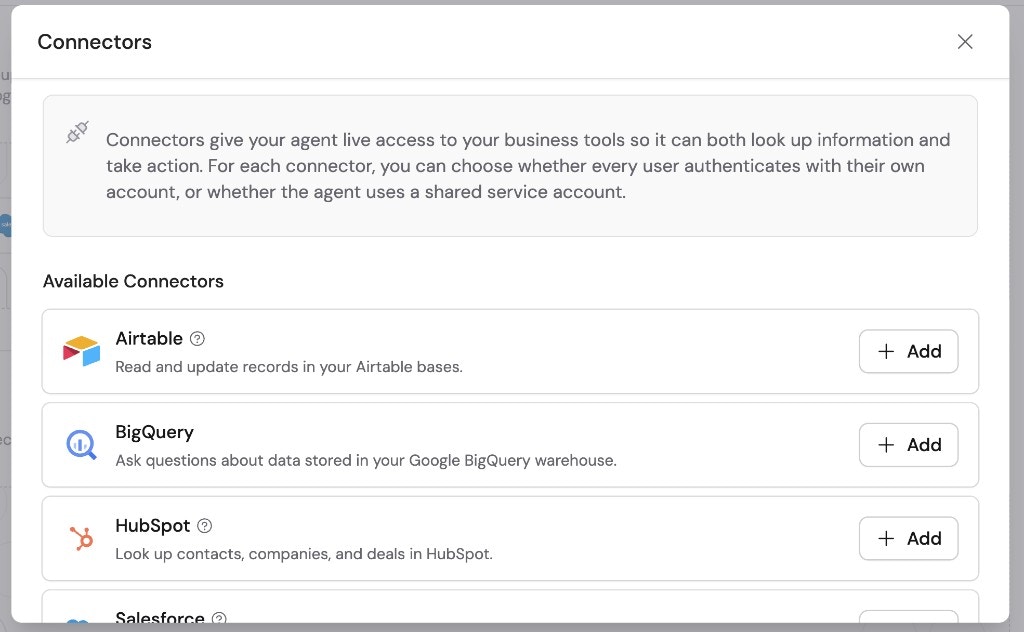
4
Choose a connection method
Select how users will authenticate with HubSpot:
- Each user connects their own account (recommended) — Users sign in with their HubSpot credentials on first use. Respects each user’s individual permissions. Best for teams with varying access levels.
- Use a shared HubSpot connection — All users access HubSpot through one account using your organization’s existing connections.
5
Set up a shared connection (if selected)
If you chose Use a shared HubSpot connection, select an existing shared
connection or click Create shared connection. After signing in, give the
connection a recognizable name and choose who can use it.
6
Configure action permissions
Review the actions HubSpot can perform. Set each action or category to
Always allow, Ask every time, or Disabled.
7
Start a chat
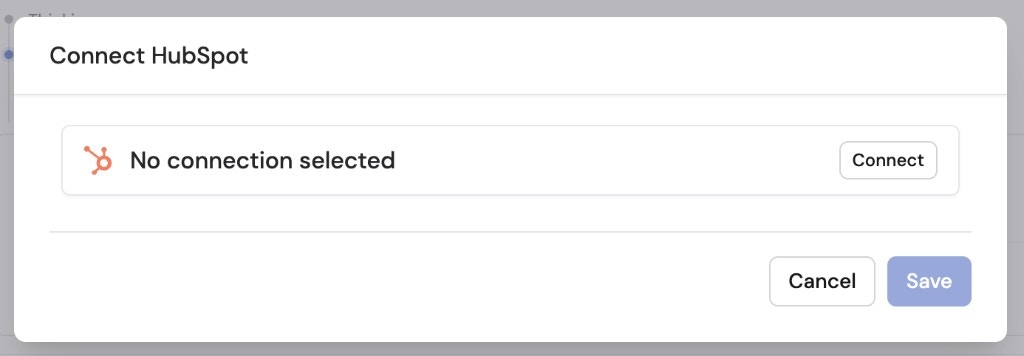
Navigate to Chat and select the Agent with the HubSpot Connector enabled.If you chose Each user connects their own account, users are prompted to connect their HubSpot account from within the chat the first time they use the Connector. Click Connect when prompted.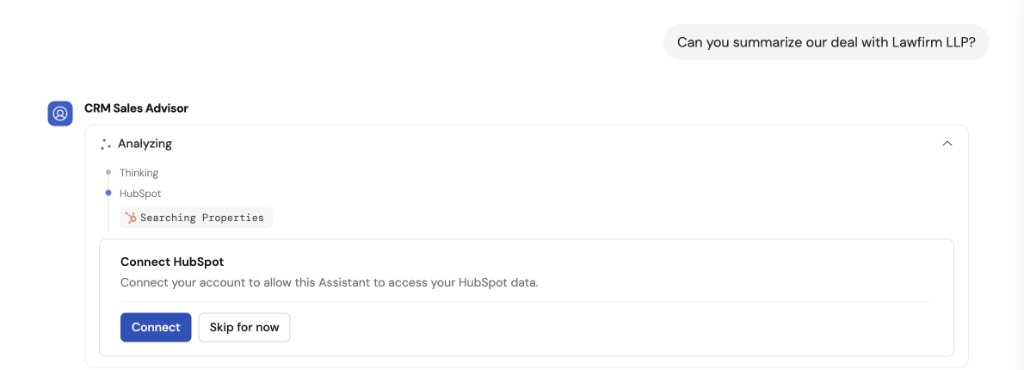
8
Query HubSpot data
Your Agent can now access HubSpot data to answer questions about contacts, deals, companies, and other CRM records directly in the conversation.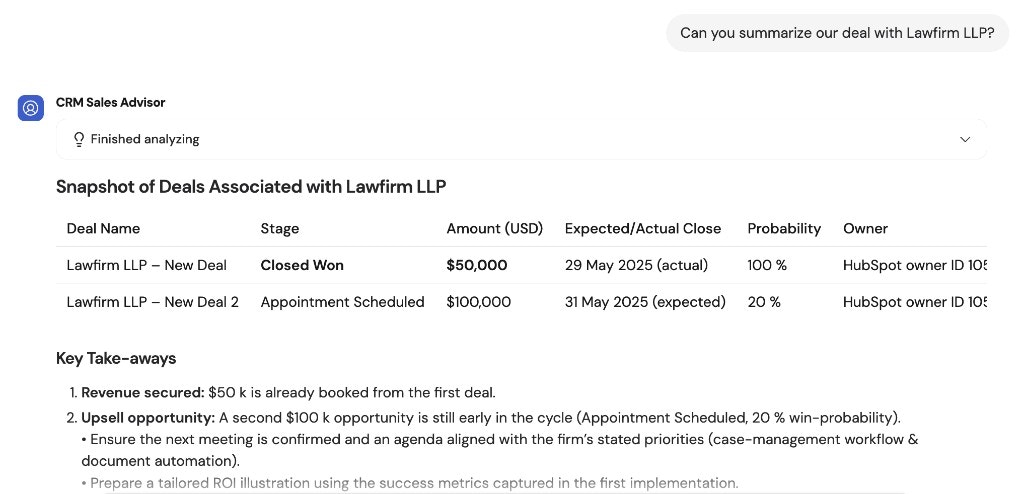
Connect HubSpot for yourself
To use HubSpot in any chat, not just with this Agent, open Customize → Connectors, find HubSpot, and click Connect. See Add a Connector for yourself.HubSpot has no per-action settings for your own account. The Agent’s and
organization’s settings decide when approval is required.
Next steps
Use HubSpot in Workflows
Trigger Workflows from record changes and push AI-generated results back to
your CRM.
Explore all Connectors
Learn about other Connectors available for your Agents.