

Set up the Monday.com Connector
1
Select your Agent
Navigate to Agents, find the Agent you want to configure, click …, and select Edit.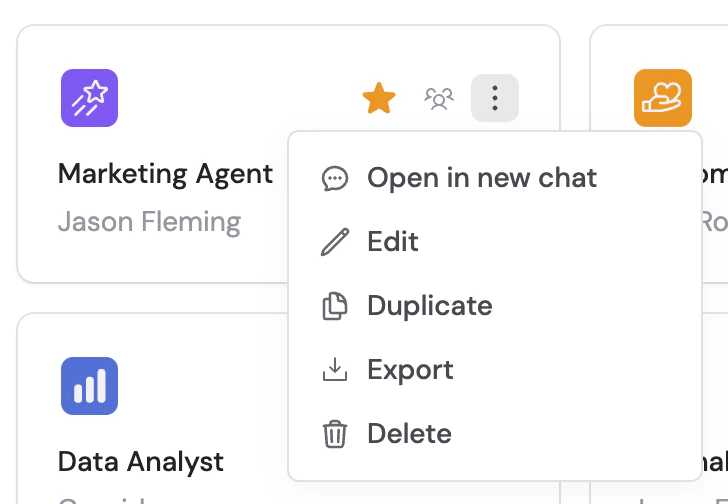
2
Open the Connectors section
In the Agent editor, go to the Setup tab and scroll to Connectors.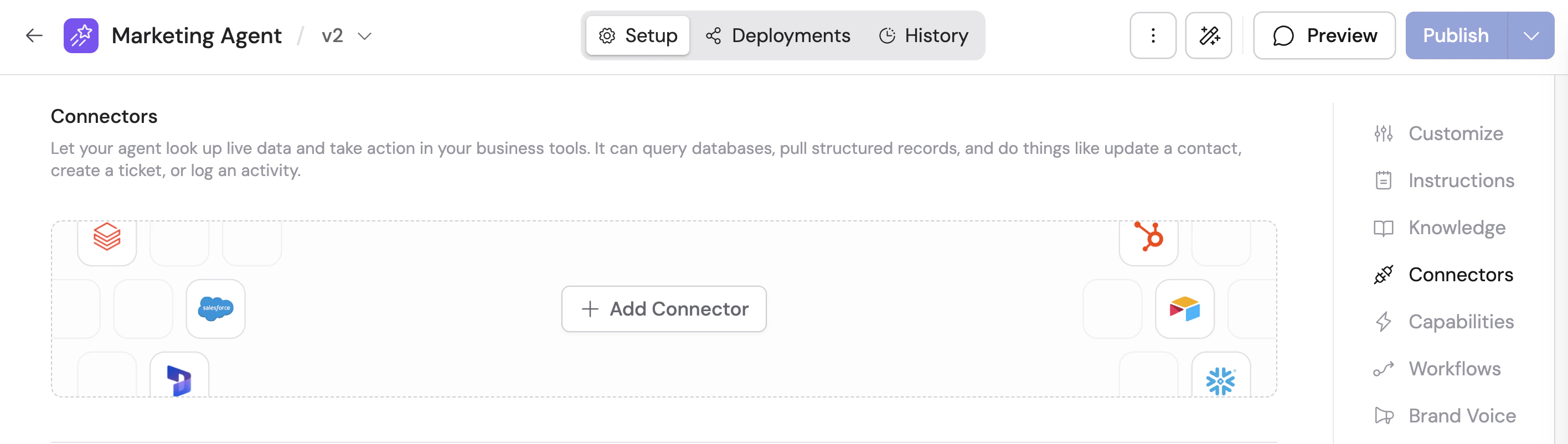
3
Add Monday.com
Click + Add Connector, then click + Add on Monday.com.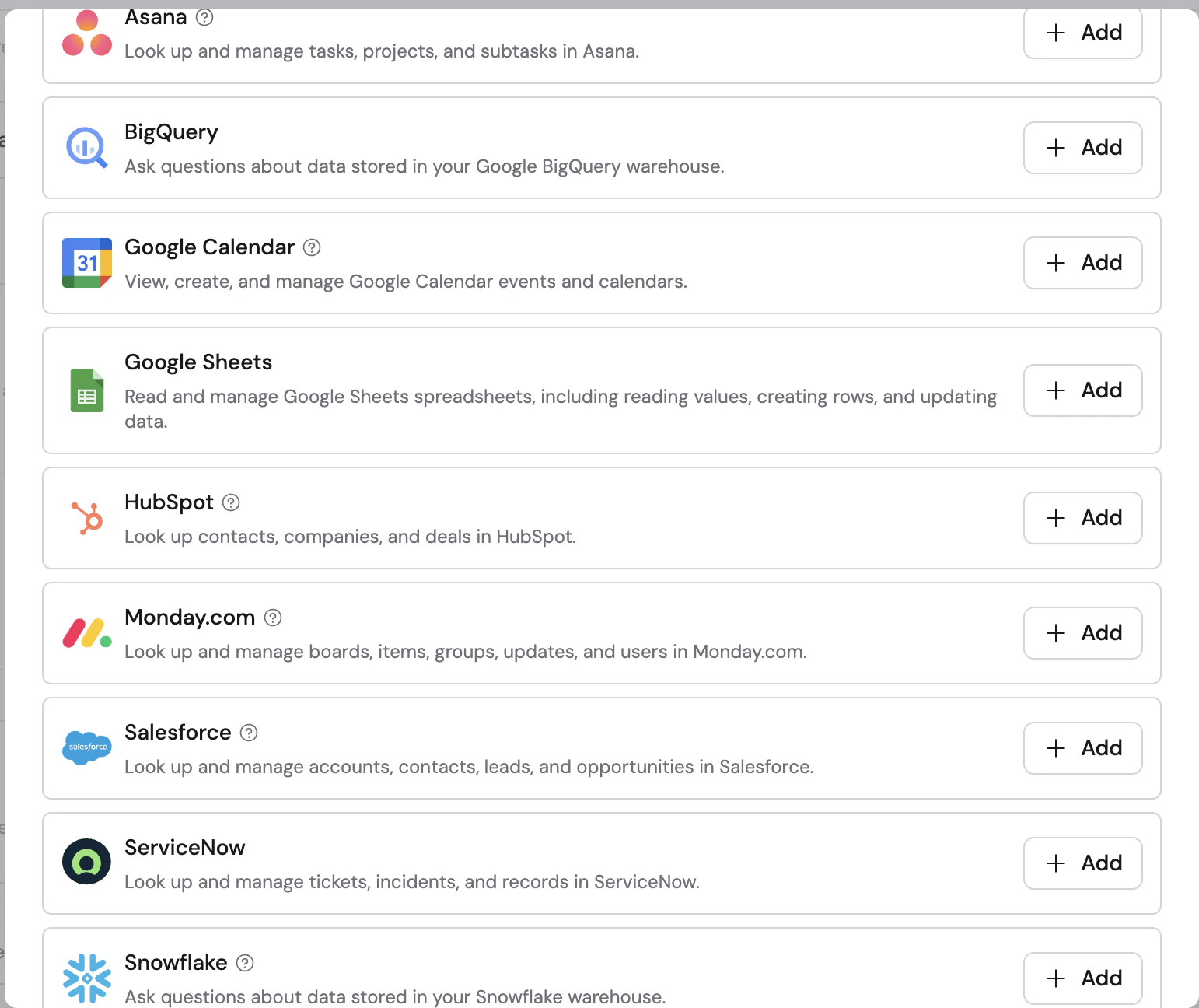
4
Choose a connection method
Select how users will authenticate with Monday.com: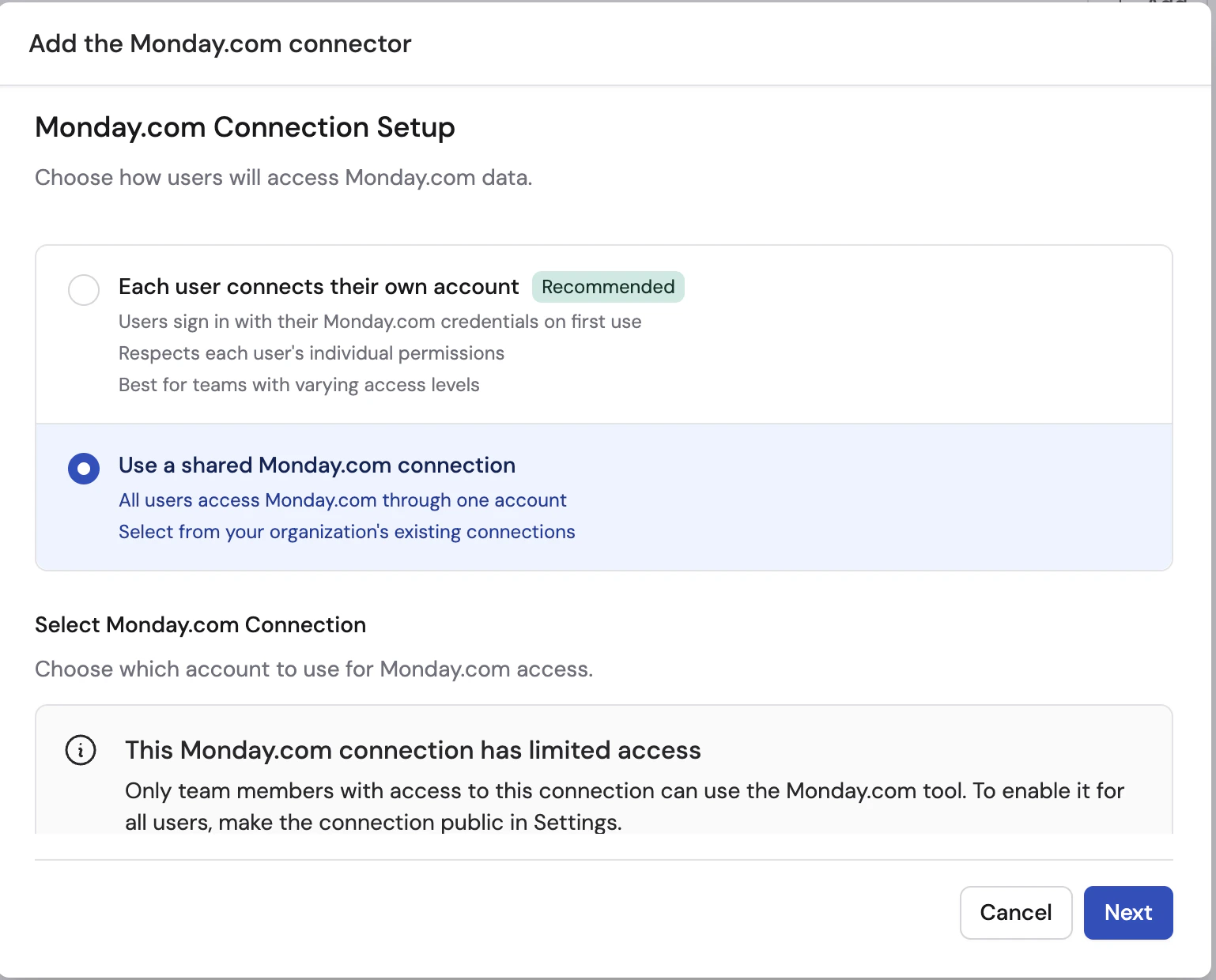
- Each user connects their own account (recommended) — each user signs in on first use, and the Connector respects that user’s Monday.com permissions
- Use a shared Monday.com connection — all users access Monday.com through one shared connection
5
Install the Cassidy app in Monday.com if prompted
Monday.com requires you to install the Cassidy app before the connection can be authorized. When you click Connect, Cassidy may first show an install prompt instead of taking you straight to authorization.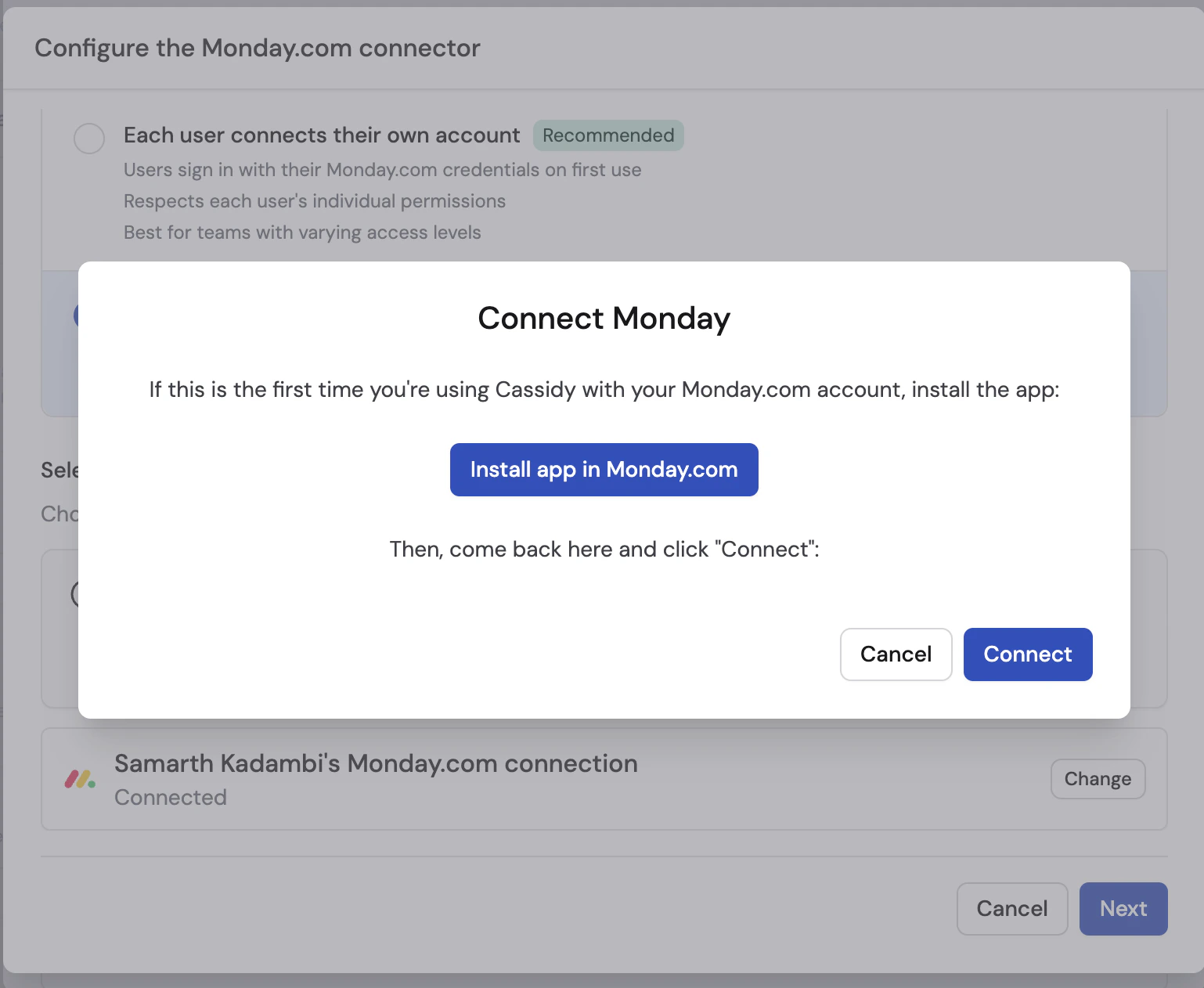
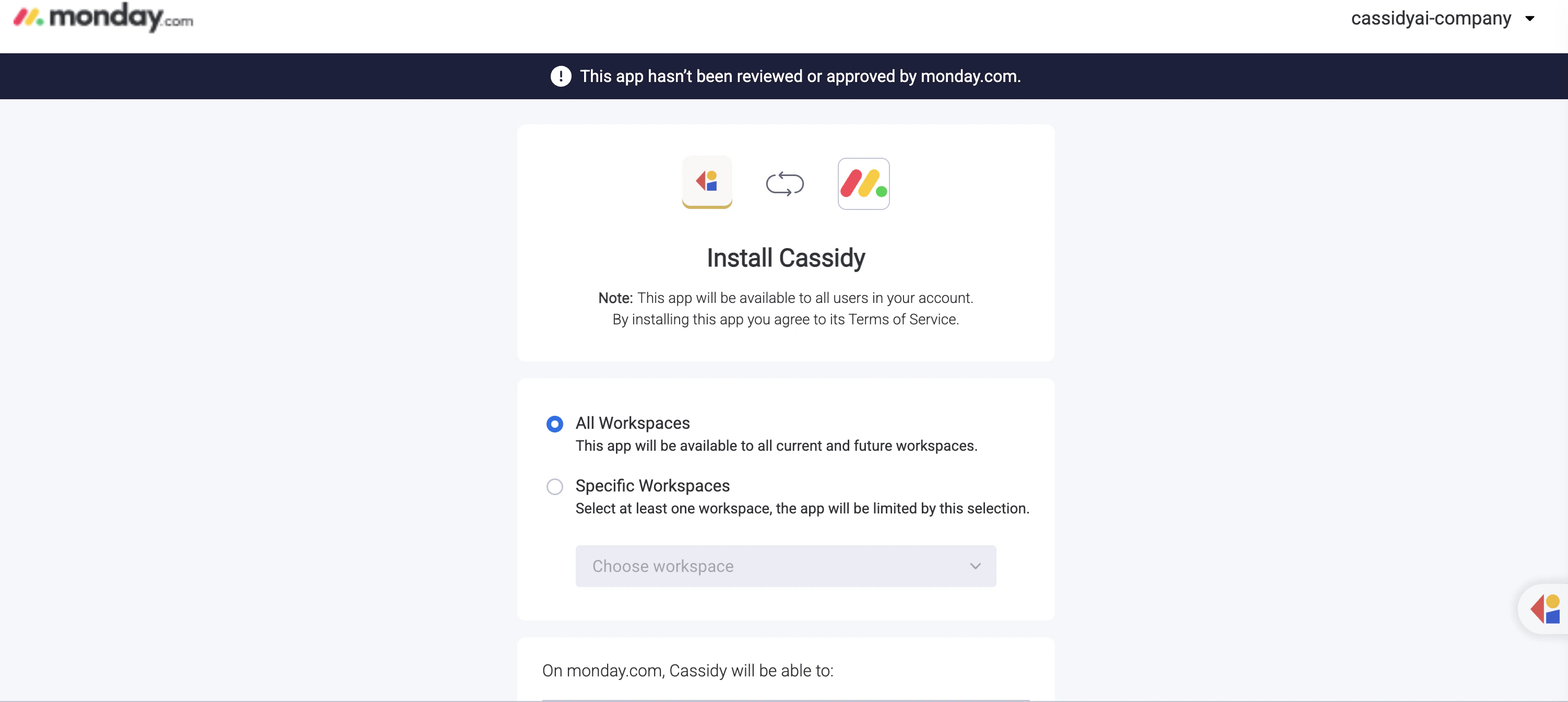
If Monday.com shows a banner saying the app has not been reviewed or approved by monday.com, that is expected during this setup flow.
6
Return to Cassidy and reconnect
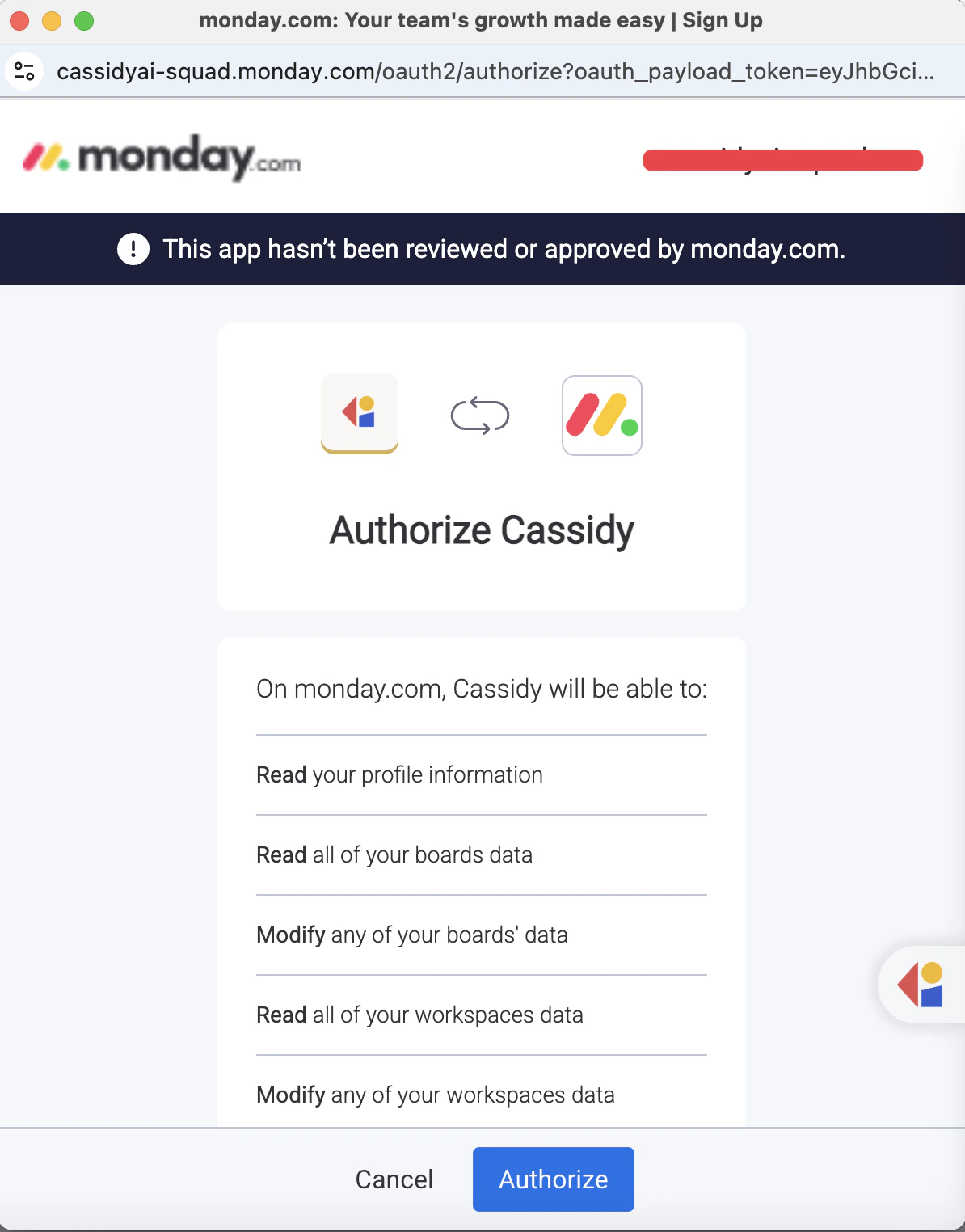
After installing the app, return to Cassidy and click Connect again. If you try to authorize before the app is installed, Monday.com shows an App is not installed message and blocks the authorization.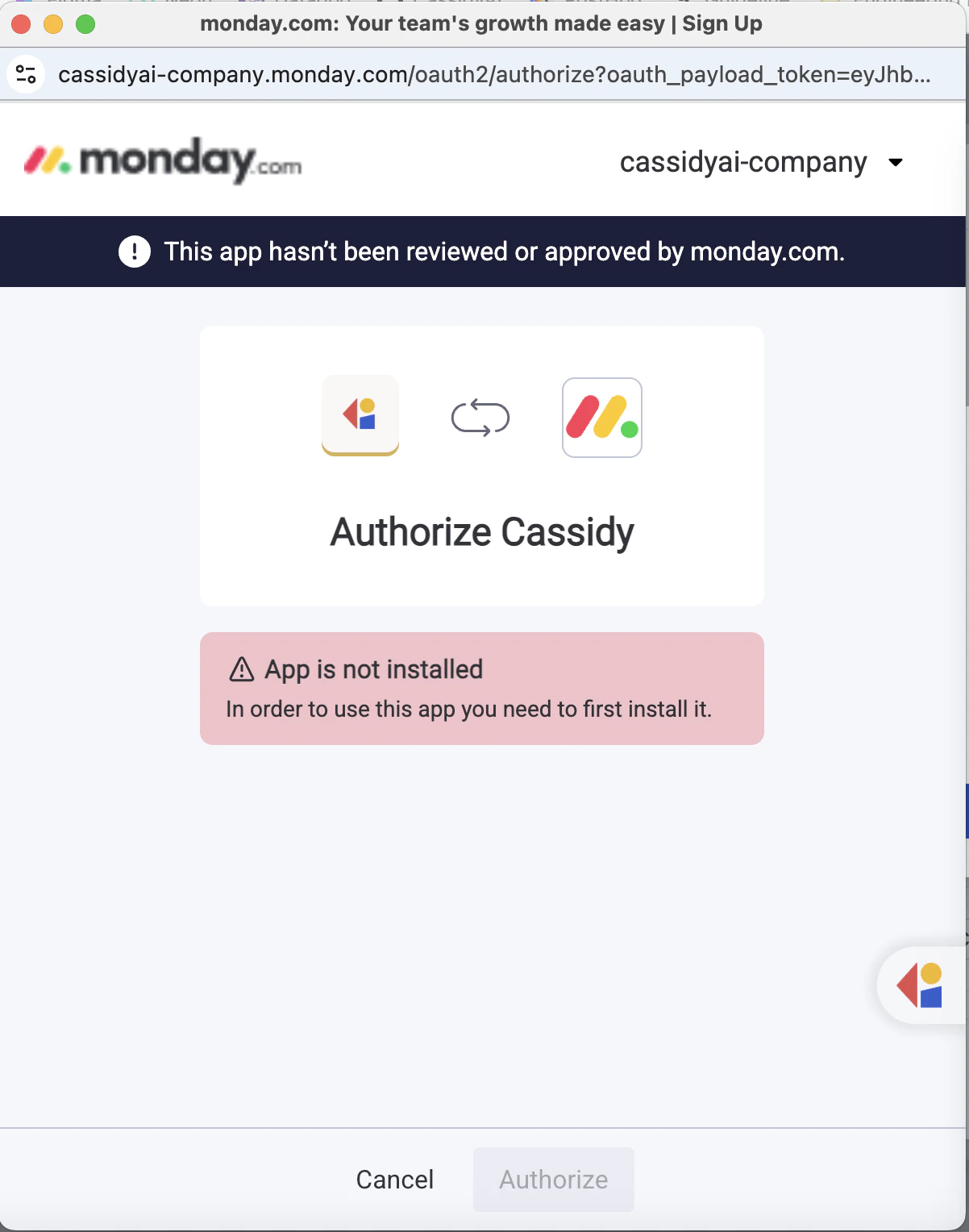
7
Choose and share the connection if needed
If you are using a shared connection, select an existing Monday.com
connection or create a new one. Give a new connection a recognizable name,
then choose who can use it.
8
Configure action permissions
Set the permission level for each Monday.com action:
- Always allow — the Agent can run the action automatically
- Ask every time — the Agent asks before running the action
- Disabled — the Agent cannot run the action
- View Data — read-only actions like listing boards, items, groups, users, and updates. Default: Always allow.
- Create & Modify — actions like creating items, posting updates, moving items, and changing column values. Default: Disabled.
- Remove Data — deleting an item. Default: Disabled.
9
Add the Connector
Click Add connector.If you chose Each user connects their own account, users will be prompted to connect Monday.com the first time they use the Connector in chat. If they have not installed the Cassidy app in Monday.com yet, they may need to complete the same install and authorize flow during their first connection.
Connect Monday.com for yourself
To use Monday.com in any chat, not just with this Agent, open Customize → Connectors, find Monday.com, and click Connect. See Add a Connector for yourself.What the Agent can do
Once connected, your Agent can help with Monday.com tasks including:- Listing boards, groups, users, items, and updates
- Looking up items by column values
- Reading board activity logs
- Creating new items and updates
- Updating simple column values
- Moving or duplicating items
- Deleting items if you enable remove permissions
Data security
- Permission-based access — the Agent can only do what the connected Monday.com account is allowed to do
- Configurable approvals — you decide which actions run automatically, require approval, or stay disabled
- No copied data — Monday.com data is queried in real time and is not stored in Cassidy
Next steps
Connectors overview
Learn how Agent Connectors work and when to use them.
Browse integrations
See all apps you can connect to Cassidy.