

Complex actions work best with a powerful, reasoning-capable model. See
Choose the right AI model.
Set up a Custom Connector
1
Open organization settings
Open your account menu from the sidebar and select Organization
Settings.
2
Open Custom Connectors
Select Connectors, then choose Custom Connectors.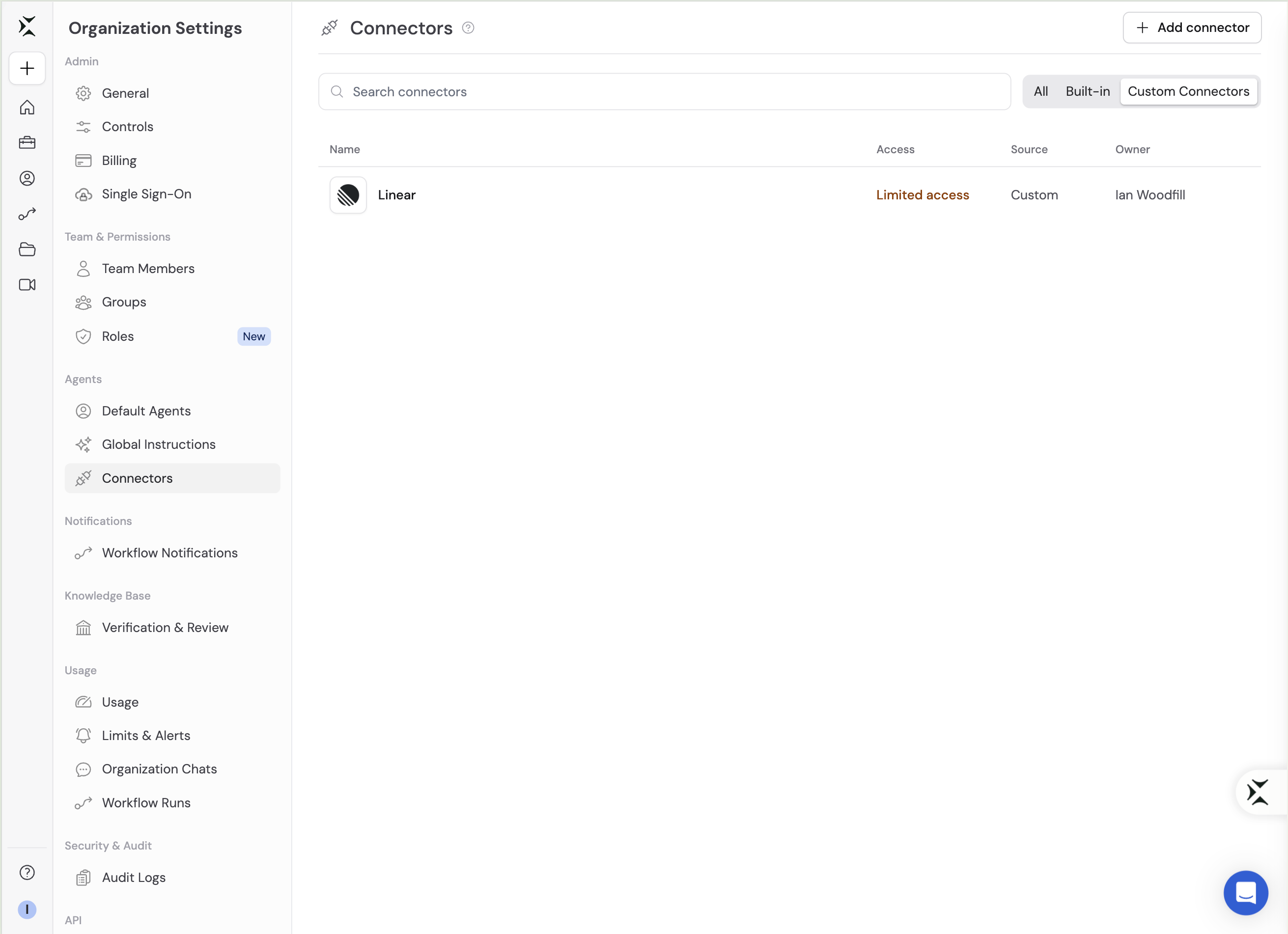
3
Add a Custom Connector
Click Add Custom Connector.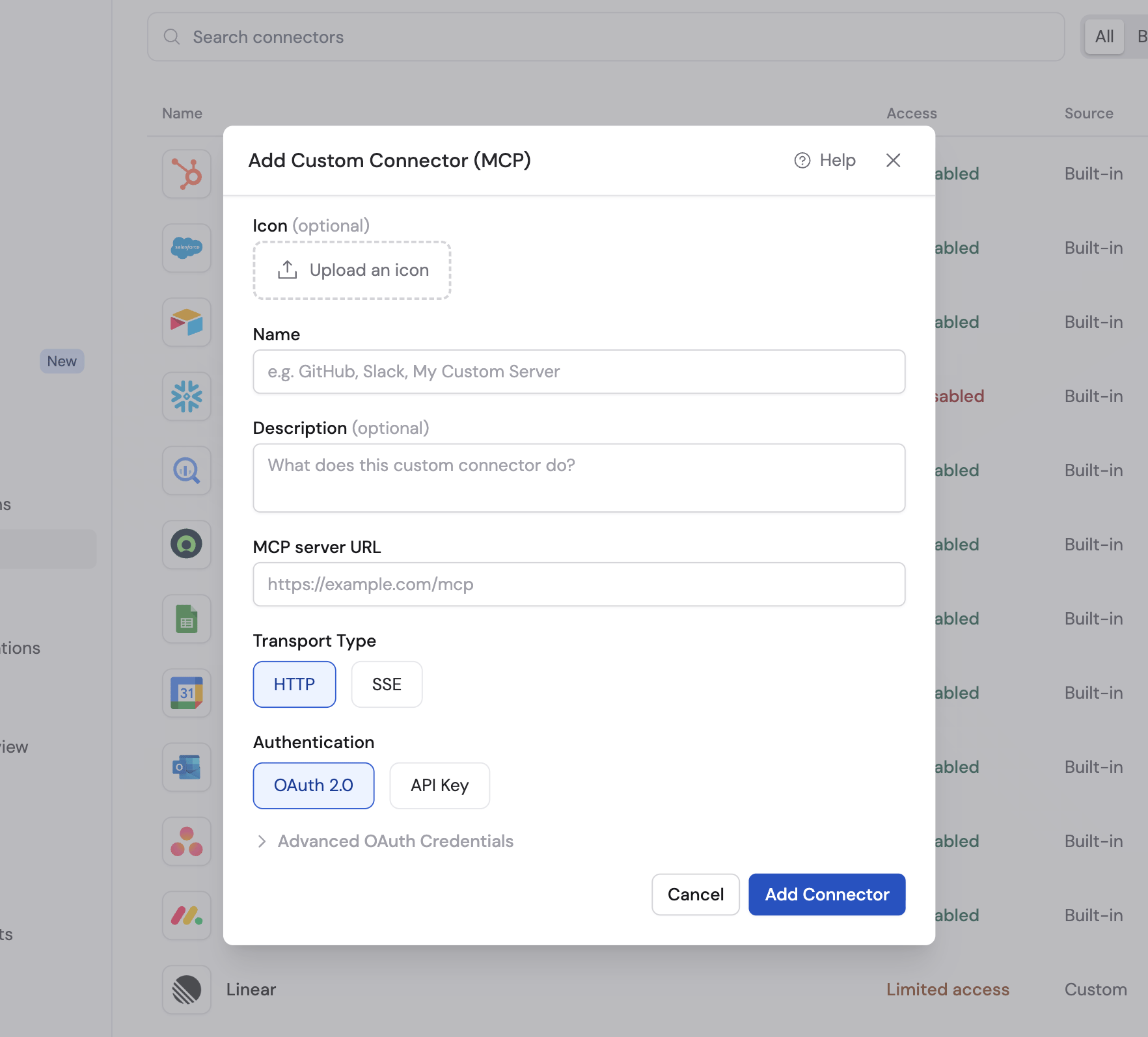
4
Fill in the details
- Icon (optional) — An image to identify the Connector.
- Name — The name people see.
- Description — What the Connector does.
- MCP server URL — The URL of your MCP endpoint.
- Transport Type — HTTP (recommended) or SSE.
- Authentication — OAuth 2.0 (recommended) or API Key, depending on what your server supports.
Advanced: customize OAuth credentials
Advanced: customize OAuth credentials
Expand Advanced OAuth Credentials to set your own OAuth app details. These are optional and usually only needed if you built the MCP server yourself.
- Client ID
- Client Secret
- Scope (e.g.,
mcp.read mcp.write) - Redirect URL — If you are building a custom OAuth app and need to register a redirect URL, use:
https://app.cassidyai.com/api/connections/mcp
5
Save
Click Add connector.
6
Choose who has access
Open the Connector’s … menu and select Manage access. Share it
with specific people or groups, or with the whole organization.A Connector shared with specific people shows as Restricted in the
catalog. You can also disable it for everyone without deleting it.
Custom Connectors that use OAuth also appear in Customize → Connectors
for the people they’re shared with, so they can be used in any chat. Custom
Connectors that use an API key don’t appear there.
Add a Custom Connector to an Agent
1
Select your Agent
Navigate to Agents, find the Agent you want to configure, click … and select Edit.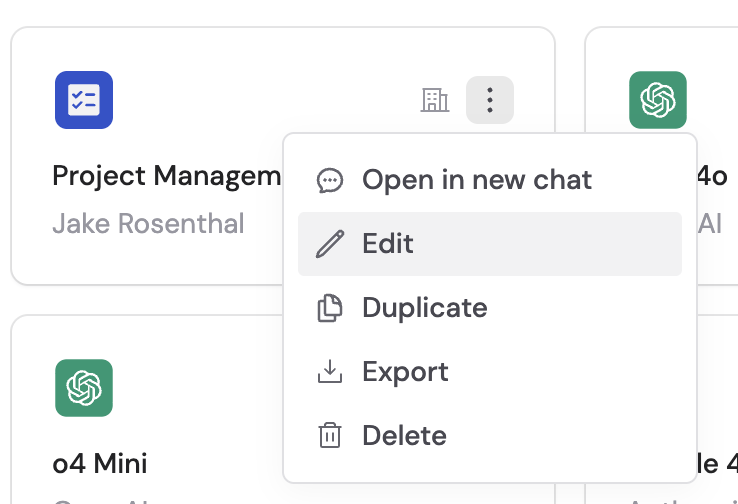
2
Navigate to Connectors
In the Setup tab, scroll to the Connectors section.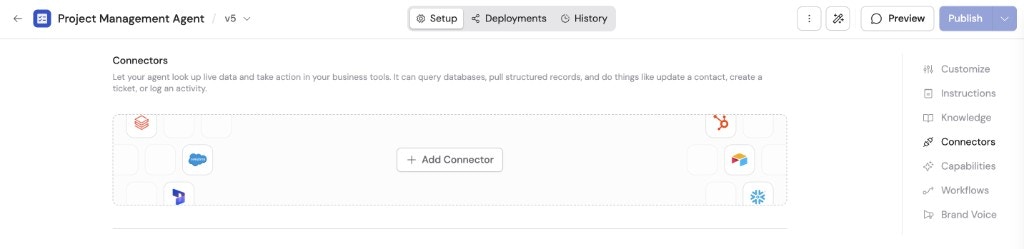
3
Add the Custom Connector
Click + Add Connector, then click + Add next to the Custom Connector.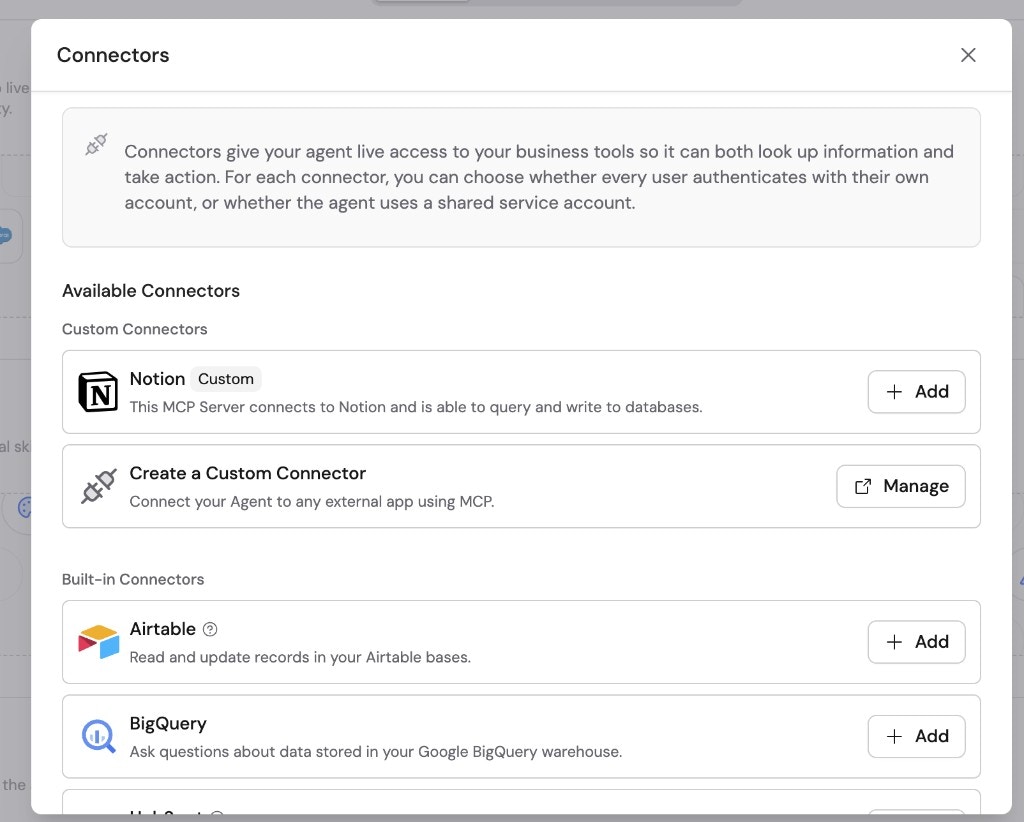
4
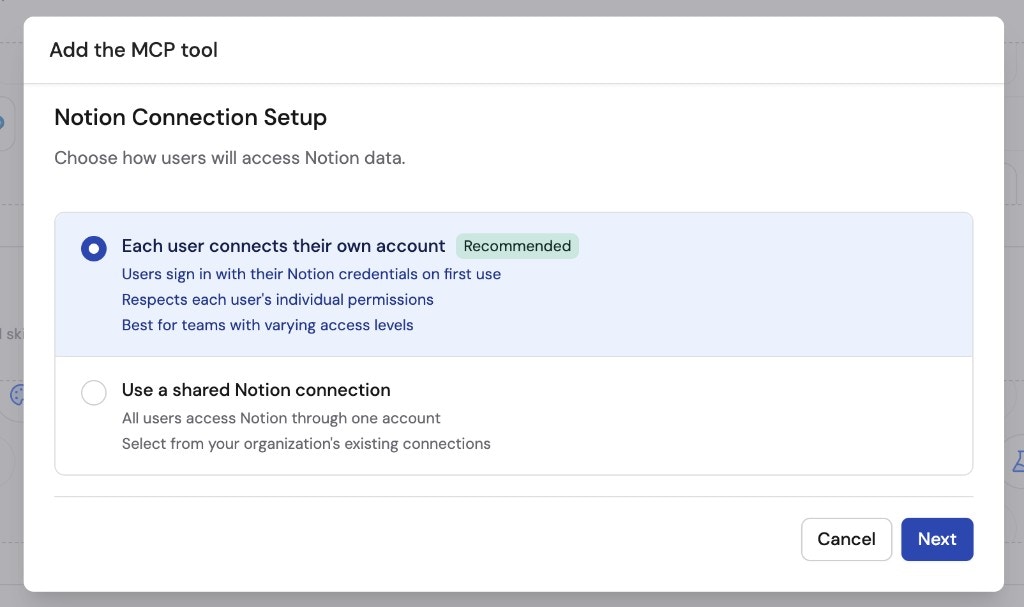
Choose a connection method
- Each user connects their own account (recommended) — People sign in the first time the Agent needs the Connector. Each person sees only what they can already see in that system.
- Use a shared connection — Everyone uses one saved account and its permissions.
5
Set up a shared connection (if selected)
If you chose Use a shared connection, select an existing shared
connection or click Create shared connection. Sign in, give the
connection a recognizable name, and choose who can use it.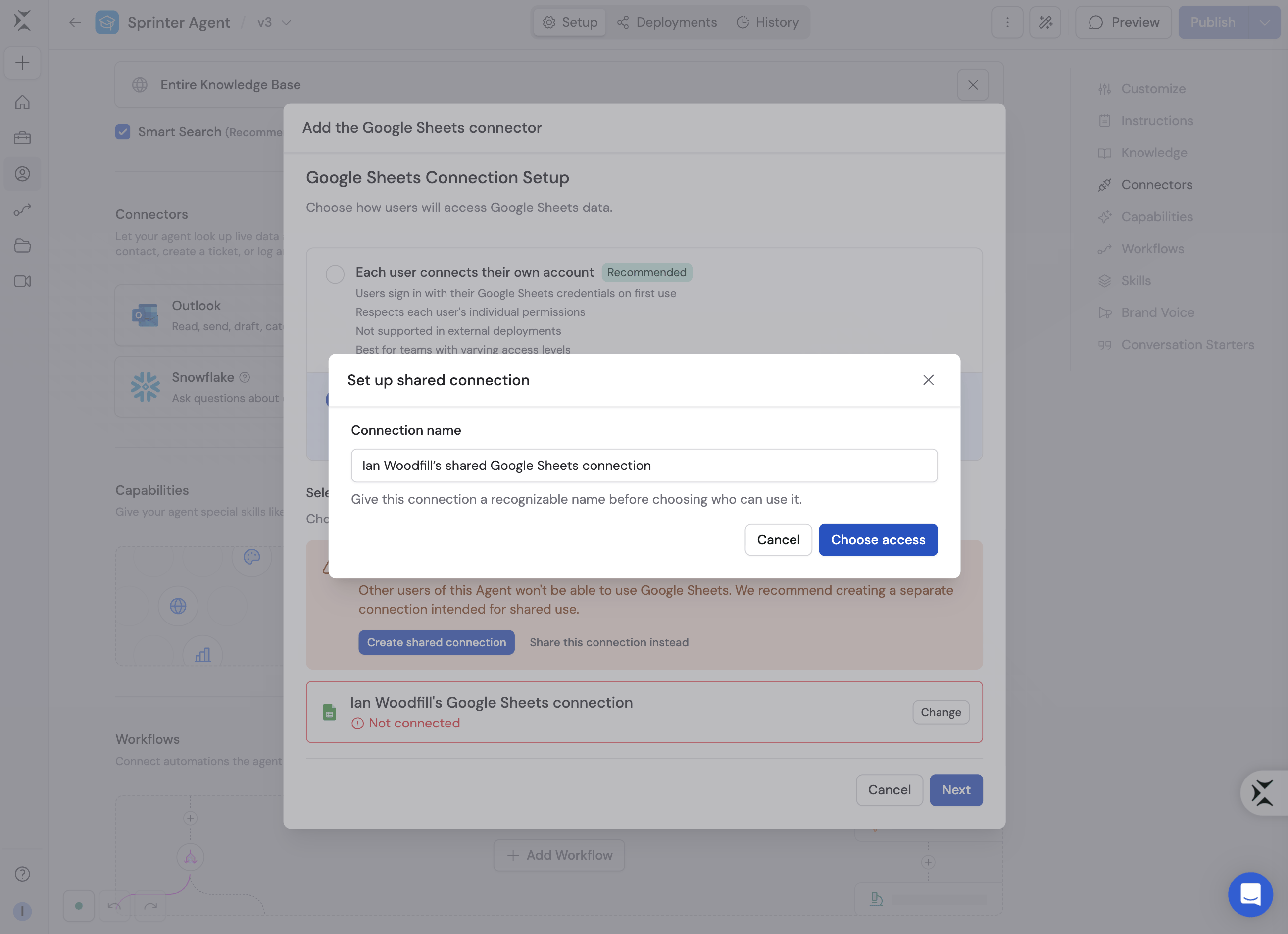
6
Set action permissions
Click Next and choose Always allow, Ask every time, or
Disabled for each action. Actions are grouped into Read, Write, and
Other categories.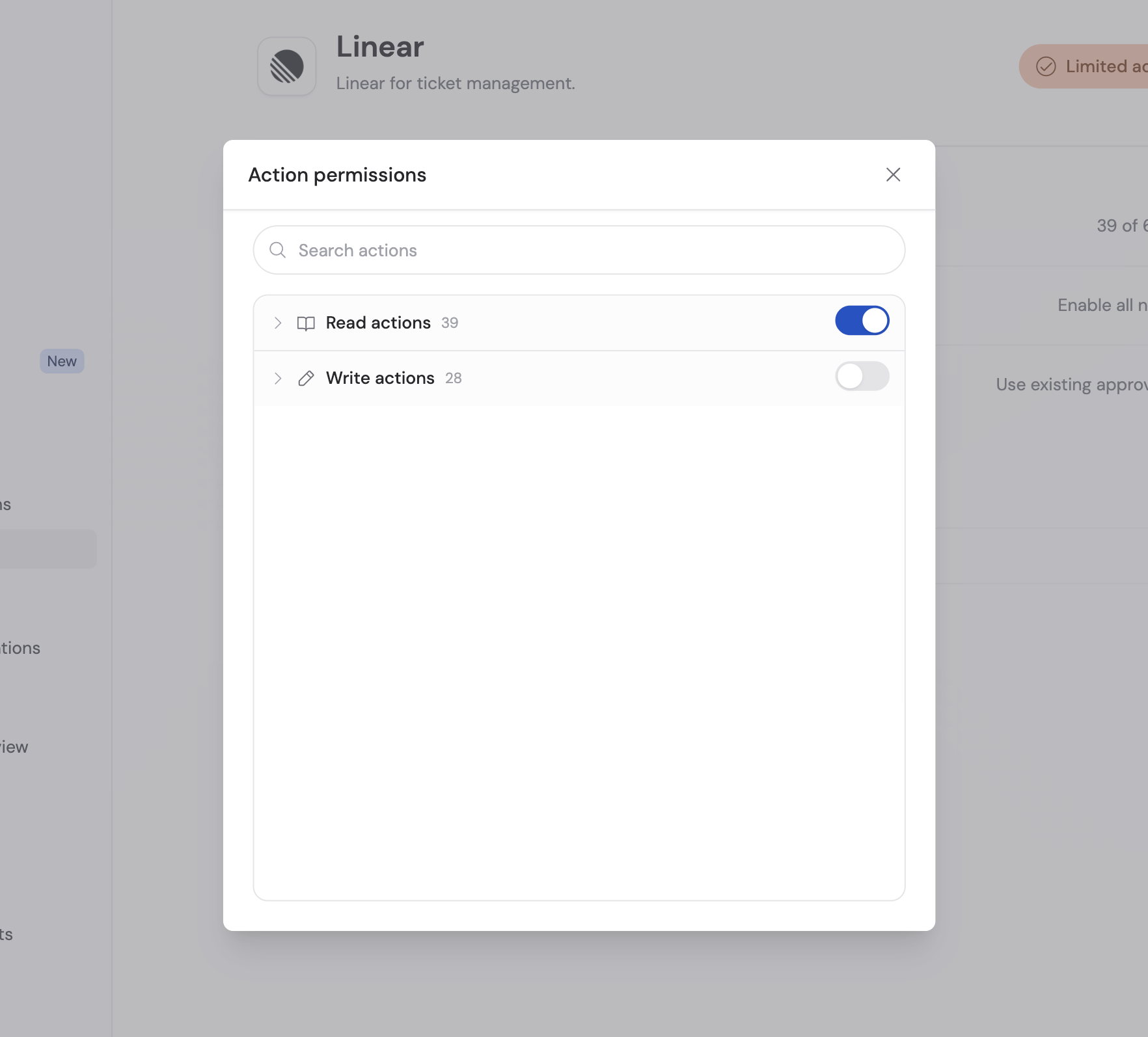
7
Add the Connector
Click Add connector, then save the Agent.
8
Start a chat
Open Chat and select the Agent.
9
Connect your account (per-user connections only)
If you chose Each user connects their own account, the Agent asks you to connect the first time it needs the Connector. Click Connect and sign in.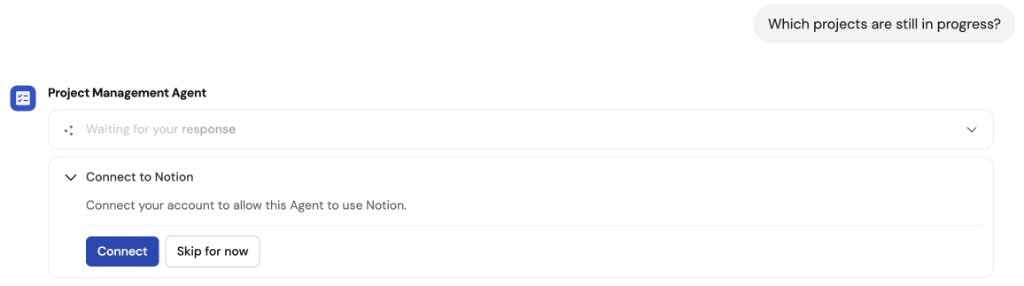
10
Ask away
The Agent can now use the Connector’s actions to answer questions and do
work in chat.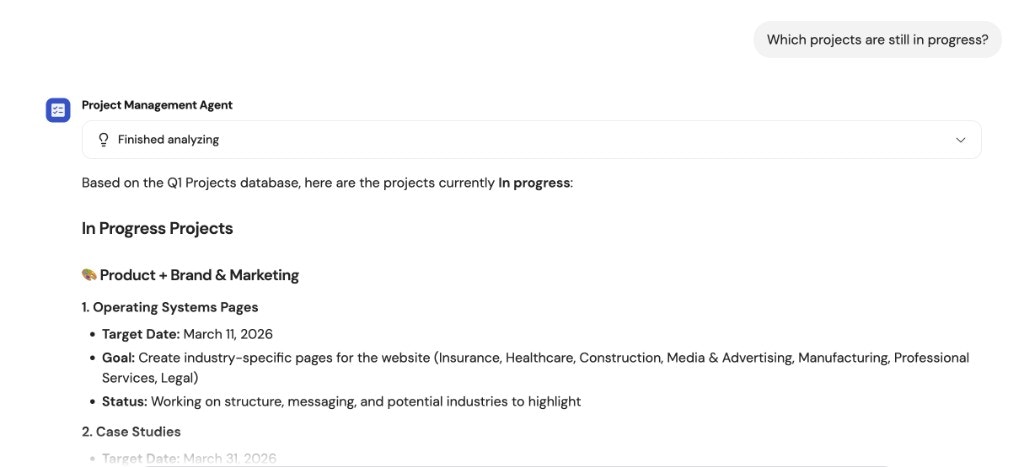
Monitor Custom Connector actions
When an Agent uses a Custom Connector, expand the action in the response to see its input and output. If an action is set to Ask every time, you can allow it once, always allow it, or deny it.Data security
Custom Connectors follow the same security model as other Connectors:- Permission-based access — The Agent can only access what the connected account can see in the external system.
- Auditability — Every action is visible in the chat where it ran.
- Shared connection control — A shared connection uses one account you control, so you decide exactly what it can reach.
Next steps
Explore all Connectors
Learn about other Connectors available for your Agents.
Learn about Agents
Understand how Agents use Connectors, Knowledge Base, and Capabilities
together.
Explore Capabilities
Add built-in skills like web search, image generation, artifacts, and
browser use.
Build a Workflow
Create multi-step automations for repeatable processes.