

Add the Salesforce Connector
1
Select your Agent
Navigate to Agents, find the Agent you want to configure, click … and select Edit.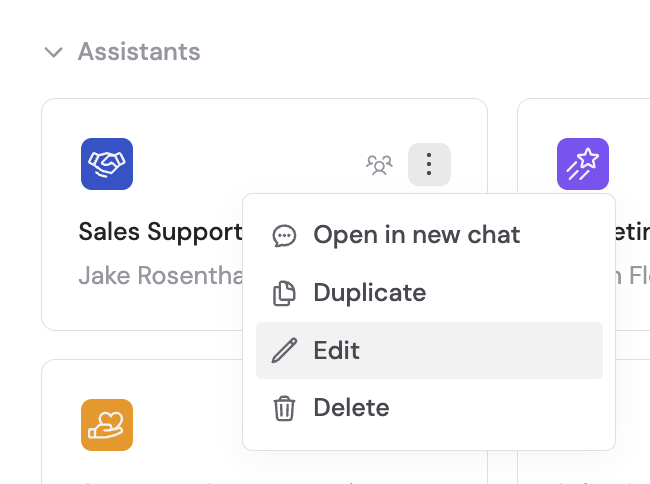
2
Open the Connectors section
In the Agent editor, go to the Setup tab and scroll to the Connectors section.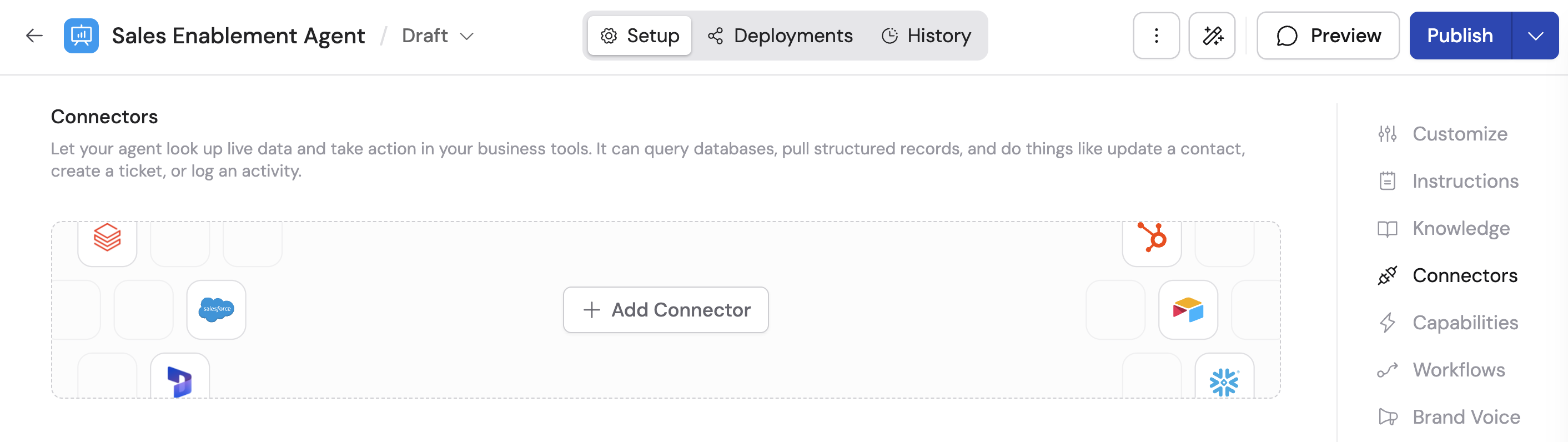
3
Add Salesforce
Click + Add Connector and then click + Add on the Salesforce option.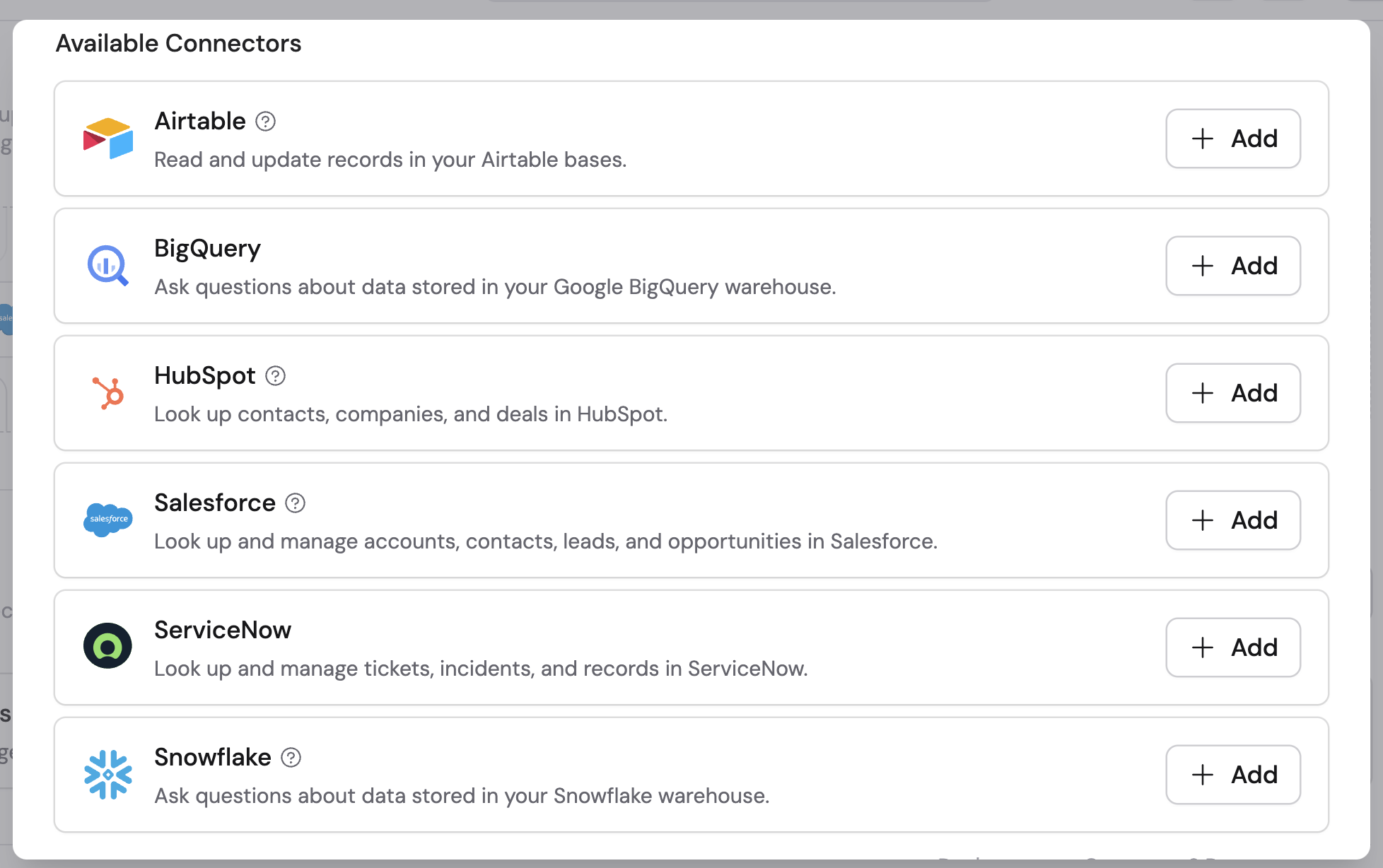
4
Choose your connection method
Select how users authenticate with Salesforce: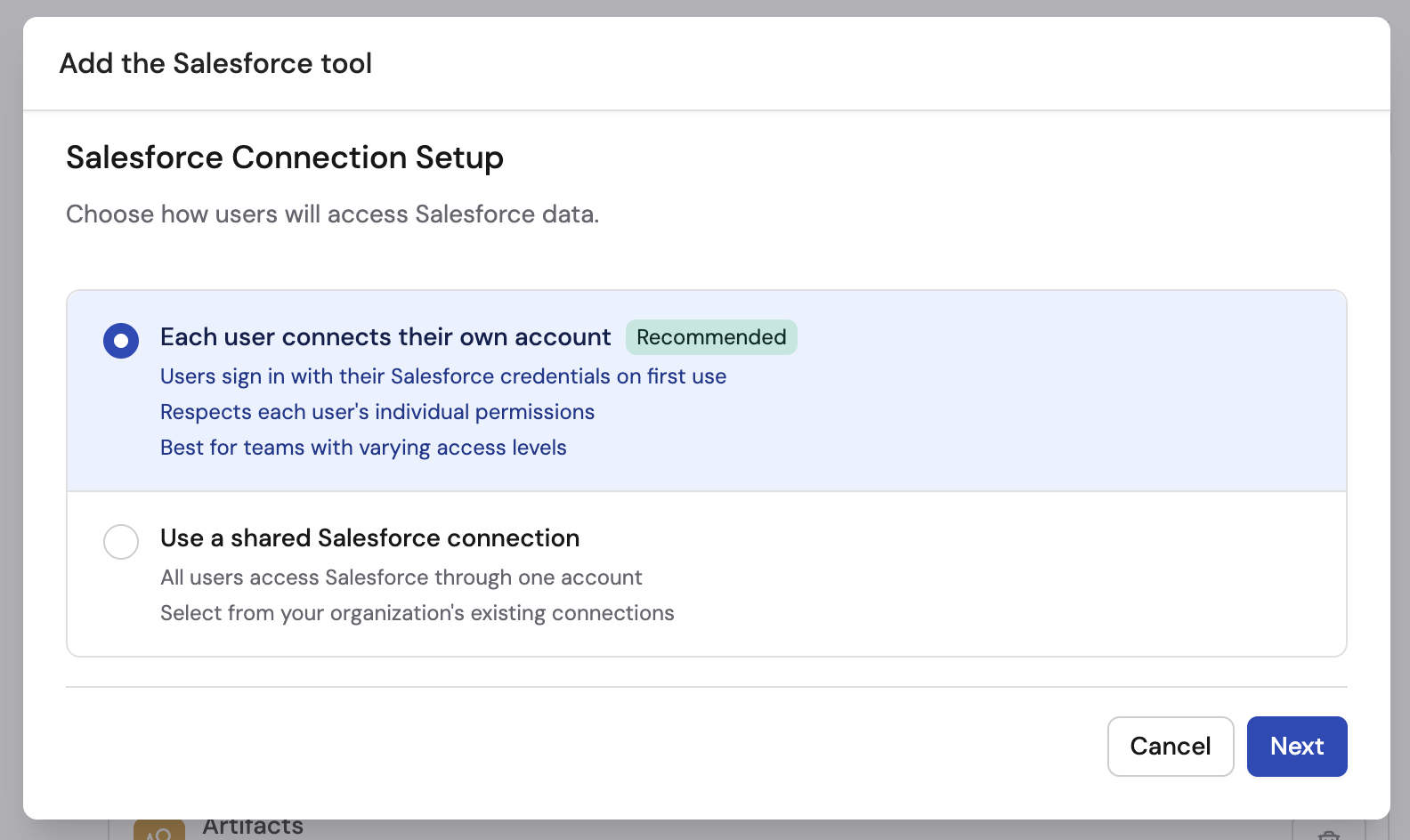
- Each user connects their own account (recommended) — Each team member connects their personal Salesforce account. The Agent can only access what each user has permission to see in Salesforce.
- Use a shared Salesforce connection — Connect a dedicated service account that everyone shares. Anyone who can connect Salesforce can set one up and choose who may use it.
5
Set up a shared connection (if selected)
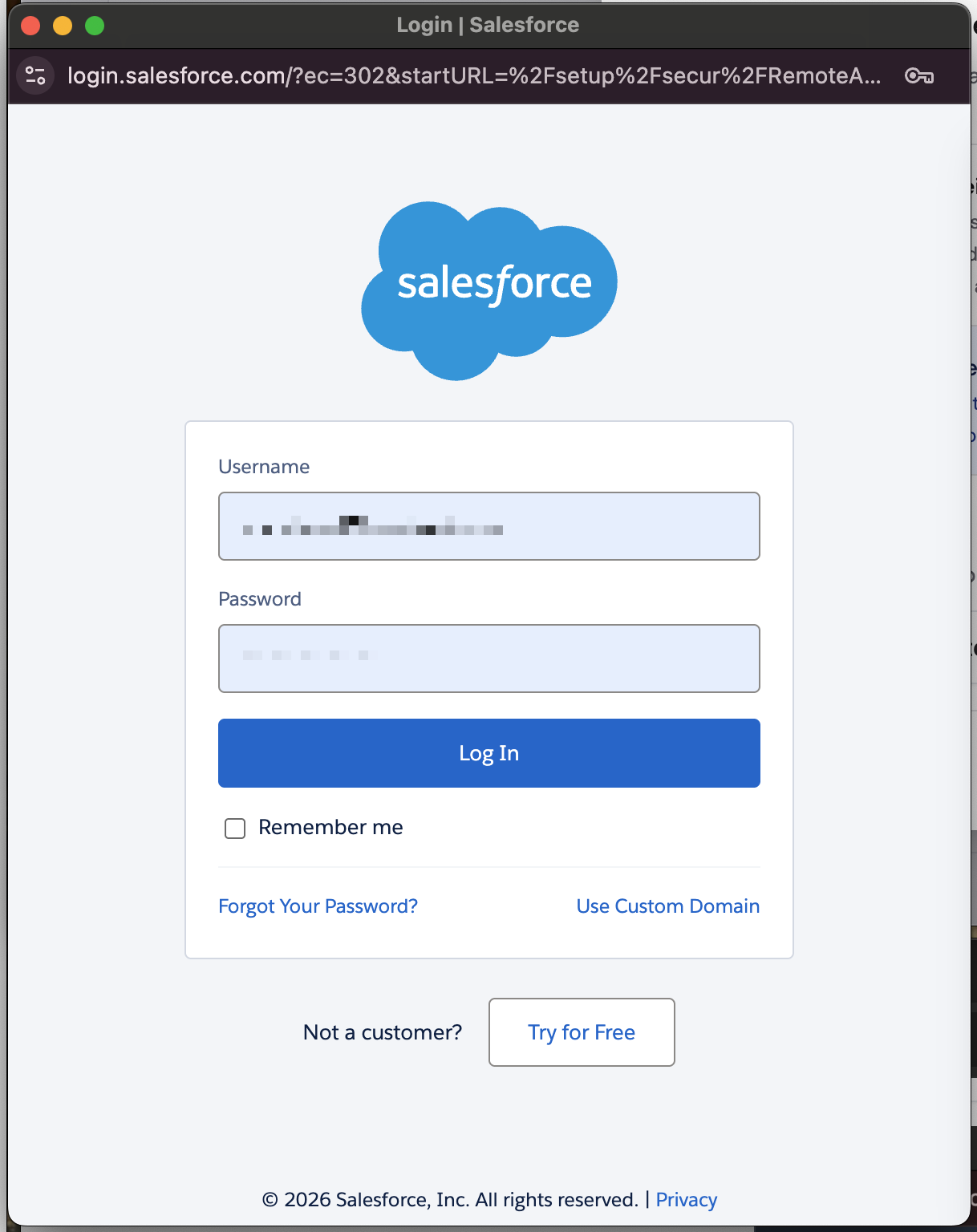
If you chose the shared option, click Connect to sign in with the service account and accept the access request.

6
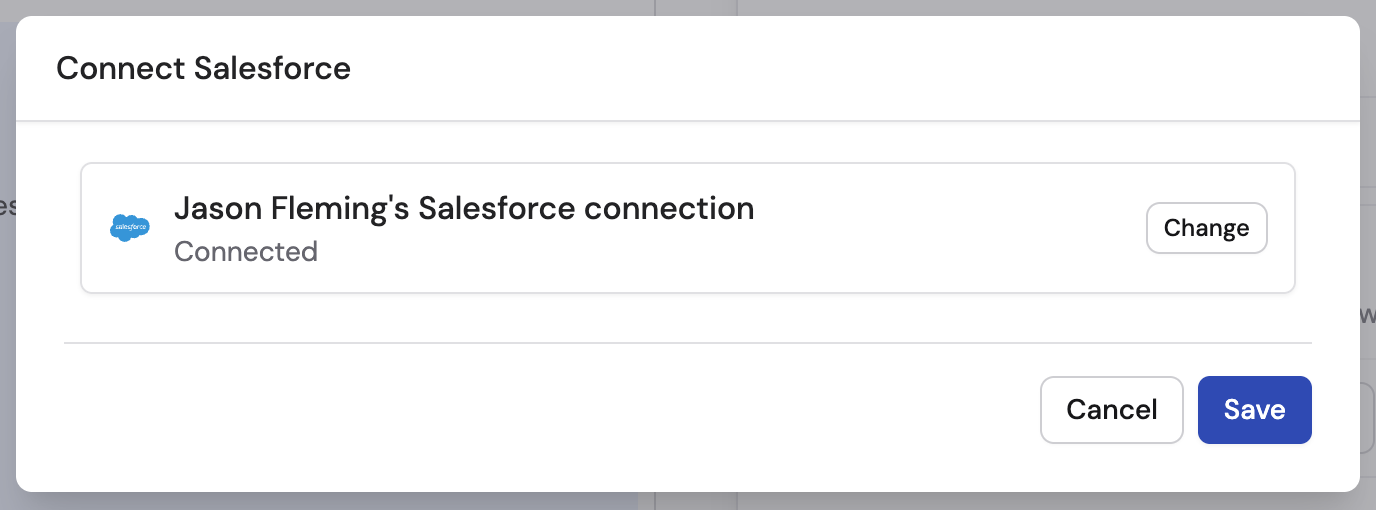
Choose who can use a shared connection
Give a new shared connection a recognizable name, then add specific people
or groups or change General access.
7
Configure action permissions
Set a permission for each Salesforce action:
- Always allow — The Agent performs the action automatically when needed
- Ask every time — The Agent asks the user before taking the action
- Disabled — The Agent cannot perform the action
8
Start a conversation
Navigate to Chat and select the Agent with the Salesforce Connector enabled.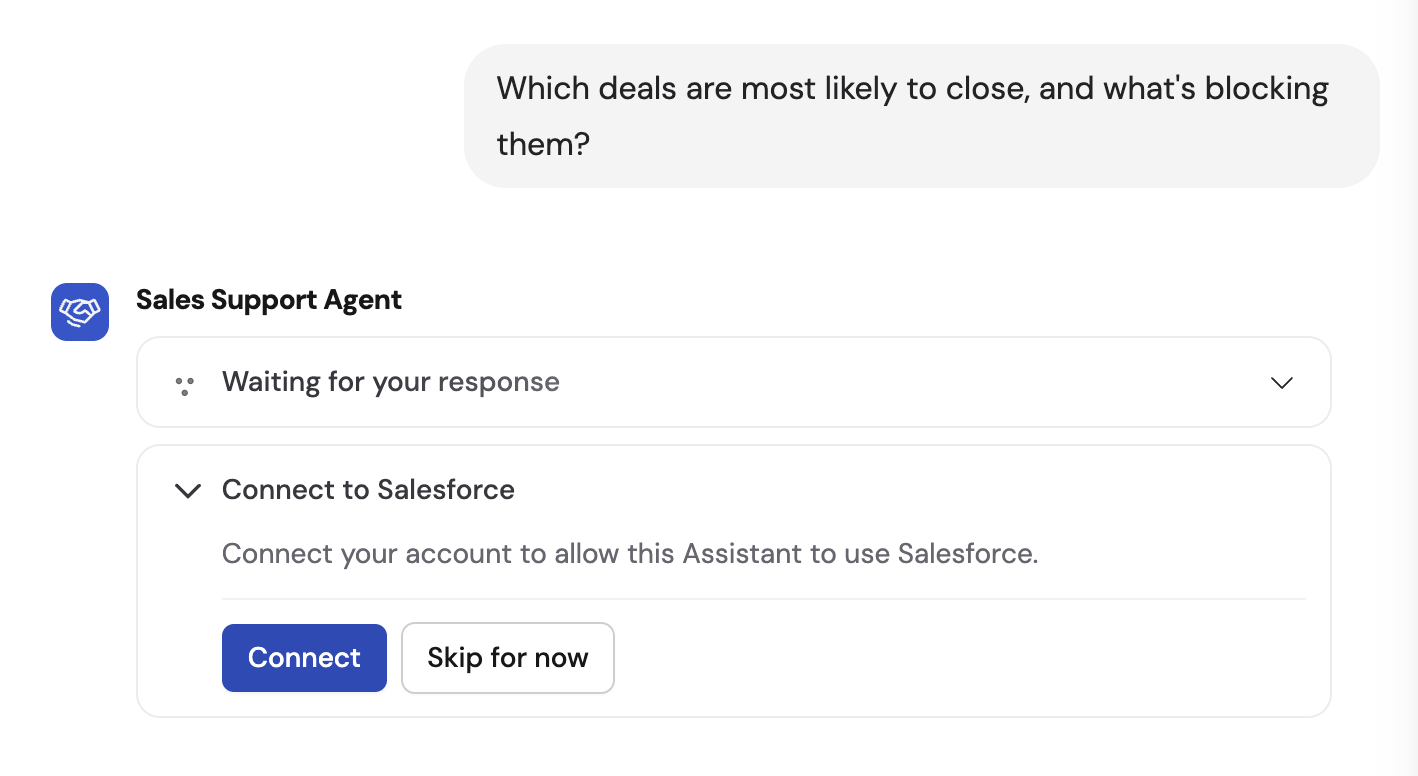
Connect Salesforce for yourself
To use Salesforce in any chat, not just with this Agent, open Customize → Connectors, find Salesforce, and click Connect. See Add a Connector for yourself.Monitor Salesforce actions
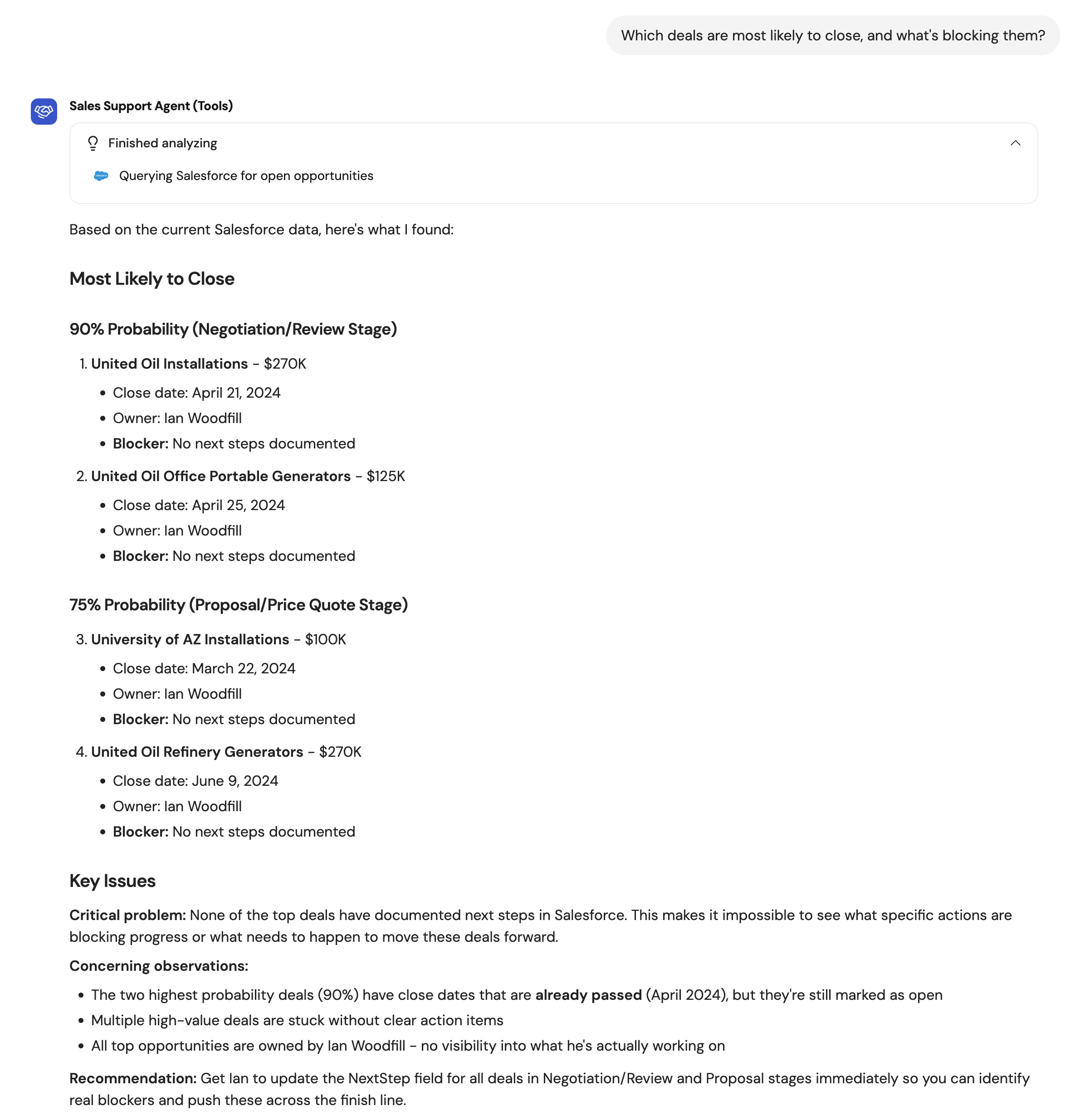
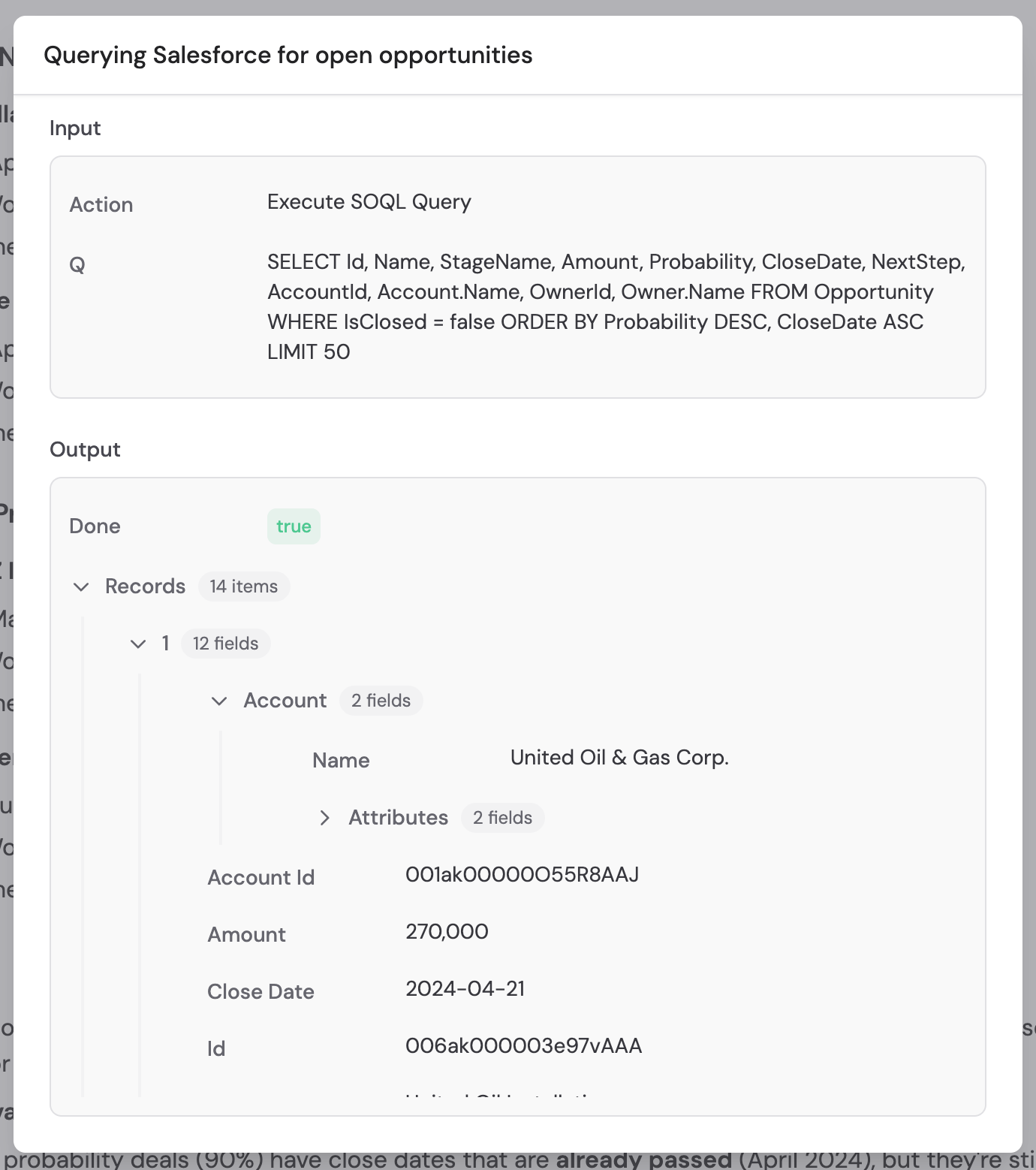
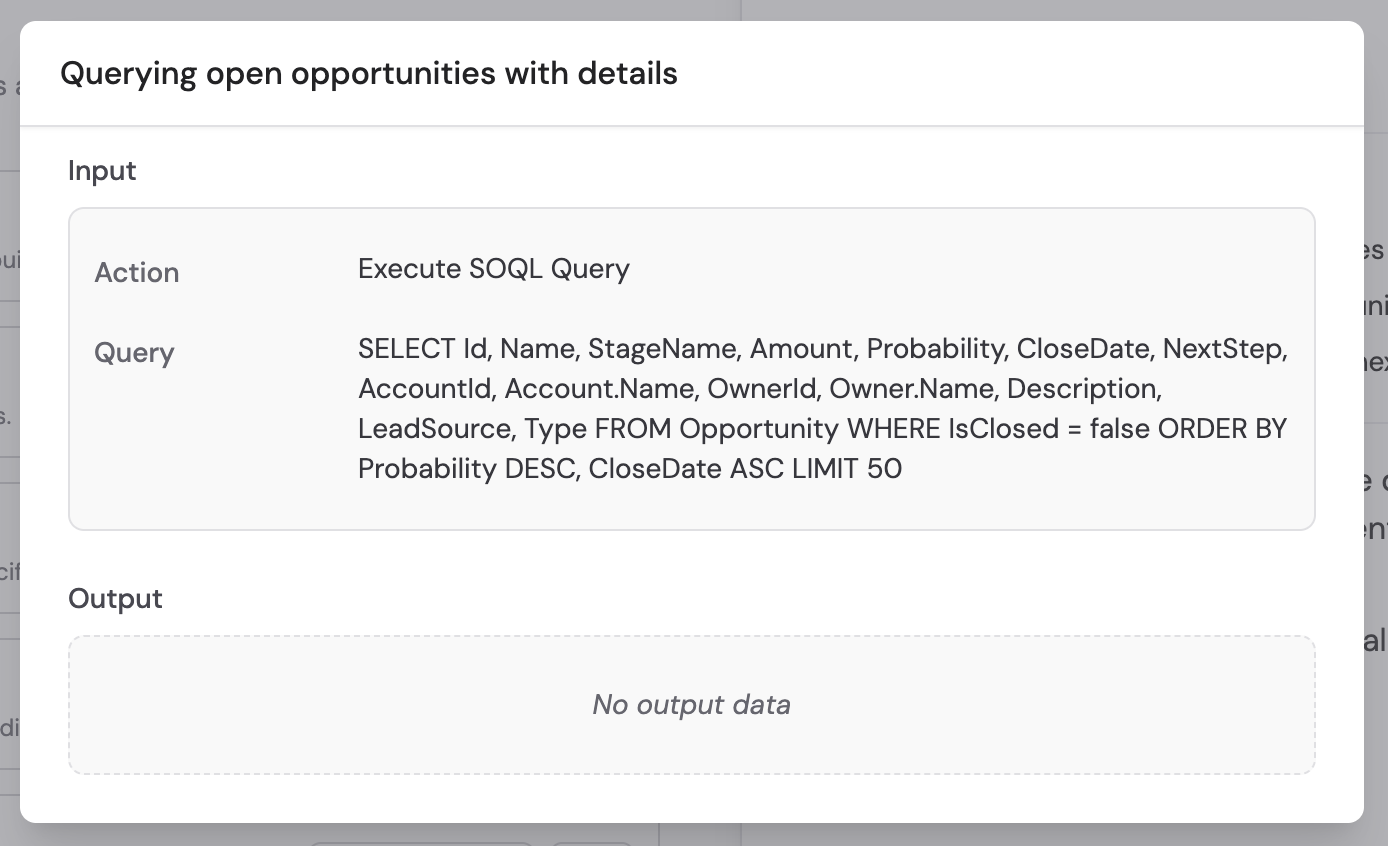
When an Agent uses the Salesforce Connector, expand the action in the response to see its input, result, and approval status.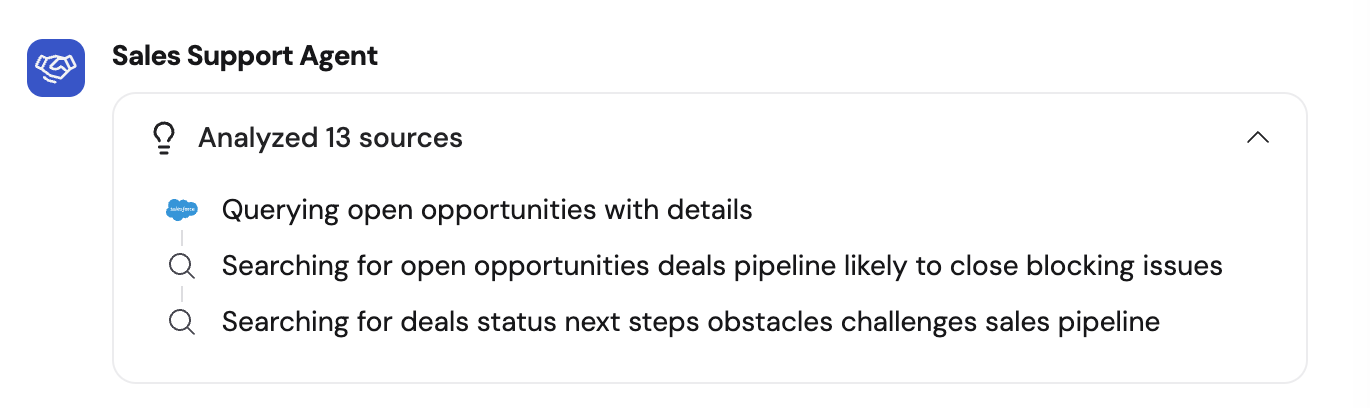
Data security
- Permission-based access — The Agent can only access what the connected Salesforce account has permission to see
- Auditability — All queries and actions are logged in your Agent’s activity history
- Service account control — Using a service account lets you define exactly what objects, fields, and records are accessible
- No data stored — Salesforce data is accessed in real time and never copied or stored in Cassidy
Advanced: OAuth scopes
Advanced: OAuth scopes
This integration uses standard Salesforce OAuth scopes (
full and
refresh_token) to securely access your data. If your organization requires
custom scopes, contact support@cassidyai.com.Troubleshooting: OAuth connection error
Troubleshooting: OAuth connection error
If you see an OAuth error like 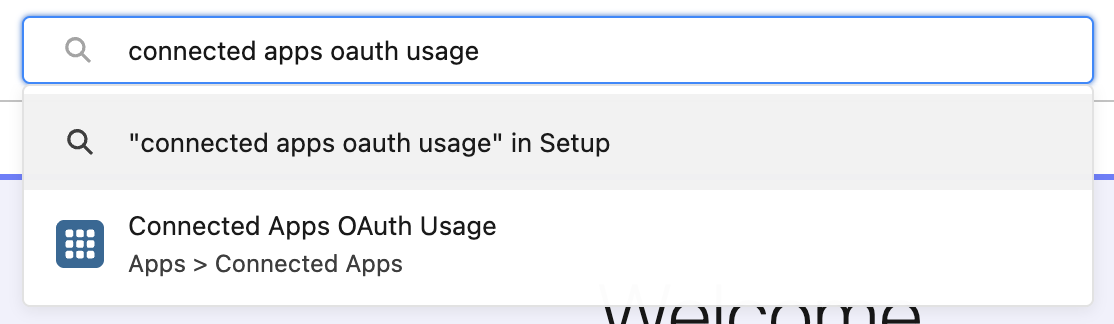
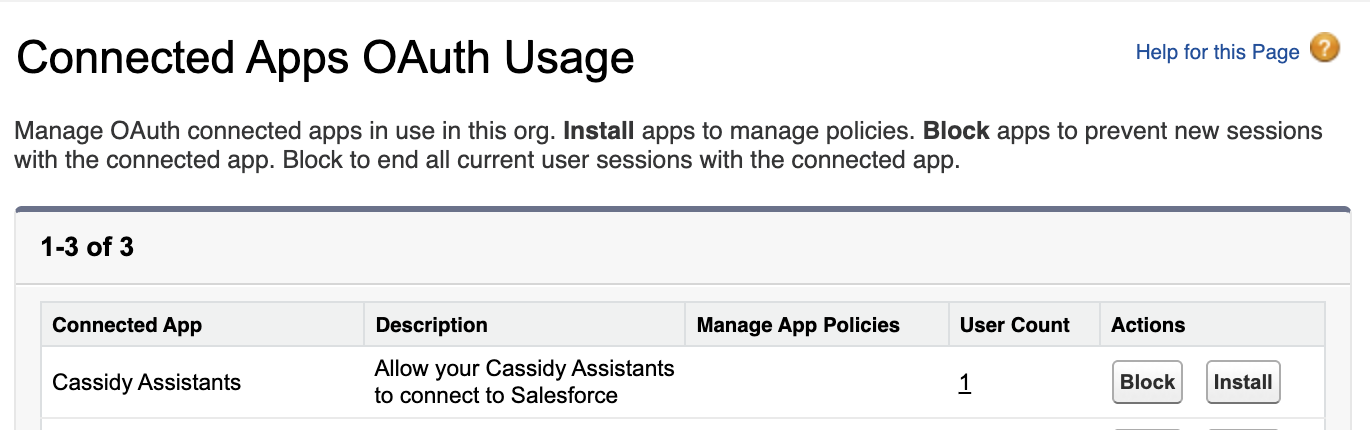
OAUTH_APPROVAL_ERROR_GENERIC, follow these steps:- Have an authorized user connect first — Ask a user with the Approve Uninstalled Connected Apps permission in Salesforce to connect. Users with the System Administrator profile have this permission by default.
- Install the Cassidy app in Salesforce — Once the authorized connection is made, your Salesforce admin should:
- Go to the Connected Apps OAuth Usage page in Salesforce Setup
- Find the Cassidy Assistants app
- Click Install
Next steps
Knowledge Base
Set up your Knowledge Base for AI-powered context across Agents and
Workflows.
Salesforce for Workflows
Automate Salesforce record changes with Workflow triggers and actions.