

Set up the Google Sheets Connector on an Agent
1
Navigate to your Agent
Go to Agents, select the Agent you want to configure, and open the
Setup tab.
2
Add the Google Sheets Connector
Scroll to the Connectors section, click + Add Connector, and select
Google Sheets.
3
Choose a connection method
Select how users will authenticate:
- Each user connects their own account (recommended) — each person signs in with their own Google credentials, so the Agent only sees spreadsheets that person can access.
- Use a shared connection — everyone uses one Google account. Best when the team works from shared spreadsheets owned by a service account.
4
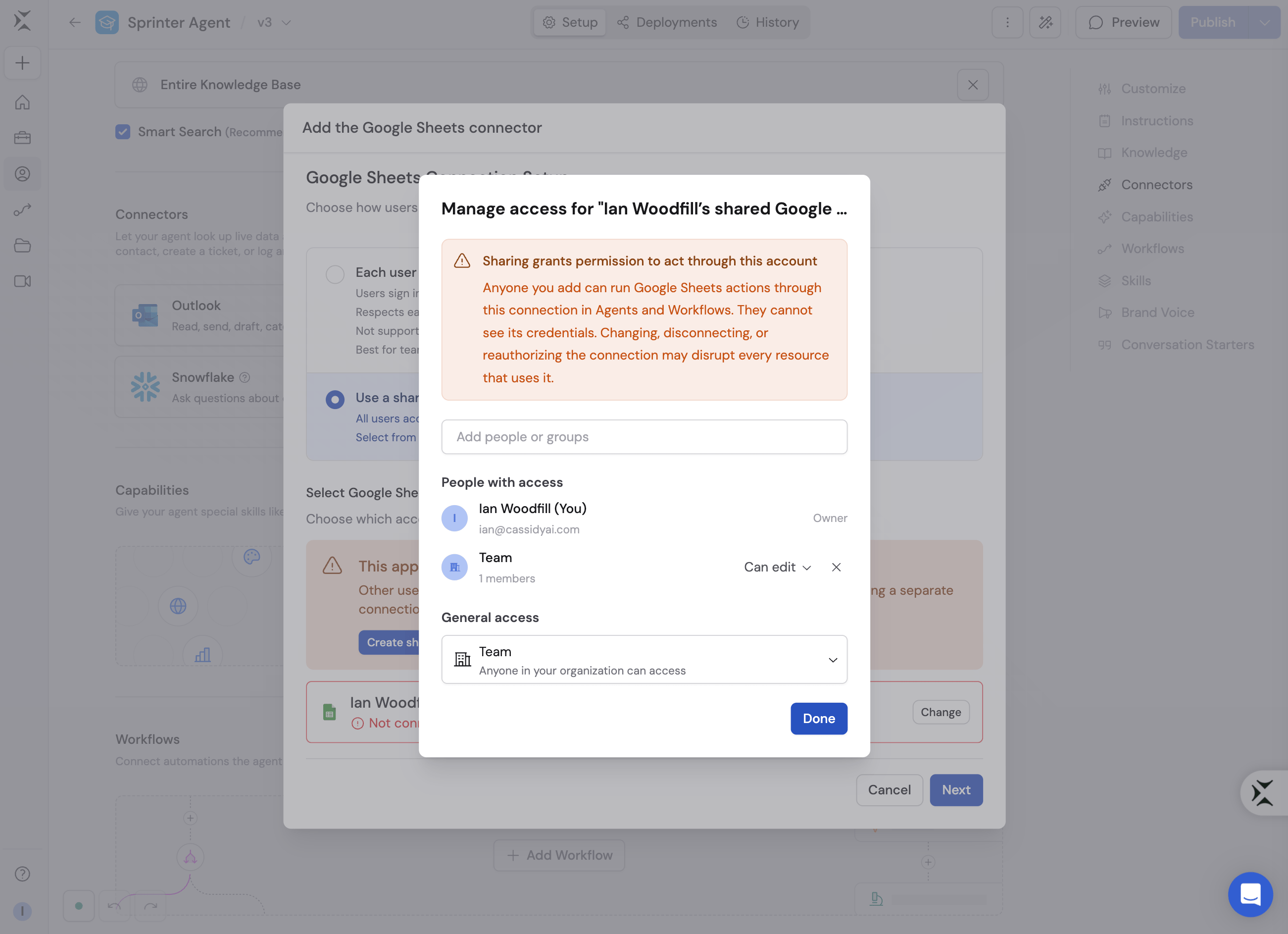
Set up a shared connection (if selected)
Create a shared connection, complete the Google sign-in, and give the
connection a recognizable name.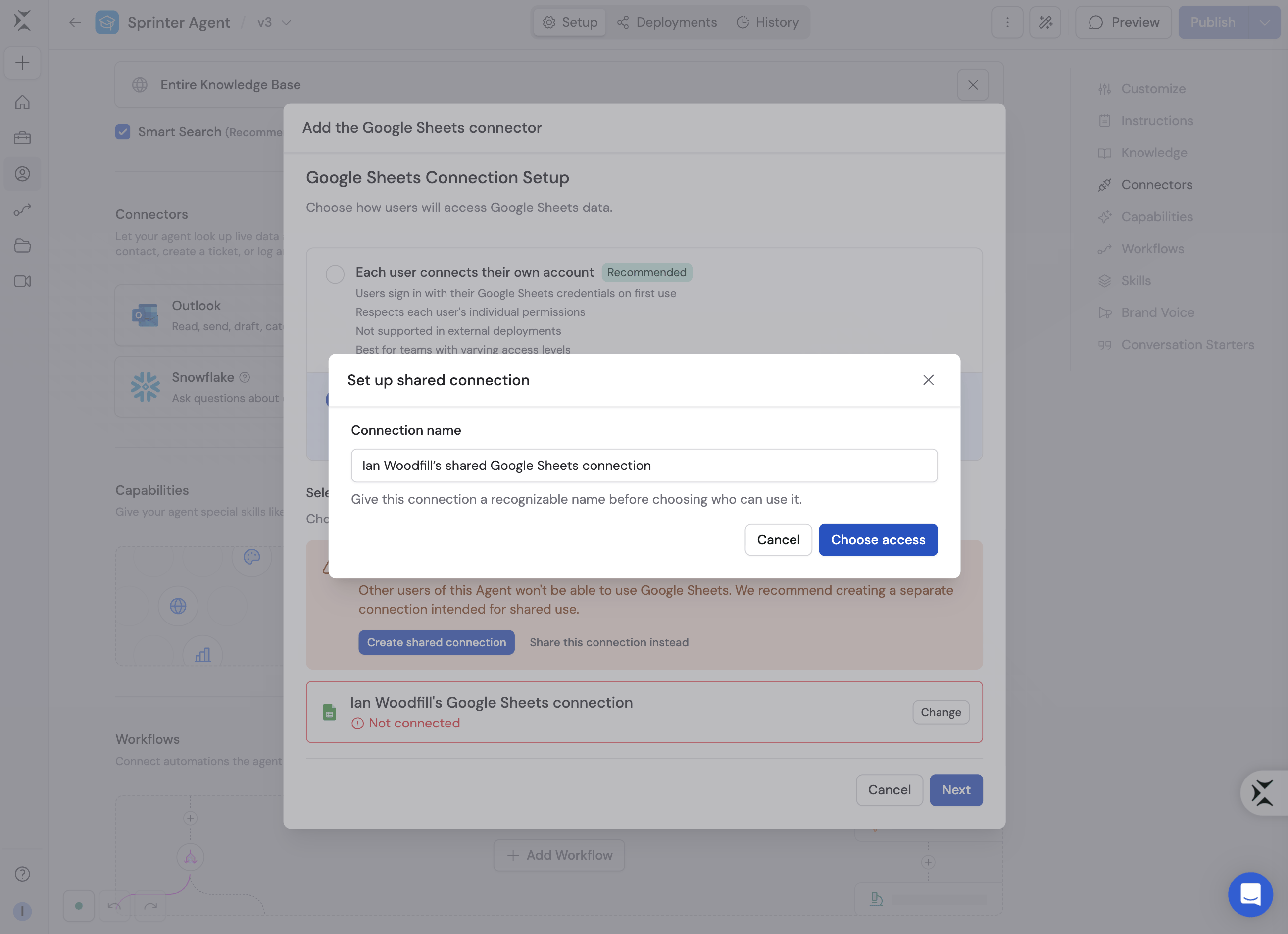
5
Configure action permissions
Google Sheets actions are grouped into three categories. Set each category
— or individual actions within it — to Always allow, Ask every
time, or Disabled:
- View Data — Search spreadsheets, get spreadsheet info, sheet names, and cell values. Allowed automatically by default.
- Create & Modify — Create spreadsheets, add rows and columns, update or append values. Disabled by default until you enable it.
- Remove Data — Delete sheets or clear cell values. Disabled by default.
6
Save and start a conversation
Click Add connector, save the Agent, and start a chat. With a per-user
connection, each person is prompted to connect their Google account the
first time the Agent uses Google Sheets.
Connect Google Sheets for yourself
To use Google Sheets in any chat, not just with this Agent, open Customize → Connectors, find Google Sheets, and click Connect. See Add a Connector for yourself.What your Agent can do
Try prompts like:
- “Summarize this spreadsheet: [link]”
- “Add a row to [link] with yesterday’s numbers”
- “What changed in the Q3 pipeline sheet this week?”
Data security
Spreadsheet data is queried in real time and is not imported or indexed in Cassidy. With per-user connections, the Agent can only access spreadsheets the signed-in person can access in Google.Next steps
Connectors overview
Learn how Connectors, approvals, and personal connections work.
Google Sheets for Workflows
Trigger Workflows from spreadsheet changes and manage sheet data
automatically.