

Set up Epic for your agency
Prerequisites: The Manage Connectors privilege in Cassidy.
1
Get a production app in Applied DevCenter
If your agency already has a production app with the Epic APIs you need,
use its credentials and continue to the next step. Otherwise:
- Create an account in Applied DevCenter.
- Create a mock app under My Workspace → Mock Apps, selecting these API products: Clients, Contacts, Policies (v2), Companies, Organizations, CRM Module, Attachments (v2), and Attachment Folders.
- Request App Promoter permission. Contact your system administrator or use Contact Us in Applied DevCenter.
- Request production access. Select your mock app, click Promote to Prod, and submit the request to Applied for approval.
- Get your production credentials. Once approved, find your app under My Workspace → API Projects and copy its Consumer Key and Consumer Secret for the Cassidy setup below.
Applied says production promotion requests can take two to five business
days. Getting App Promoter permission can add more time, so start this
process well before your Cassidy rollout.
2
Open the Applied Epic Connector
Open Organization Settings → Connectors and find Applied Epic.
If its status is Disabled, enable it from the status menu. See Manage
Connectors for your organization.
3
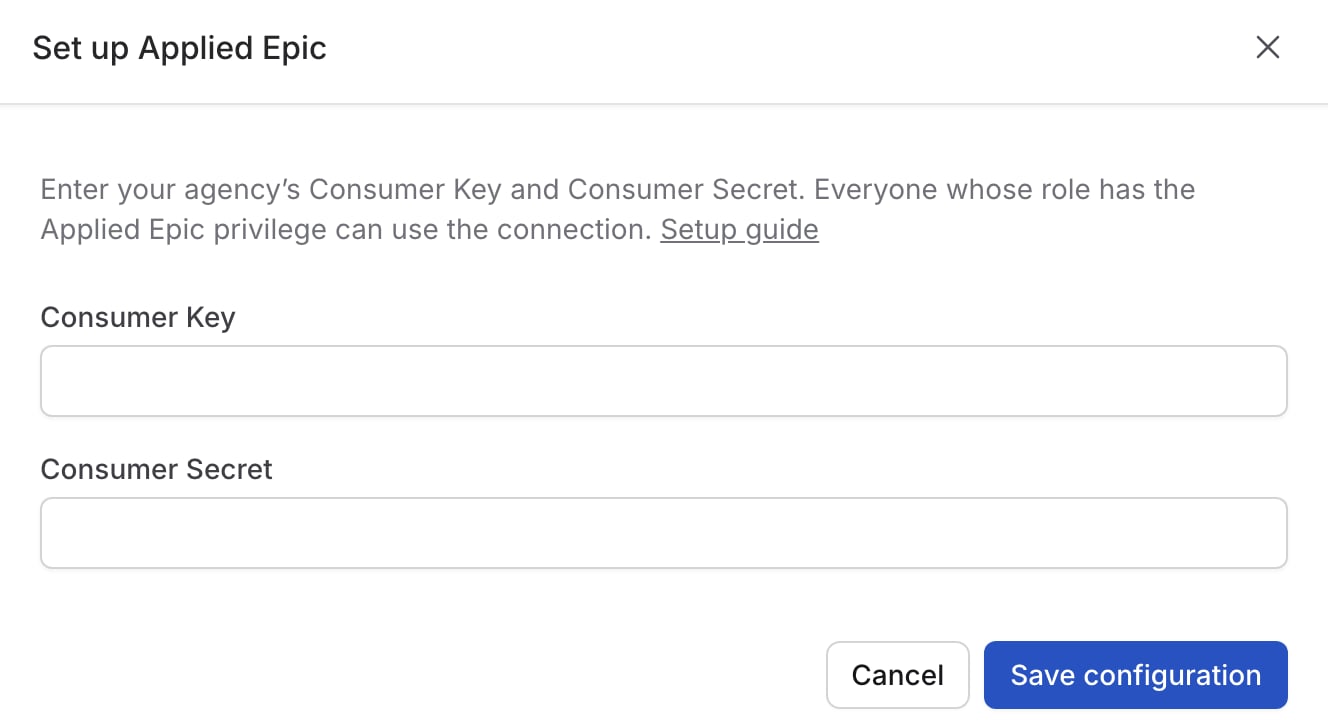
Enter your agency's credentials
Choose Set up from the Connector’s menu, then enter the Consumer Key and
Consumer Secret. Cassidy checks them with Epic before saving.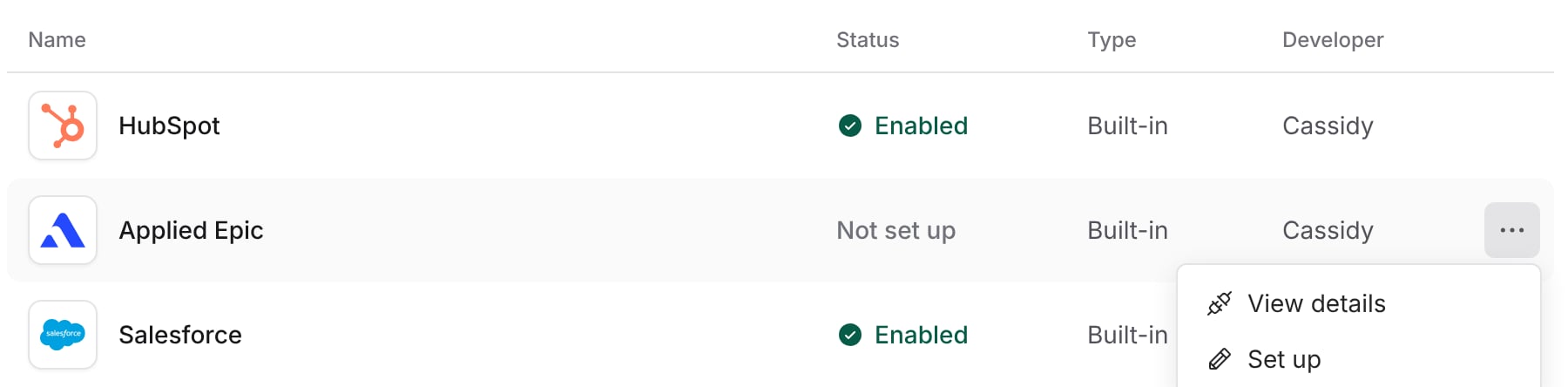
4
Check role privileges
Everyone whose role has the Applied Epic privilege can use the
connection. The Access section on the connector’s page lists those roles.
See See who can use a
Connector.
5
Choose which actions are on
Open Action permissions to turn off anything your agency shouldn’t use.
See Choose what Agents can do below.
Choose what Agents can do
Epic actions are grouped into four categories:
You control these settings at two levels:
- For your organization — An admin can turn actions off for everyone or require approval before they run. Nobody can go past these limits. See Action permissions.
- For each Agent — Whoever builds the Agent can make its settings stricter, for example by asking before every client update. See Action approvals.
Add Epic to an Agent
1
Open the Agent's Connectors
Edit the Agent and scroll to Connectors in the Setup tab.
2
Add Applied Epic
Click + Add Connector and add Applied Epic. There’s no connection to
choose; the Agent uses your agency’s connection.
3
Set action permissions
Choose Always allow, Ask every time, or Disabled for each
category or action.
4
Save and publish
Click Save or Publish.
Use Epic in your own chats, Skills, and Workflows
- Your own chats — Open Customize → Connectors, find Applied Epic, and click Add connector. You don’t enter any credentials. Turn the toggle off to pause Epic in your chats, or click Remove to clear your personal settings.
- Skills — Add Applied Epic to a Skill like any other Connector.
- Workflows — Add Applied Epic to a Generate Text action. You need the Applied Epic privilege to use it in a Workflow. Actions that need approval can’t run in a Workflow, because nobody is there to approve them.
Deploy an Agent that uses Epic
When you deploy an Agent to Slack, Microsoft Teams, Google Chat, email, or a website, it uses your agency’s Epic connection for everyone who can reach it. Those people don’t need the Applied Epic privilege in Cassidy.Change or remove the agency setup
- Edit credentials replaces the Consumer Key and Consumer Secret. The connection stays the same. You re-enter the secret each time.
- Delete configuration removes the credentials, the connection, and everyone’s personal Epic settings. Organization action permissions are kept. Agents can’t use Epic until an admin sets it up again.
Troubleshooting
An Agent says to ask an administrator to set up Applied Epic
An Agent says to ask an administrator to set up Applied Epic
Nobody has set up your agency’s connection yet, or it was deleted. An admin
needs to set up Epic.
An Agent says you don't have access to Applied Epic
An Agent says you don't have access to Applied Epic
Your role needs the Applied Epic privilege. Ask an admin to update your
role.
An action says your agency's Applied app doesn't include this API
An action says your agency's Applied app doesn't include this API
Your agency’s app in the Applied Developer Center is missing that part of
the Epic API. An admin can add it there. You don’t need to change anything
in Cassidy.
An action says it requires a newer version of Applied Epic
An action says it requires a newer version of Applied Epic
Some actions only work with recent Epic releases. Ask whoever manages your
Epic system about upgrading, or turn the action off.
An Agent says the Applied Epic credentials are invalid
An Agent says the Applied Epic credentials are invalid
The Consumer Key or Consumer Secret has changed or expired. An admin can
replace them with Edit credentials.
An Agent can't open an attachment
An Agent can't open an attachment
Turn on Code Execution & File
Creation for the Agent, and
check that Read documents is on.
Next steps
Manage Connectors for your organization
Set organization-wide action permissions and approval requirements.
Connectors overview
Learn how Connectors, connections, and approvals work across apps.