

Why API keys work this way
Putting an API key in instructions, code, or a file would allow an Agent or anyone who can open the Skill to read and copy it. API Keys & Headers avoids exposing the credential:- The Agent and Skill code receive the API host and header name, but not the secret value.
- The code sends a request without containing the credential.
- Cassidy adds the secret header at the network layer as the request goes to the matching host.
When to use this
Use API Keys & Headers when you want to give Agents programmatic access to a service that does not have a Cassidy Connector or an official MCP server. For example, you could create a Skill that:- Looks up customer, order, inventory, or account information from an internal API
- Runs approved reports against an internal analytics service
- Checks the status of private systems or operational processes
- Creates tickets or starts approved internal processes
- Works with a legacy or specialized business system that does not offer a ready-made integration
Before you start
You need:- Edit access to the Skill
- An API key, token, or other credential from the service you want to connect
- The API’s hostname and required authentication header
- Instructions or code in the Skill that knows how to call the API
Connect the Skill
1
Check the API's authentication instructions
Find the hostname, header name, and value format in the API provider’s documentation.For example, an API may require:
- Host:
api.example.com - Header:
Authorization - Value:
Bearer YOUR_API_KEY
X-API-Key and expect only the key as its value.2
Open API Keys & Headers
Open the Skill editor, select More options → Advanced → API Keys & Headers, then click Add Host.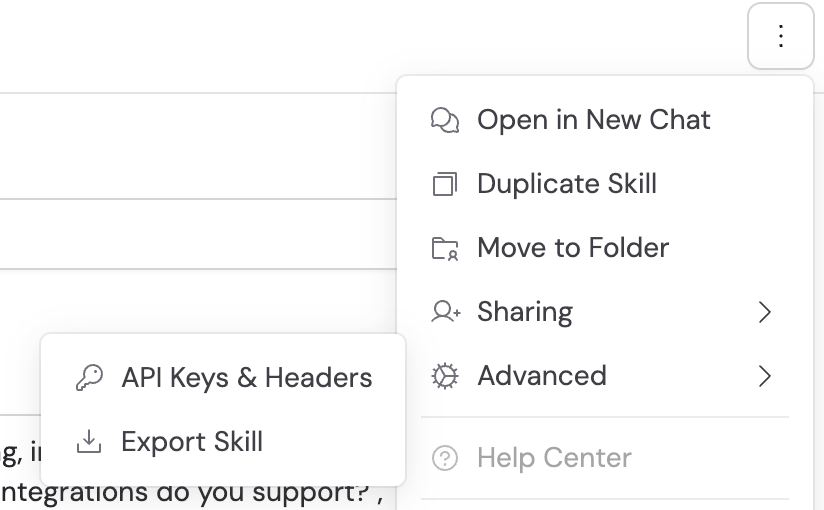
3
Enter the API host
Enter only the hostname, such as
api.example.com.Do not include https://, a path such as /v1, or a port number.4
Add the authentication header
Enter the header name required by the API. For credentials, select Secret and enter the complete value expected by the provider.For a bearer token, include the Use Public parameter only for non-sensitive values that Skill editors can safely read, such as an API version or environment name.
Bearer prefix:5
Save and test the Skill
Click Save, then use the Skill in a test chat and confirm that the API request succeeds.Test both a successful request and a request the credential should not be allowed to perform.
How Cassidy protects secret values
- Secret values are hidden after you save them. Editors can see that a value exists, but cannot retrieve it.
- Cassidy adds the configured headers only to requests matching the host rule.
- Secret values are not included when a Skill is exported.
- People with edit access can replace or remove a secret, but they cannot reveal the saved value.
- API Keys & Headers are Skill-level settings. Changes take effect after saving and do not require publishing a new Skill version.
Security recommendations
- Create a dedicated credential for the Skill instead of using a personal API key.
- Grant only the permissions and data access the Skill needs.
- Prefer read-only access unless the Skill must create or update data.
- Restrict the credential to the provider’s exact host when the provider supports it.
- Set an expiration date and rotate the credential regularly.
- Review the API provider’s activity logs for unexpected requests.
- Remove the host rule immediately if the credential is compromised.
Rotate or remove a credential
To rotate a credential, return to More options → Advanced → API Keys & Headers, enter the replacement secret, and save. Leaving an existing secret field blank keeps the current value when its host and header name have not changed. Changing either one requires you to enter the secret again. To stop using the credential, remove its header or host rule and save.Troubleshoot failed requests
The API returns 403 Forbidden
The API returns 403 Forbidden
The credential was recognized but may not have permission for that endpoint
or data. Review the credential’s scopes and account access with the API
provider.
The authentication header is not being added
The authentication header is not being added
Confirm that the request hostname exactly matches the configured host. Do
not put a protocol, path, or port in the host field.
Different users need different API access
Different users need different API access
A Skill API key is shared. Use a Connector or
MCP server when each person should
authenticate with their own account.
Next steps
Build and edit a Skill
Add instructions and code that use the connected API.
Share and distribute Skills
Control who can use a Skill connected to a shared credential.