

You need the Manage Skill Distribution privilege. The Skill must be
published, and every selected audience must be able to view it.
When to distribute a Skill
Distribution is useful when:- A department is expected to follow the same approved process
- Everyone in the organization should receive a standard Skill
- An administrator wants to roll out an update without asking each person to install it
Before you distribute
Confirm:- The Skill has been tested with a representative user.
- The published version is ready for the full audience.
- The audience can view the Skill’s folder or Team location.
- The audience can access referenced Knowledge Base sources and Workflows.
- Required external applications are available to the intended users.
Choose the audience
You can distribute a Skill to:- Everyone in the organization
- One or more groups
Distribute the Skill
1
Open Manage Distribution
Open the Skill’s … menu and select Manage Distribution.You can also open More options → Sharing → Manage Distribution from the Skill editor.
2
Choose the audience
Turn on Everyone in the organization, select groups under Install for groups, or use both.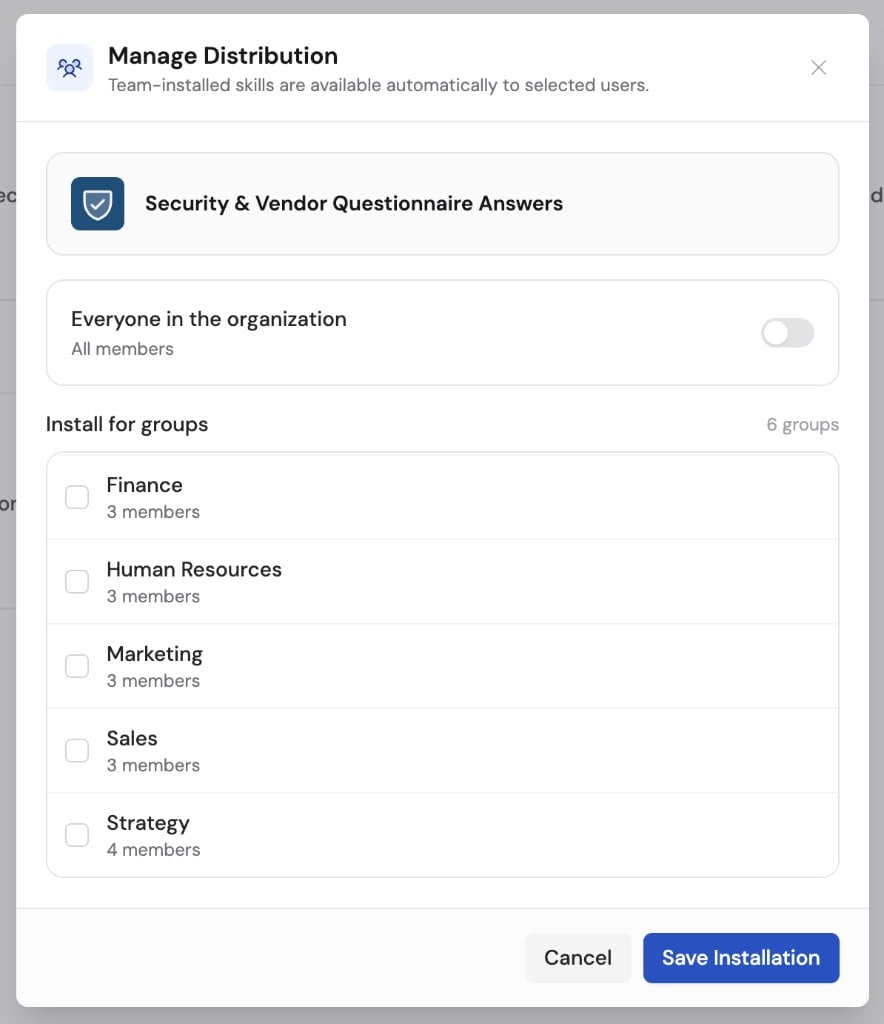
3
Resolve access warnings
Cassidy prevents saving when a selected audience cannot view the Skill.Move the Skill to an accessible location or update its folder permissions, then try again.
4
Save installation
Click Save Installation.The published Skill becomes available in chats those people start directly in Cassidy.
What recipients see
Recipients see Installed by admin. They cannot uninstall the Skill while an organization or group distribution rule applies. If the rule is removed, a separate personal installation remains installed. The Skill is available with default and custom Agents that have Code Execution & File Creation enabled.Change or remove distribution
Open Manage Distribution, update the selected audience, and save again. Before removing a broadly used Skill:- Review its usage.
- Check whether important Agents or Workflows also include it.
- Notify affected teams when removing a required process.
Troubleshoot distribution
Manage Distribution is missing
Manage Distribution is missing
Confirm that you have the Manage Skill Distribution privilege and that
the Skill has a published version.
Cassidy says the audience cannot view the Skill
Cassidy says the audience cannot view the Skill
Move the Skill to Team or a folder shared with the selected organization
or groups. Distribution cannot override Skill visibility.
A recipient cannot use the Skill
A recipient cannot use the Skill
Confirm the person’s Agent has Code Execution & File Creation enabled and
that the person can access the Skill’s Knowledge Base sources, Workflows, and
external applications.
A recipient cannot uninstall the Skill
A recipient cannot uninstall the Skill
Skills installed by an administrator cannot be uninstalled while the
organization or group distribution rule applies.
Next steps
Share Skills with your team
Manage Skill visibility and folder access.
Review Skill usage
See who receives the Skill and how often it is used.