

The Data Analysis capability lets your Agent analyze structured data like CSVs, spreadsheets, and tabular files. Unlike standard file uploads that parse files into text, Data Analysis treats files as actual data — the Agent generates code that analyzes your data directly, then returns results, visualizations, and insights within the conversation.Documentation Index
Fetch the complete documentation index at: https://docs.cassidyai.com/llms.txt
Use this file to discover all available pages before exploring further.
Enable Data Analysis
Select your Agent
Go to Agents, find the Agent you want to configure, click the ⋯ menu, and select Edit.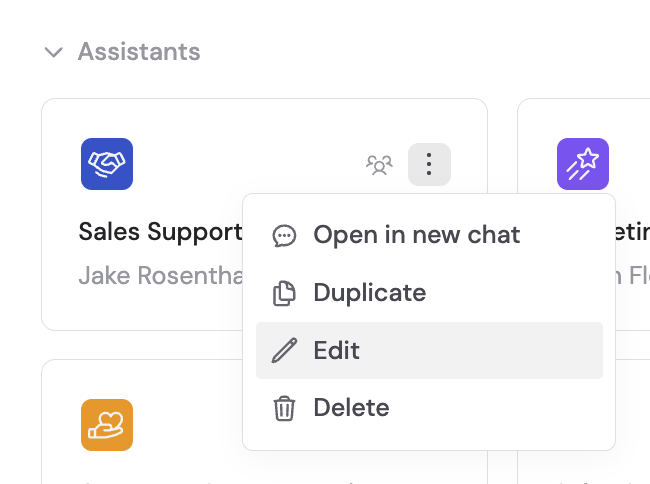

How to use it
Once enabled, you can provide data for analysis in several ways:- Uploading a file — Attach a CSV, Excel, or other structured data file directly in the chat. This is the quickest way to get started with a one-off analysis.
-
Referencing a Knowledge Base file — If your data is already in the Knowledge Base, you can reference it in the conversation or in the Agent’s instructions using #. If you want the Agent to always reference the same file, add the reference directly in the Agent’s instructions so every conversation starts with that data loaded. Knowledge Base files can also be connected to live data from synced integrations including Google Drive, OneDrive, SharePoint, and Box — so your Agent always analyzes the latest version. When Data Analysis is enabled, the Agent automatically treats data files (CSVs, XLSXs) found in the Knowledge Base as data it can manipulate by writing code.
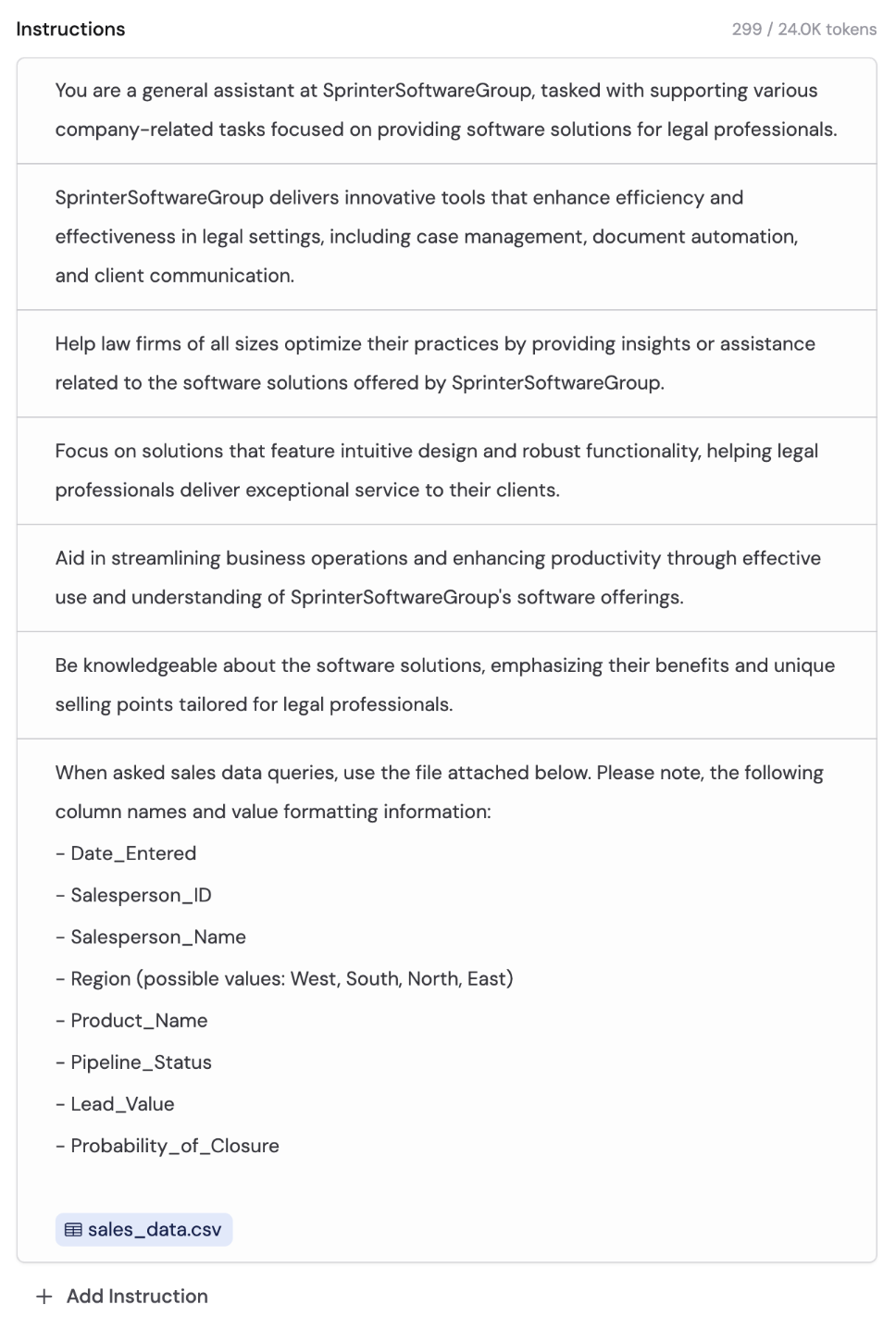
- Asking a question — Ask the Agent to analyze, summarize, chart, or filter data. It generates code behind the scenes and returns results.
Start a conversation
Once your Agent has Data Analysis enabled and your data is available, start a conversation and ask a question about your data. The Agent writes and runs code behind the scenes to analyze your data, then returns the results directly in the chat.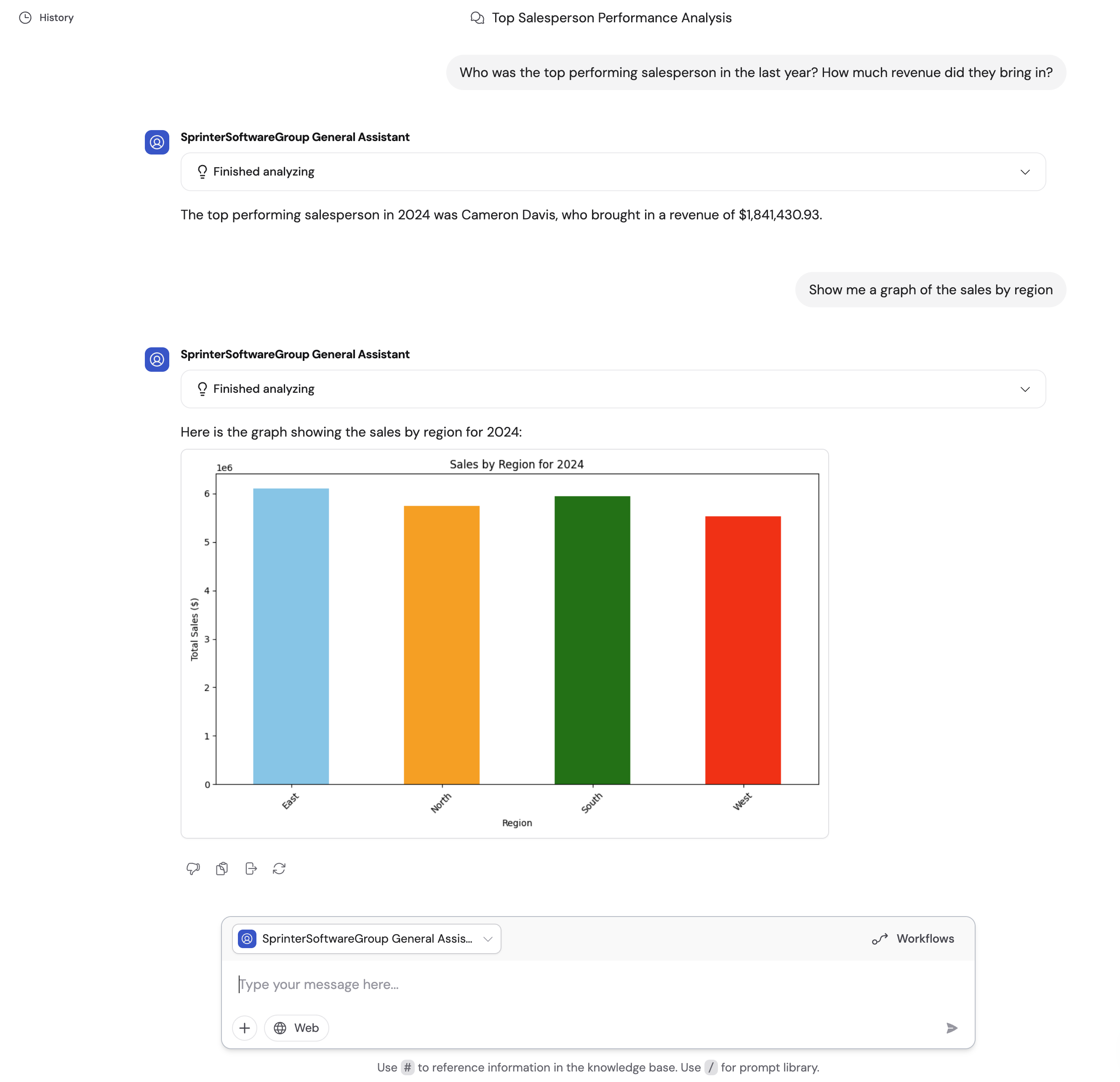
Tips for best results
- Use specific column names — Reference columns by their actual names (e.g., “Location”) rather than generic labels like “column C.”
- Explain value formats — Describe how values are stored, such as whether states are abbreviated (“CA”) or written out (“California”), or whether dates use YYYY-MM-DD format.
- Provide context about the data source — Explain what the data represents, where it comes from, and how tables relate to each other. For example: “This spreadsheet contains Q4 sales data exported from Salesforce. The ‘Revenue’ column is in USD.”
- Use a powerful model — Data Analysis works best with high-powered, reasoning-capable models. New models are added regularly — see Choose the right AI model for current recommendations.
Next steps
Web Search
Let your Agent search the internet for real-time information.
Choose the right AI model
Pick the best model for data analysis tasks.