

1
Add the Look Up Salesforce Record action
While editing a Workflow, click the + button between existing steps. Select Look Up Salesforce Record from the action list to add it to your Workflow.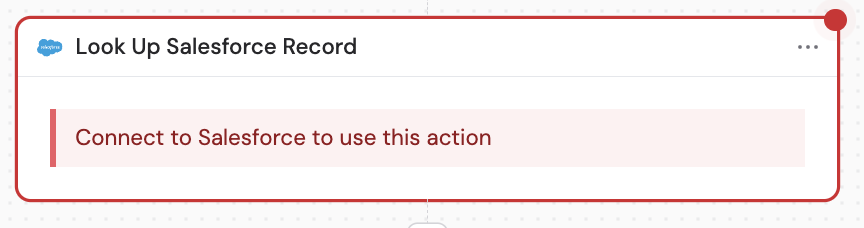
2
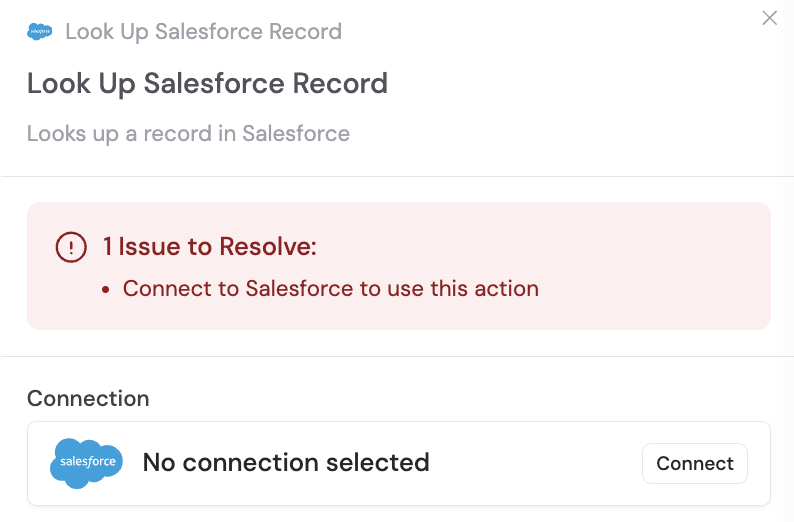
Connect your Salesforce account
If you haven’t already, connect your Salesforce account to Cassidy. This allows Cassidy to access your Salesforce records and look them up from your Workflow.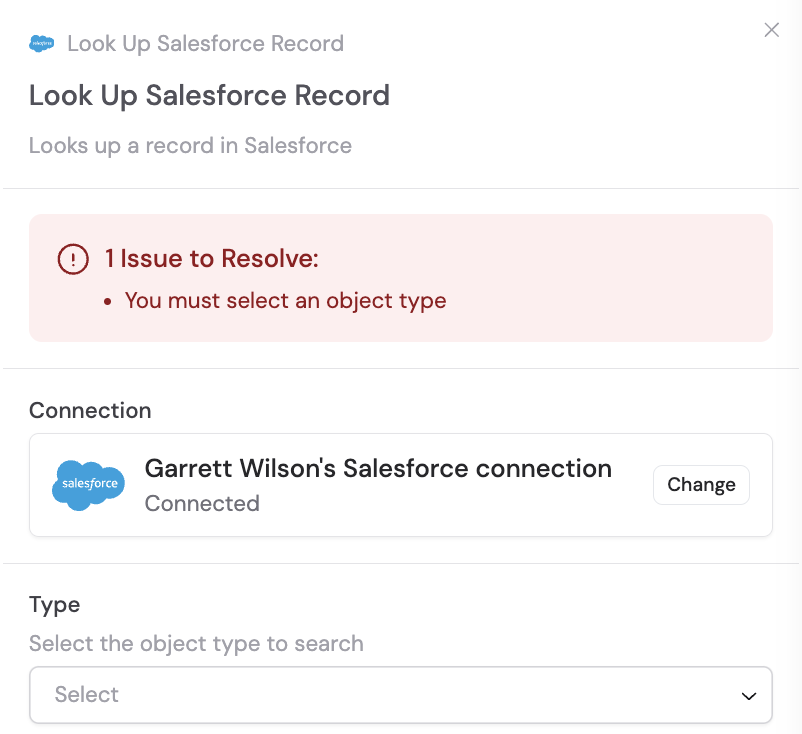
3
Rename the action (optional)
If you want to make the action more descriptive or easier to reference as a variable later, enter a new name in the action title field.
4
Select the record type
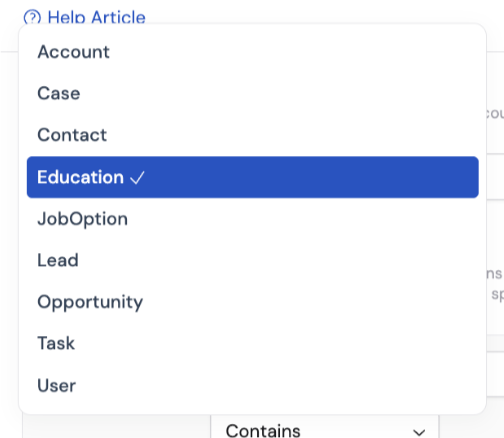
Use the Type dropdown to choose the Salesforce object type you want to search — for example, Lead, Contact, Opportunity, Account, Task, User, Case, or a custom object.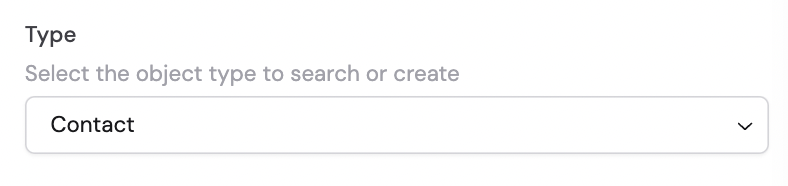
5
Define search criteria
Under Fields to search by, click Add Condition to specify how to find the record. Select the field to search on, choose the operation (equals, contains, etc.), and enter the value to match. You can add multiple conditions — they combine with AND logic, so only records matching all conditions are returned.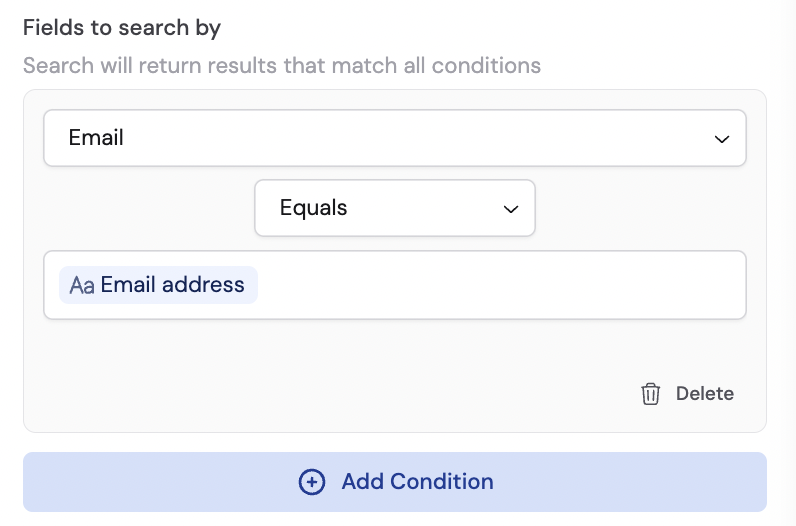
6
Select fields to return
Under Fields to return, click + Add Field and select the Salesforce fields you want returned as output variables. These field values are available in subsequent Workflow steps. Click the trash icon next to a field to remove it.