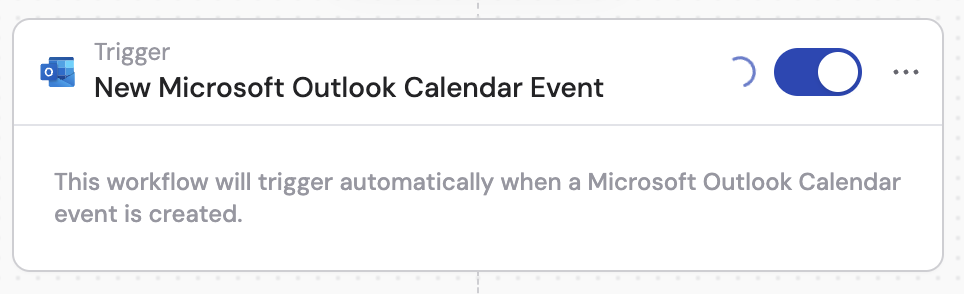
Set up the trigger
1
Add the trigger
Create a new Workflow with the New Microsoft Outlook Calendar Event trigger, or change an existing Workflow’s trigger type.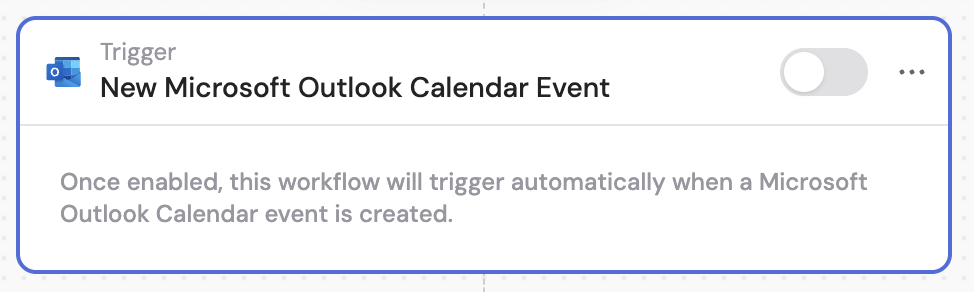
2
Connect Microsoft Outlook
If you haven’t already, connect your Microsoft Outlook account to Cassidy.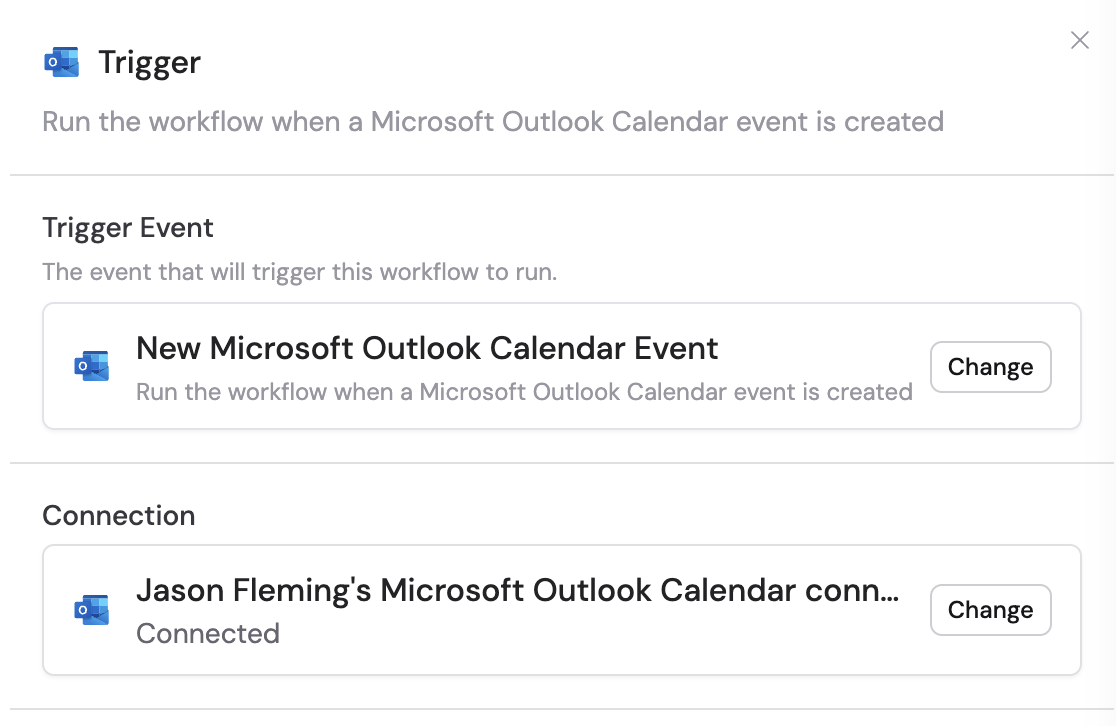
3
Reference the trigger variables
In subsequent actions, use the variable picker to insert data from the trigger. Available variables: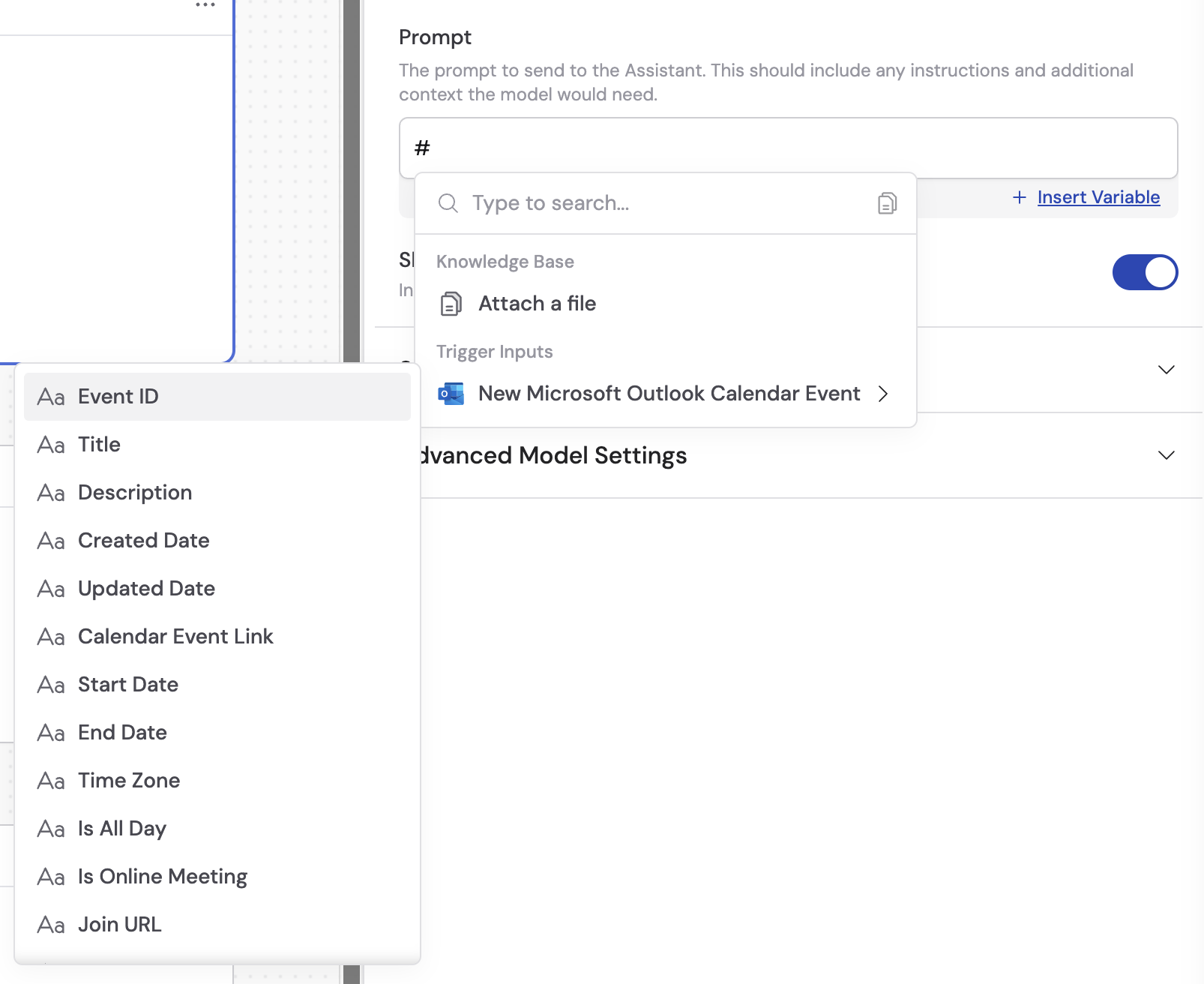
- Event ID — unique identifier of the calendar event
- Title — title or subject of the calendar event
- Description — description or body content of the calendar event
- Created Date — when the calendar event was created
- Updated Date — when the calendar event was last modified
- Calendar Event Link — direct link to view the event in Outlook
- Start Date — start date and time of the event
- End Date — end date and time of the event
- Time Zone — time zone for the event
- Is All Day — whether the event is marked as an all-day event
- Is Online Meeting — whether the event includes an online meeting
- Join URL — meeting link if it’s an online meeting
- Location — physical location of the event
- Organizer (Name and Email) — details about who organized the event
- Attendees — list of people invited to the event
4
Activate the trigger
In the trigger block, click the toggle switch to turn it on.