1
Add the action
In the Workflow builder, click the + button between existing blocks. Select Create Microsoft Outlook Calendar Event from the action list.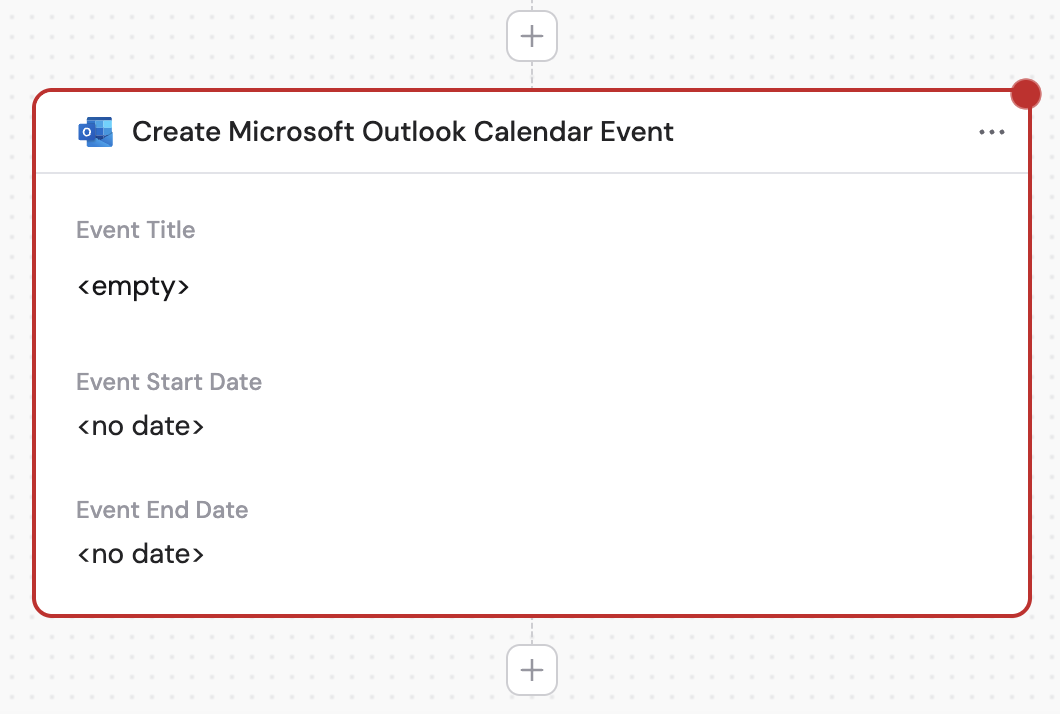
2
Rename the action (optional)
Click the action name to enter a more descriptive label, making it easier to reference as a variable later.
3
Connect Microsoft Outlook
If you haven’t already, connect your Microsoft Outlook account to Cassidy.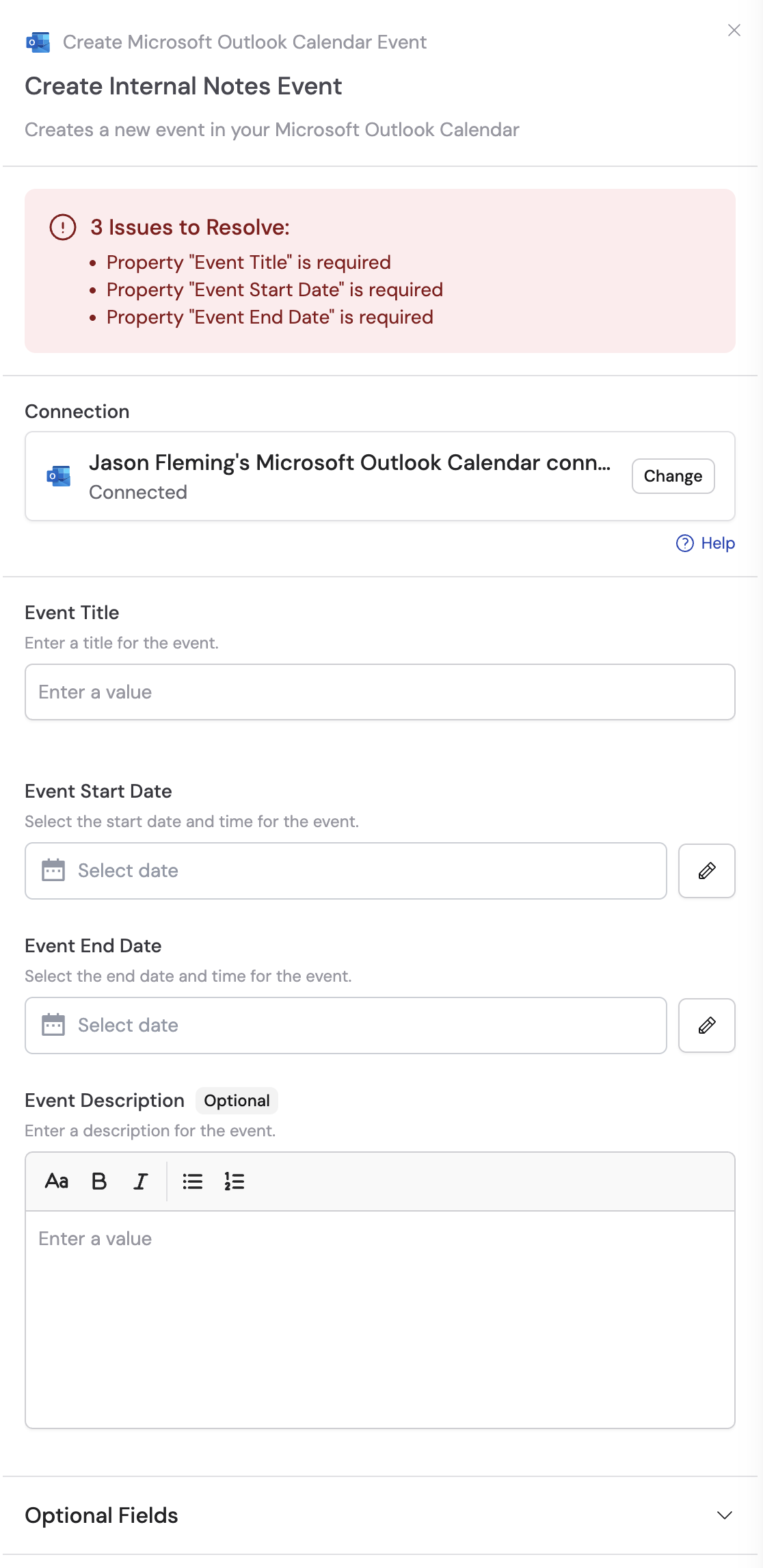
4
Enter the event title
Provide a title for the calendar event. You can type the title directly or reference a variable from a previous step or the trigger.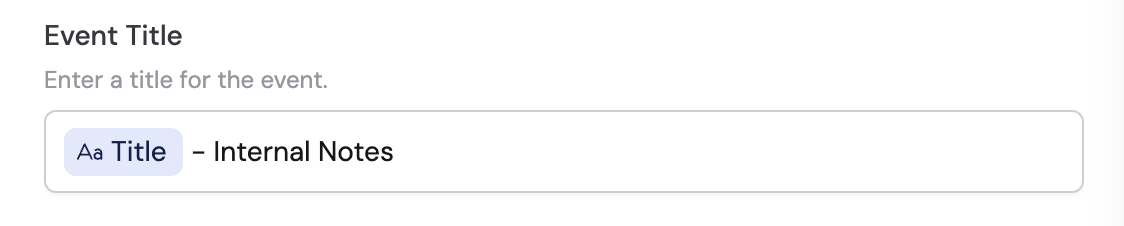
5
Select the event start date
Select the start date using the date picker, or click the pencil icon to enter the date directly. You can reference variables from previous steps to set the timing dynamically.

6
Select the event end date
Choose when the event should end using the date picker, or click the pencil icon to enter the date directly. You can also reference variables to set the end time dynamically.

7
Enter the event description (optional)
Add additional details about the event. This field is optional but can provide valuable context for attendees.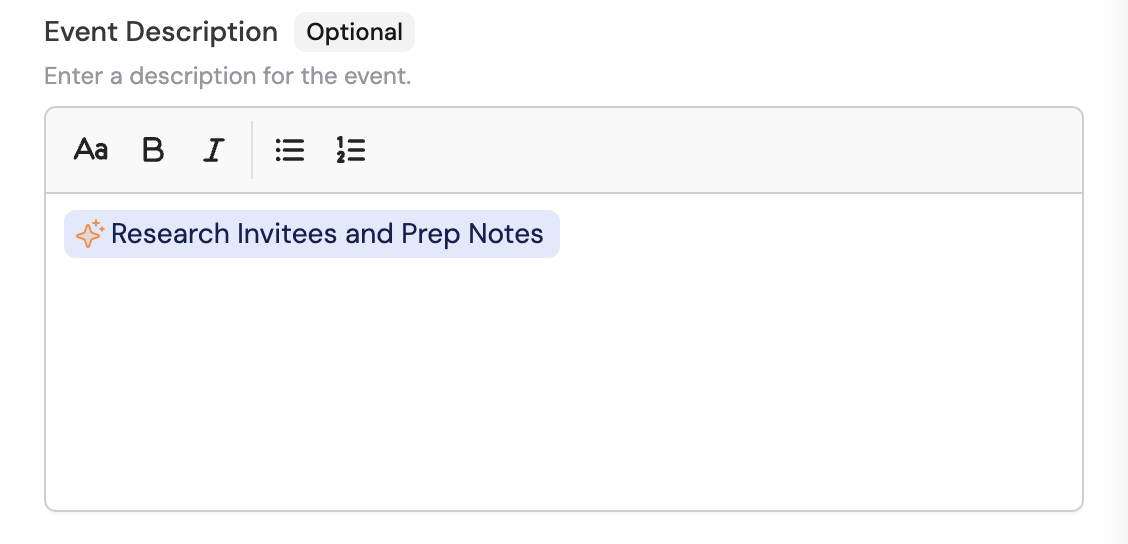
8
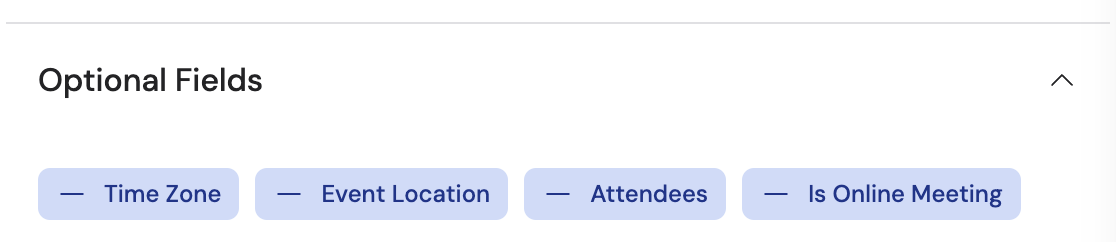
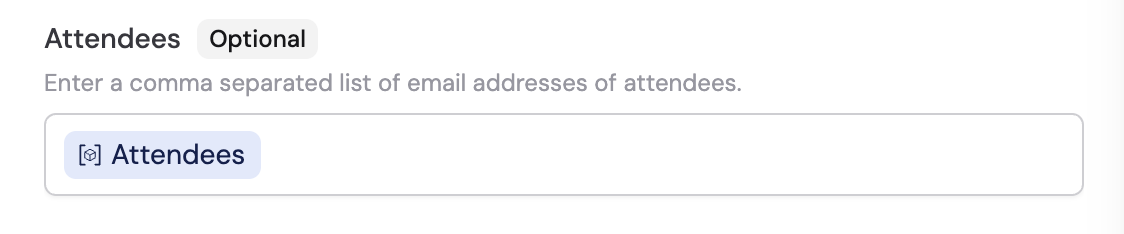
Configure optional fields
Under Optional Fields, configure additional settings like Time Zone, Event Location, Attendees, and Is Online Meeting. Fill out each field as needed.