1
Add the action
In the Workflow builder, click the + button between existing blocks. Select Create Google Calendar Event from the action list.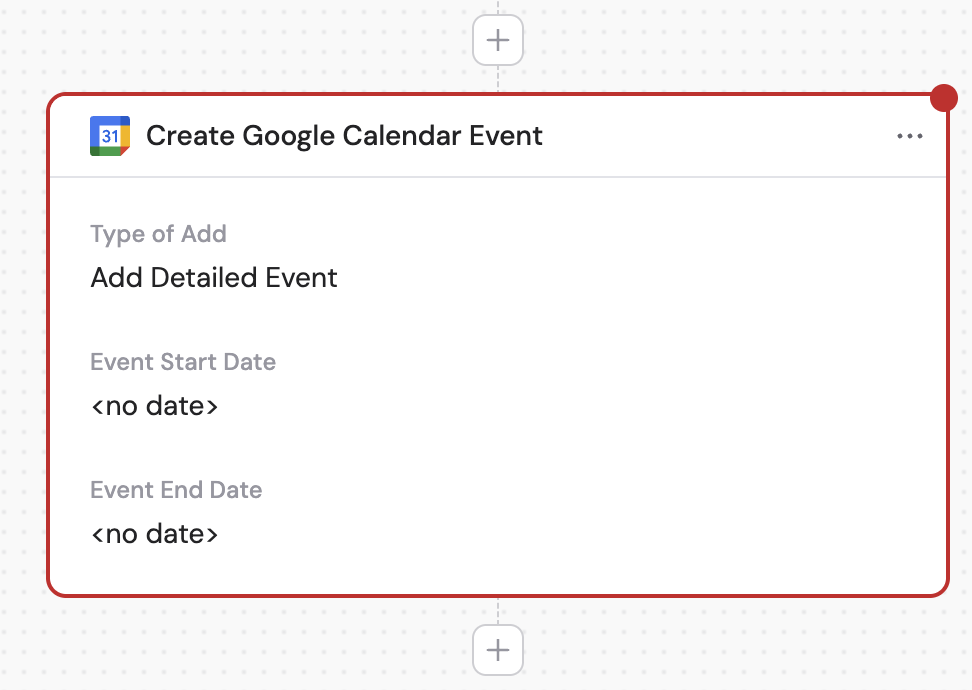
2
Rename the action (optional)
Click the action name to enter a more descriptive label, making it easier to reference as a variable later.
3
Connect Google Calendar
If you haven’t already, connect your Google Calendar account to Cassidy.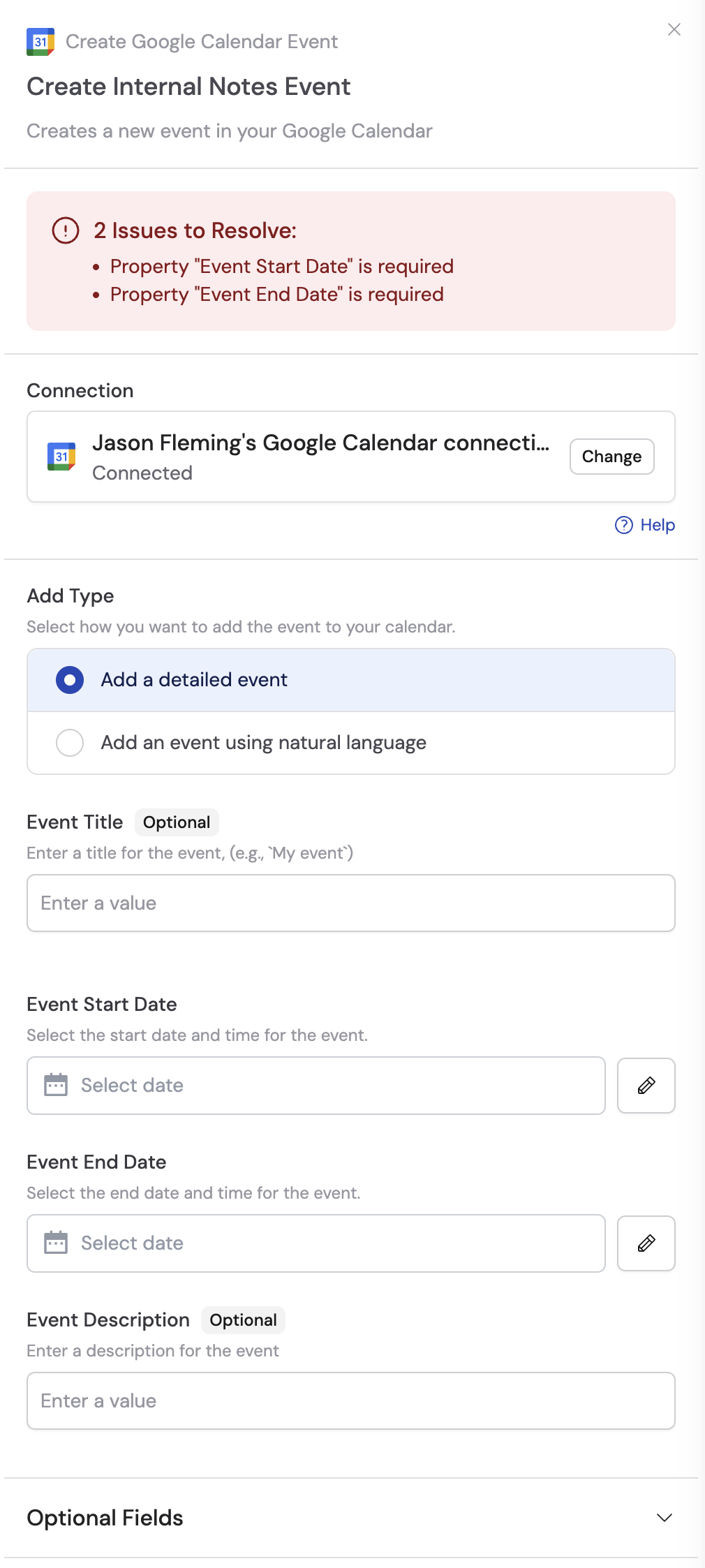
4
Select add type
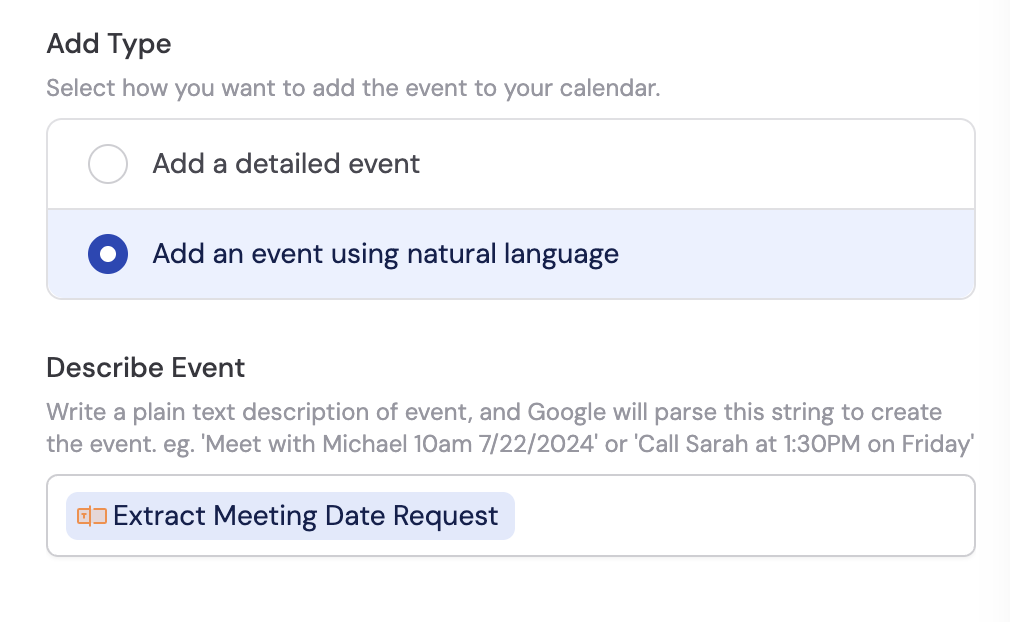
Choose how to add the event: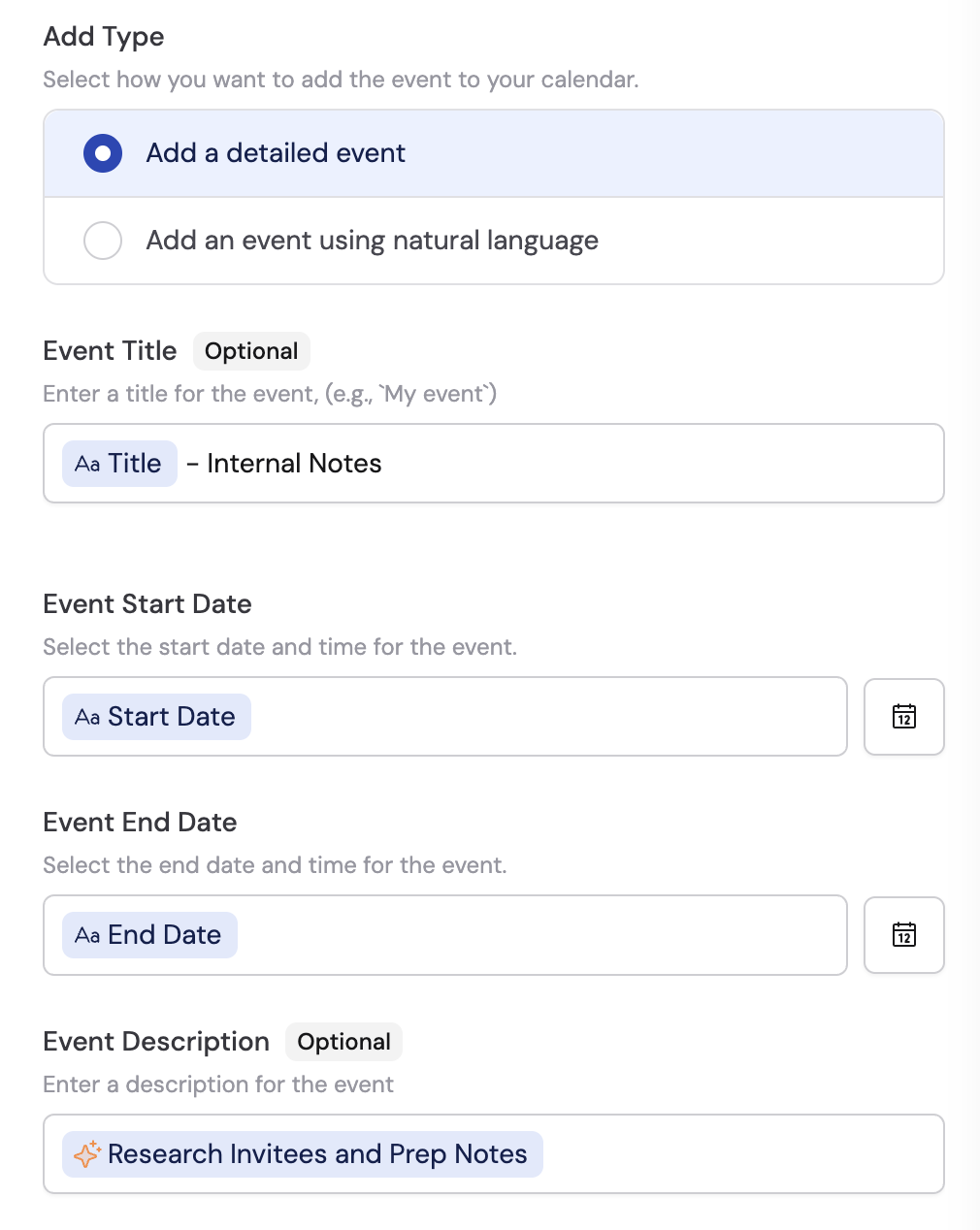
- Detailed Event — input specific details: title, start date, end date, and description. Use variables from previous steps or enter values manually.
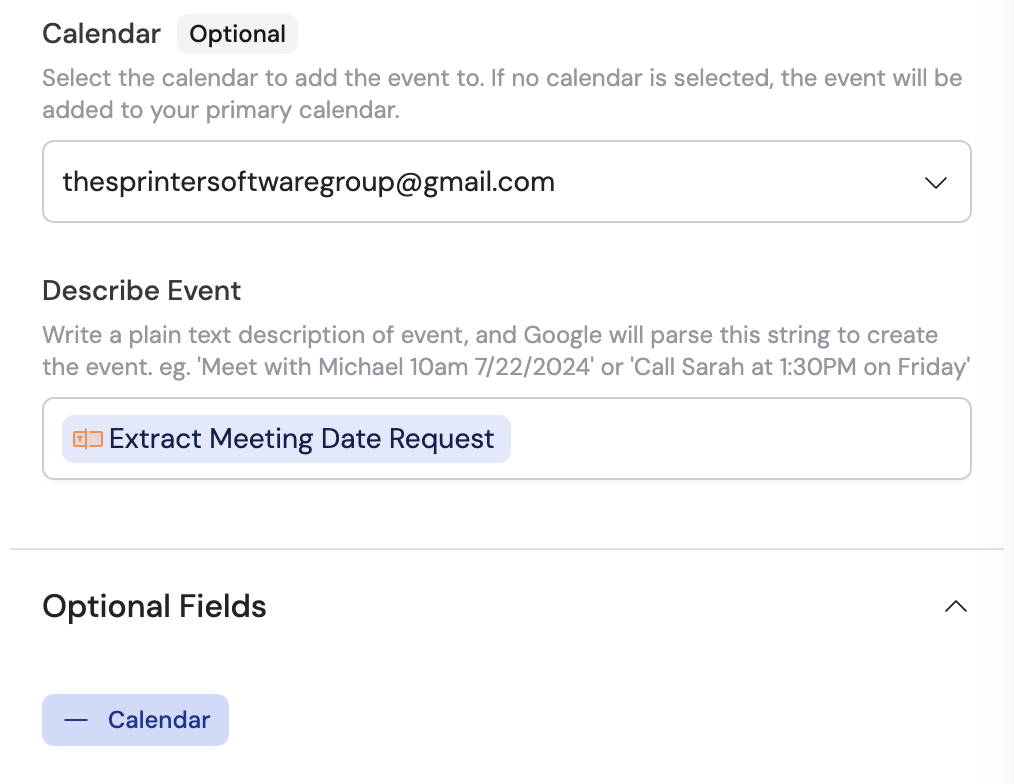
- Natural Language — write a plain text description and Google parses it to create the event (e.g., “Meet with Michael 10am 7/22/2024” or “Call Sarah at 1:30PM on Friday”). You can optionally enter a title.
5
Configure optional settings
Under optional fields, select Calendar to choose which calendar to add the event to. If no calendar is selected, the event is added to your primary calendar.