

1
Add the action
In the Workflow builder, click the + button between existing blocks. Select Update Google Calendar Event from the action list.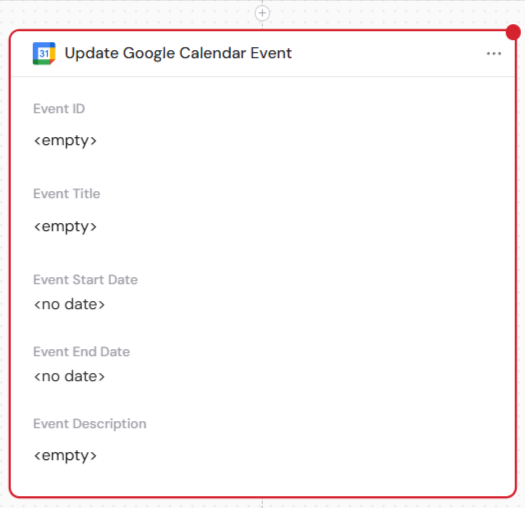
2
Rename the action (optional)
Click the … in the top-right of the action box and select Rename to enter a more descriptive name.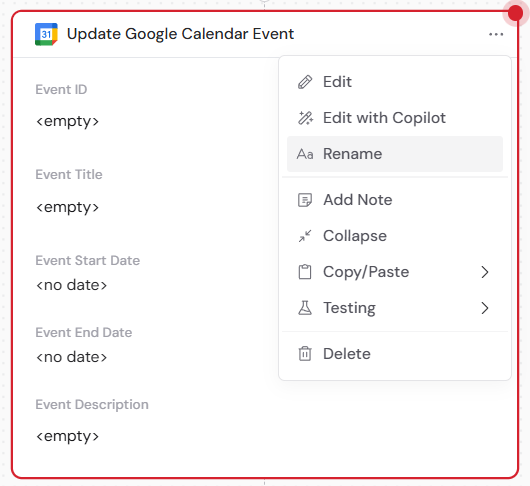
3
Connect Google Calendar
Connect the Google Calendar account that contains the event you want to update. Click the action box to open the configuration panel, then click Connect.
4
Add Event ID and event details
Event ID is required. Add it in one of two ways: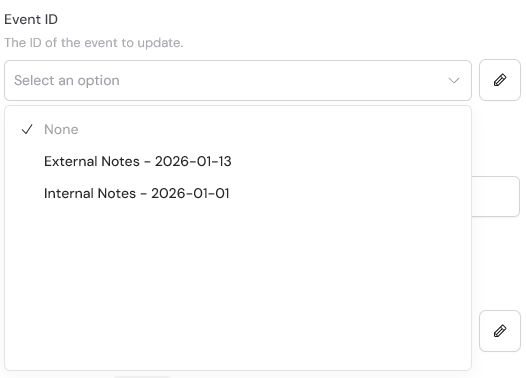
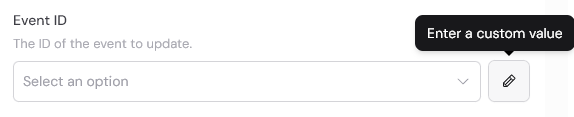
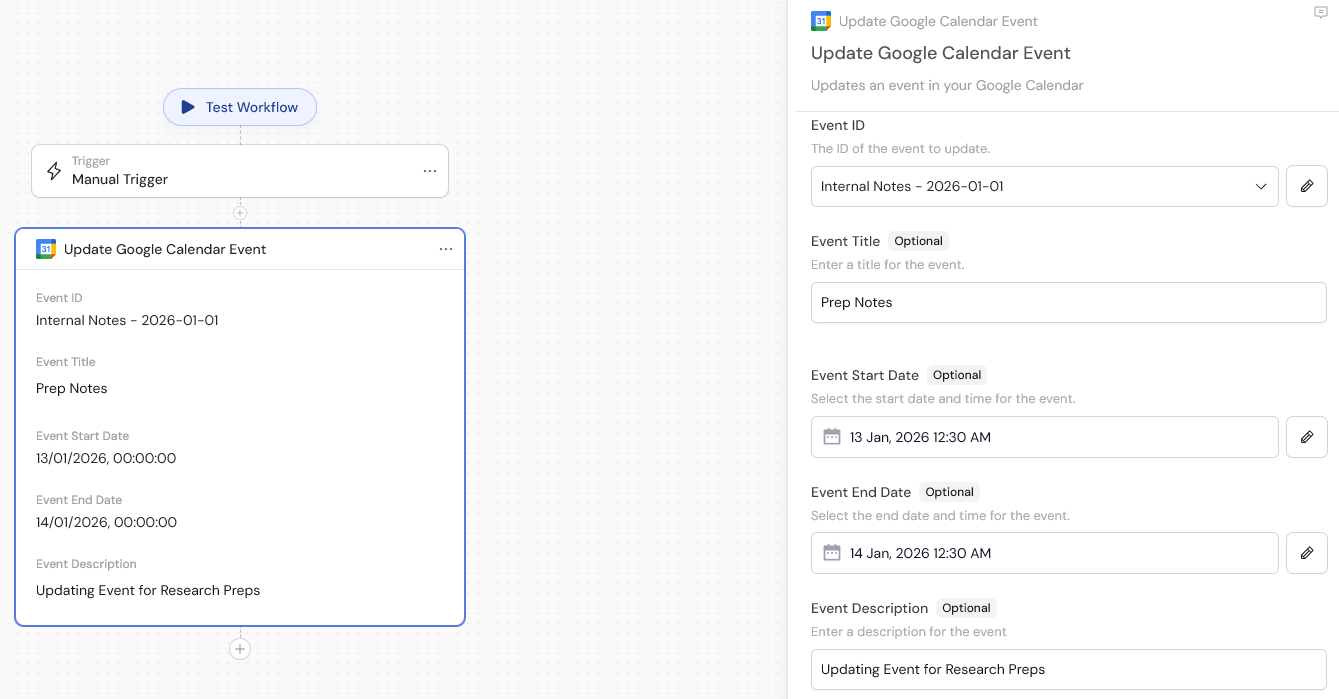
- Select an existing Event ID from the dropdown (e.g., from a trigger or previous Get Events action)
- Enter a value or variable manually
5
Configure optional fields (optional)
Under Optional Fields, you can add:
- Calendar — choose which calendar the updated event belongs to (defaults to primary calendar)
- Time Zone — override the time zone (default is the primary calendar’s time zone)
- Event Location — specify the event location
- Attendees — array or comma-separated list of attendee email addresses
- Repeat Frequency — make the event repeat
- Send Updates — configure whether to send notifications about the update