Set up the action
1
Add the action
In the Workflow builder, click the + button between existing blocks. Select Get Google Calendar Events from the action list.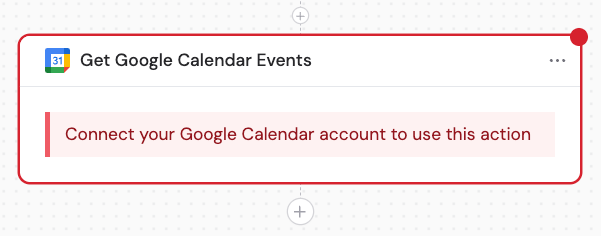
2
Rename the action (optional)
Click the action name to enter a more descriptive label for easier variable reference later.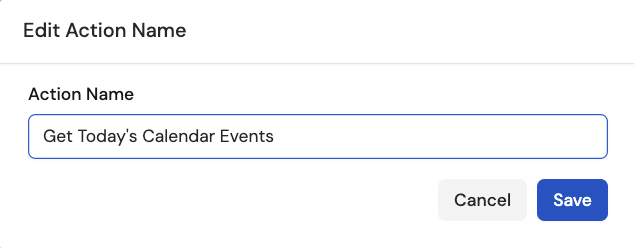
3
Connect Google Calendar
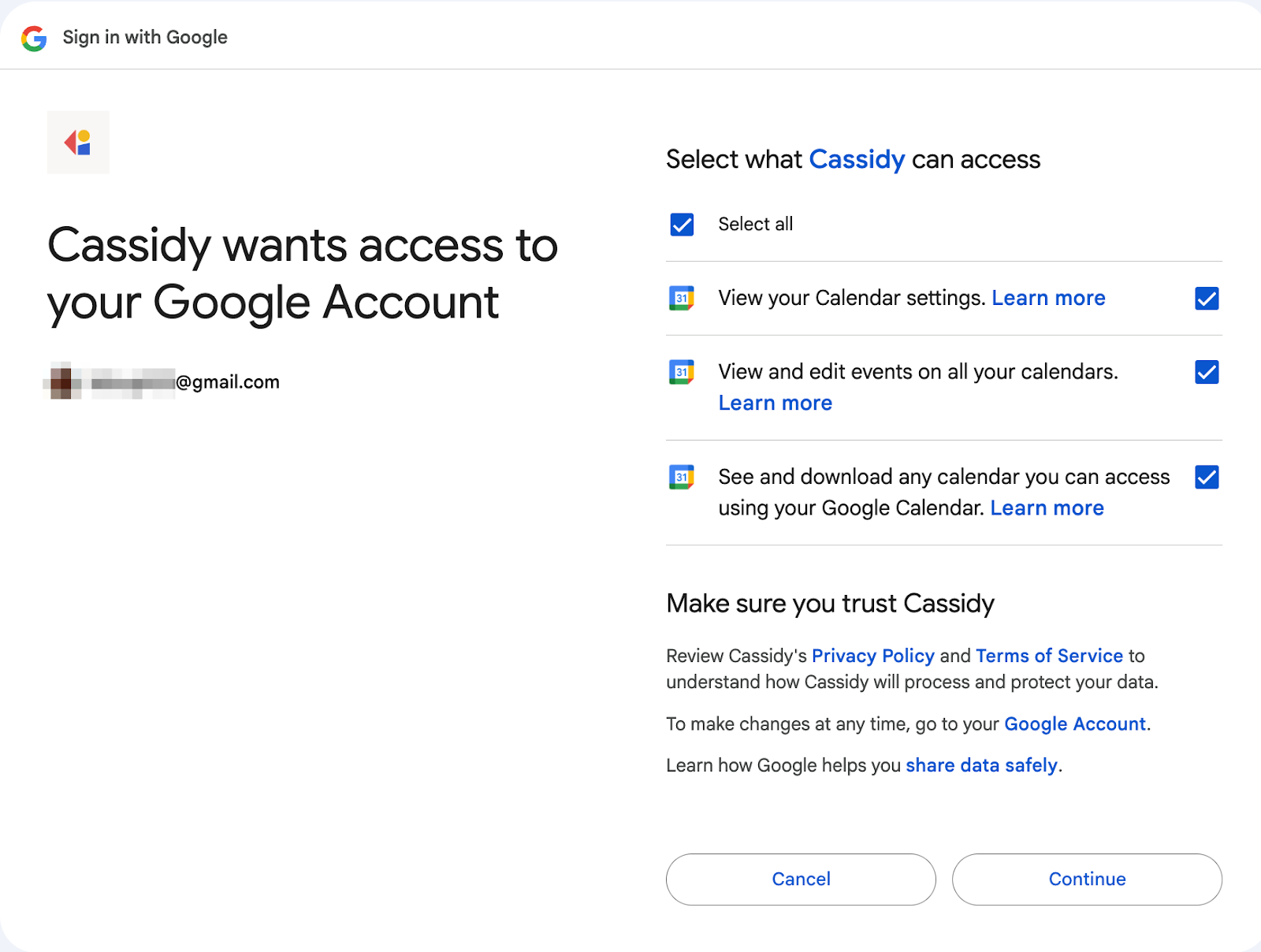
If you haven’t already, connect your Google Calendar account to Cassidy. Click Connect, review the terms, and authorize the permissions.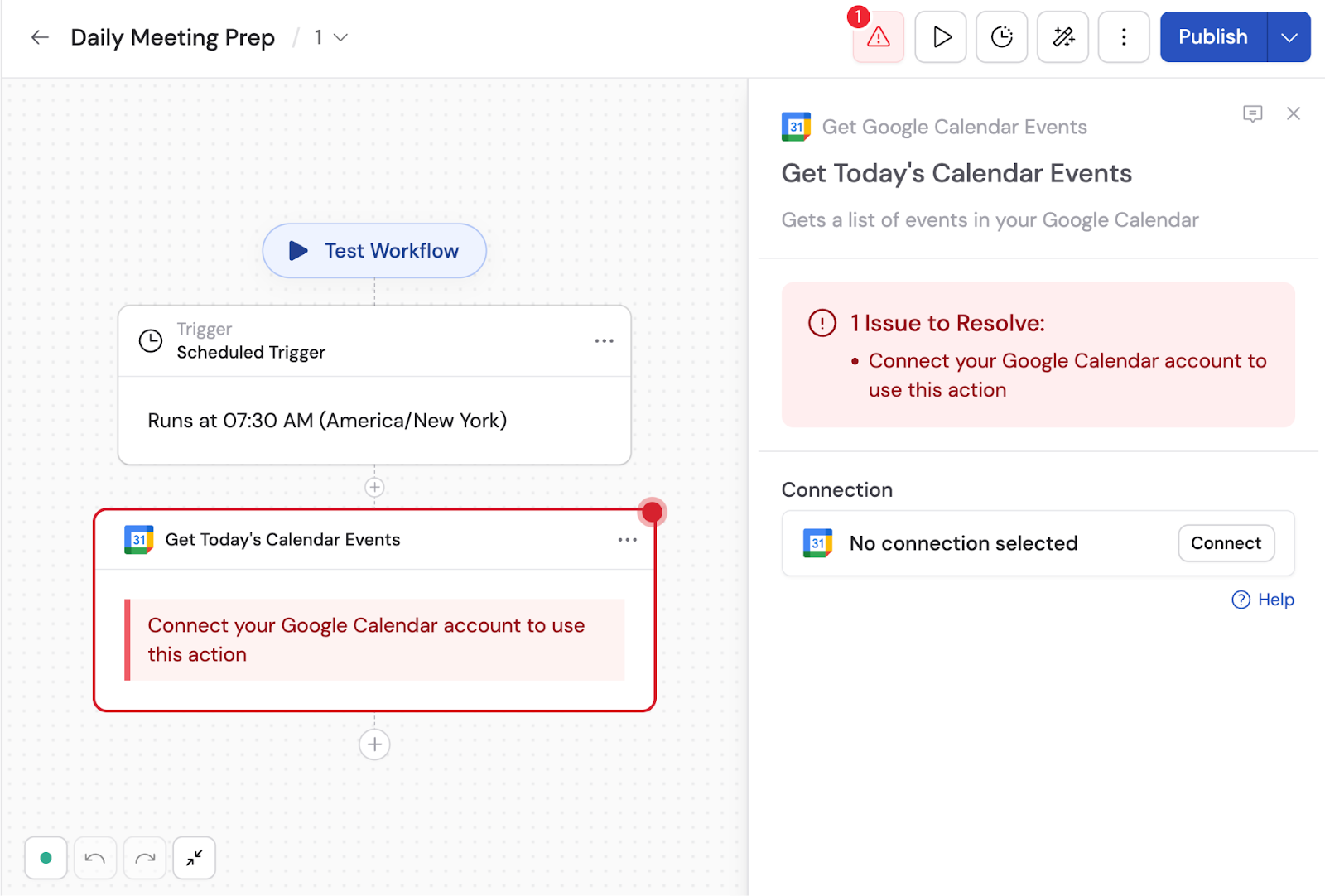
4
Select a calendar (optional)
Under optional fields, select which calendar to retrieve events from. If no calendar is selected, events are retrieved from your primary calendar.
5
Configure the time range
Set Time Range Start and Time Range End to define the date range for retrieving events.
6
Add a search query (optional)
Enter text in the Query field to filter events by keywords. This searches event summaries, descriptions, locations, attendee information, and organizer information.
7
Configure additional settings (optional)
Under optional settings, you can configure: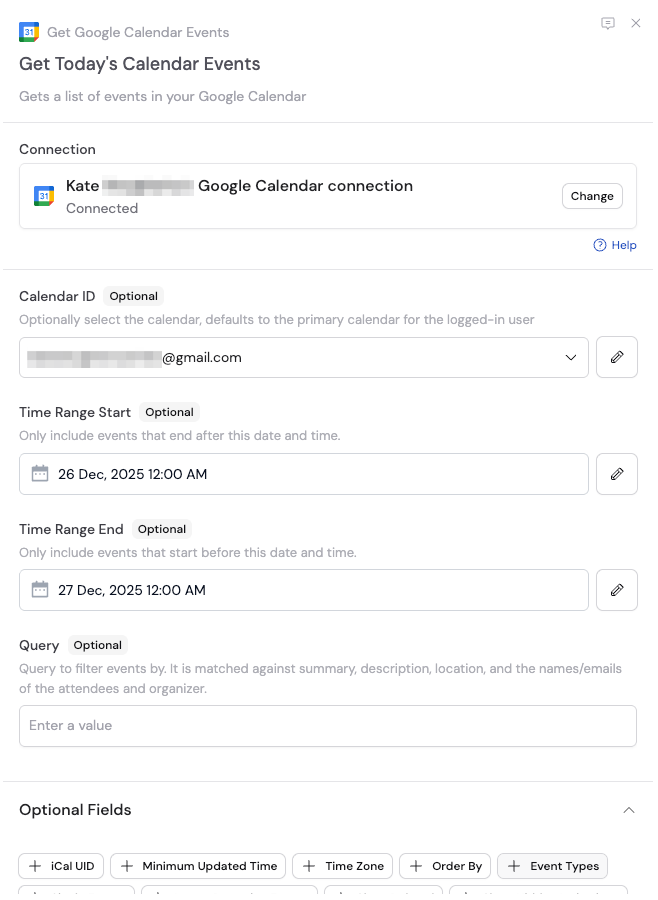
- iCal UID — include the iCalendar event ID in the response
- Minimum Updated time — filter to events modified at or after this timestamp
- Time Zone — time zone for the response (default is calendar time zone)
- Order By — order of returned events (set Single Events to true to order by start time)
- Event Types — filter by Default, Focus Time, Out of Office, or Working Location
- Single Events — break recurring series into individual occurrences
- Ignore Recurring Events — exclude recurring events
- Show Deleted — include cancelled events
- Show Hidden Invitations — include hidden invitations
- Max Attendees — limit attendees returned per event for performance
8
Reference the event variables
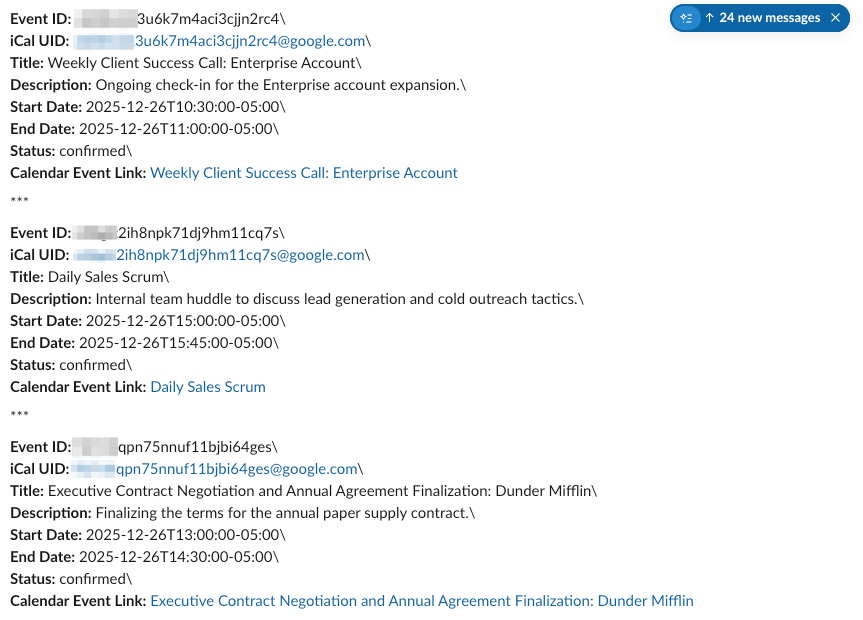
The action outputs a list of events. Use the variable picker in subsequent steps to reference event data. See the output variables table below for the full list.
9
Use a Loop to process events
Because this action returns a list of events, use a Loop action to process each event individually.
Output variables
Example workflow: Daily meeting prep
Here’s how to set up a Workflow that prepares you for the day’s meetings:1
Add a Scheduled trigger
Set it to run daily at 8am. See Scheduled trigger for details.
2
Add Get Google Calendar Events
Configure it to retrieve today’s events.
3
Add a Loop action
Loop through each event returned by the Get Google Calendar Events action.
4
Inside the Loop, add Generate Text
Use the event’s title, description, and attendee information to research and prepare a brief summary. See Generate Text for details.
5
After the Loop, add Send Slack message
Combine all meeting summaries and send them to yourself in Slack. See Send Slack message for details.