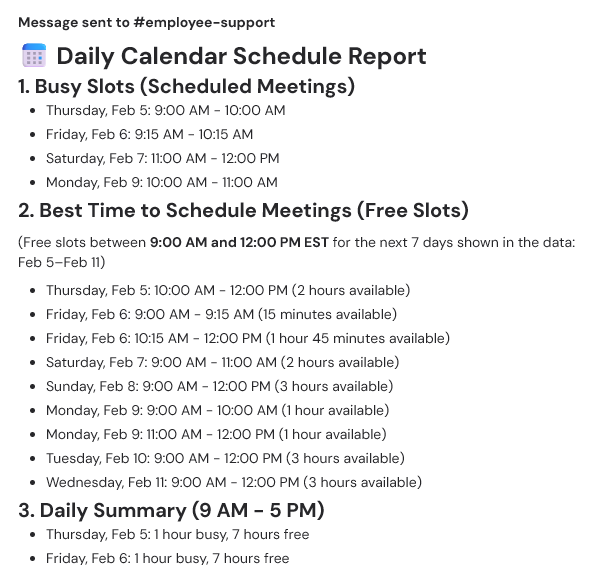
Set up the action
1
Add the action
In the Workflow builder, click the + button between existing blocks. Select Get Google Calendar Schedule from the action list.
2
Connect Google Calendar
If you haven’t already, connect your Google Calendar account to Cassidy. In the configuration panel, click Connect and follow the authorization flow.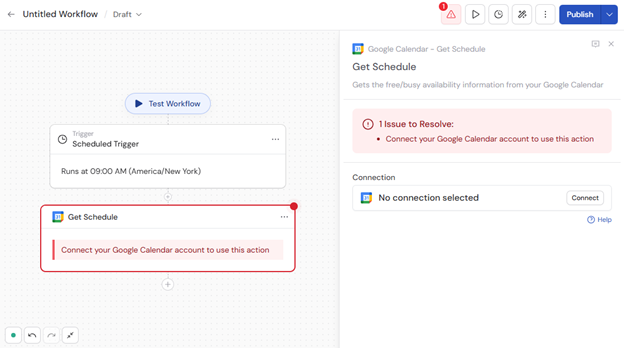
3
Rename the action (optional)
Enter a more descriptive name to make the action easier to reference as a variable later.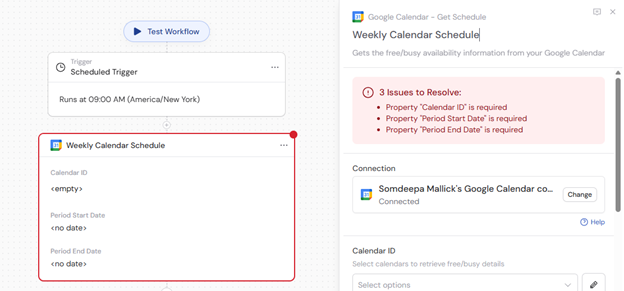
4
Select Calendar ID
Select which calendars to retrieve schedule information from.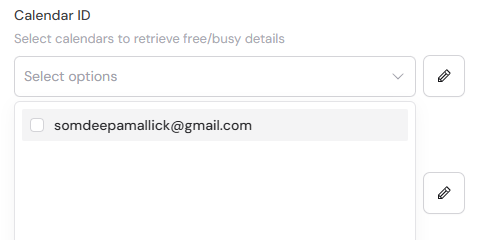
5
Configure the time range
Set Period Start Date and Period End Date to define the window for availability.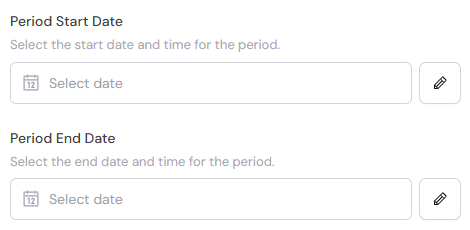
6
Select time zone (optional)
Specify the preferred time zone for the response. If omitted, the account or calendar time zone is used.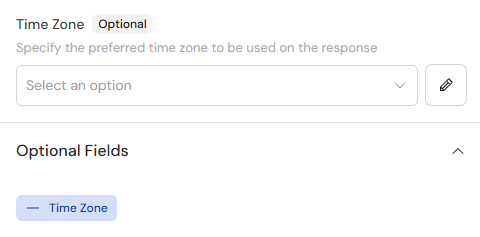
7
Process the schedule data
Add actions to use the schedule information. Common approaches: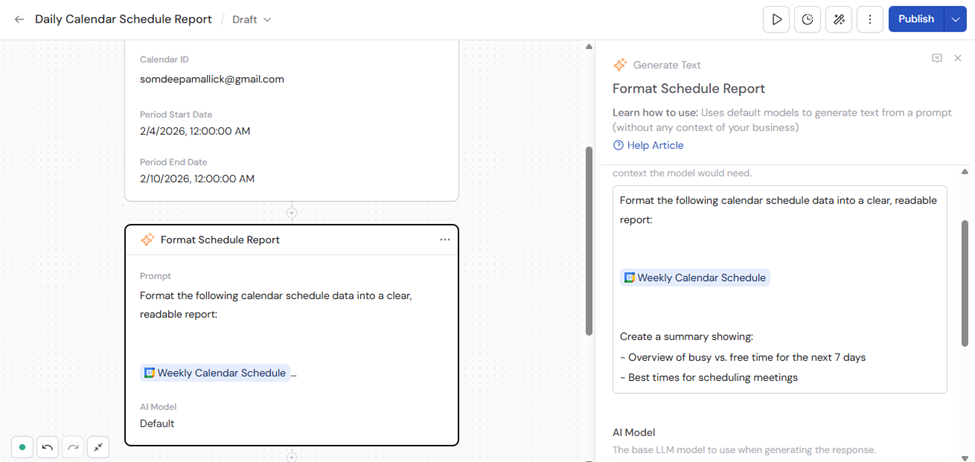
- Generate Text — format the raw calendar schedule into a readable report
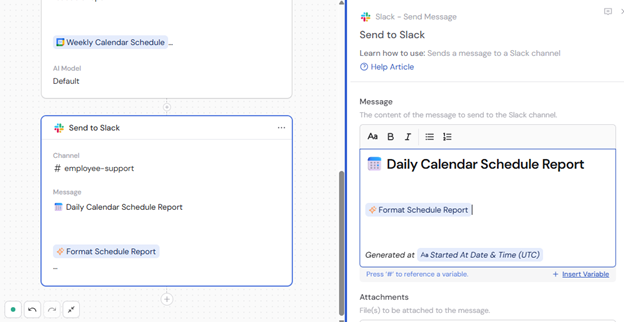
- Send Slack message — notify yourself or your team with the availability
8
Publish the Workflow
Test and publish your Workflow to automate retrieving and processing calendar schedules.
Sample output
The output includes information about busy and free time slots. You can identify when calendars are available or occupied.