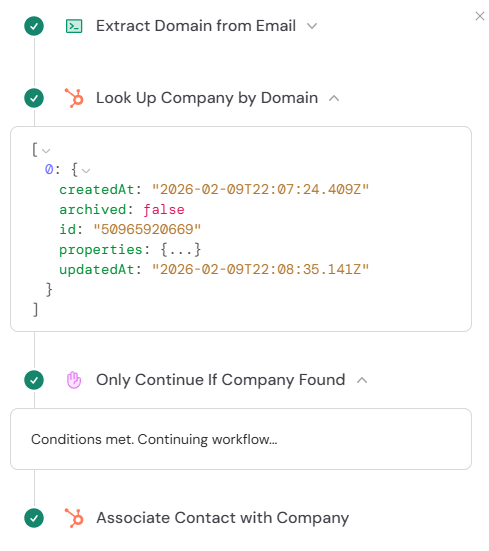
This guide walks through an example Workflow that automatically associates new HubSpot contacts with their company. The Workflow triggers when a contact is created, extracts the domain from the contact’s email, looks up a matching company by that domain, and creates an association between them.
1
Add a Create Association action
In the Workflow builder, click the + button between existing blocks. Select Create Association from the action list.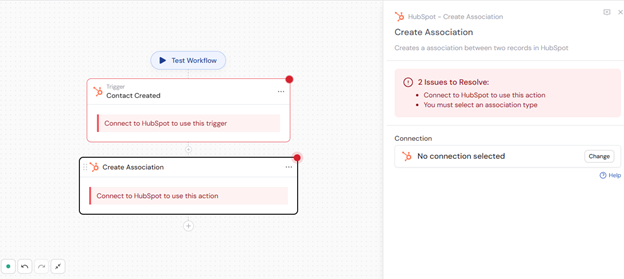
2
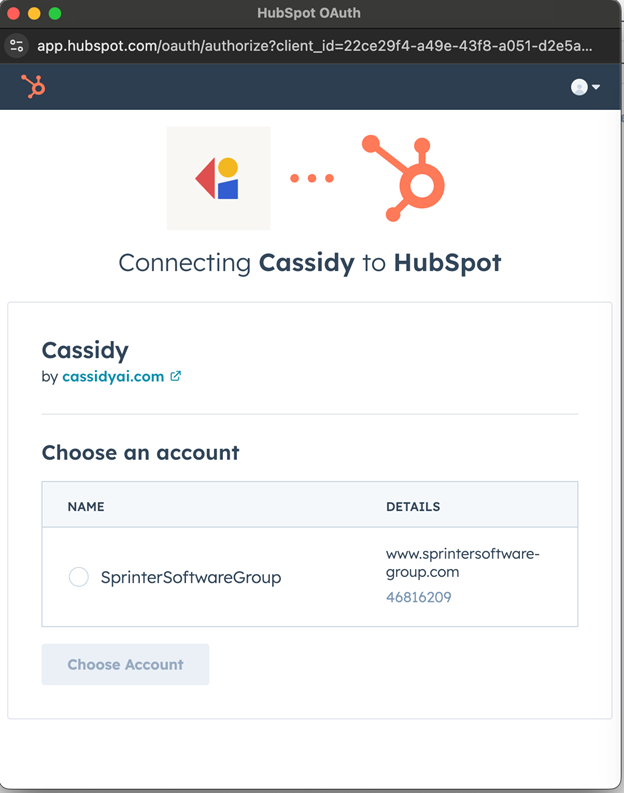
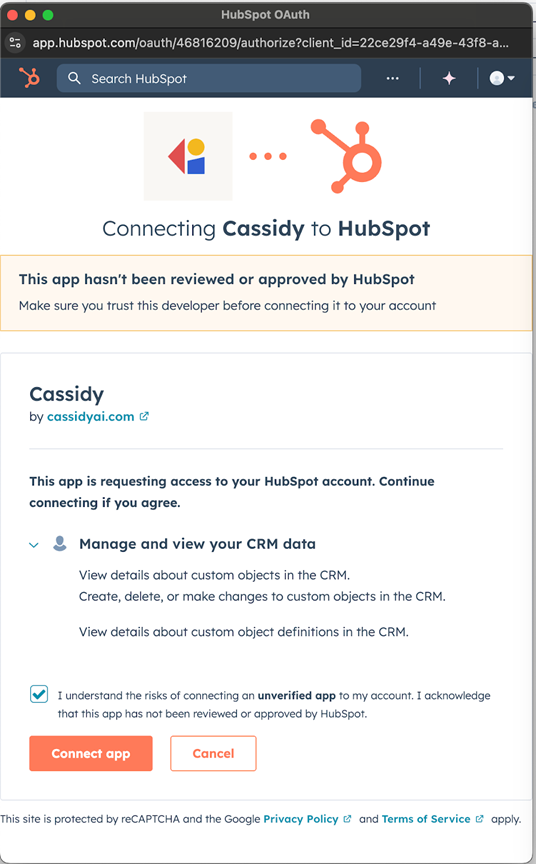
Connect your HubSpot account
3
Rename the action (optional)
Enter a more descriptive name to make the action easier to reference as a variable later.
4
Set up preceding actions
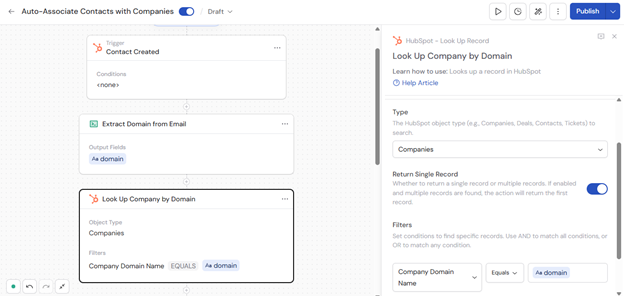
To use the Create Association action, configure earlier steps in your Workflow to provide the record IDs you want to associate. For example: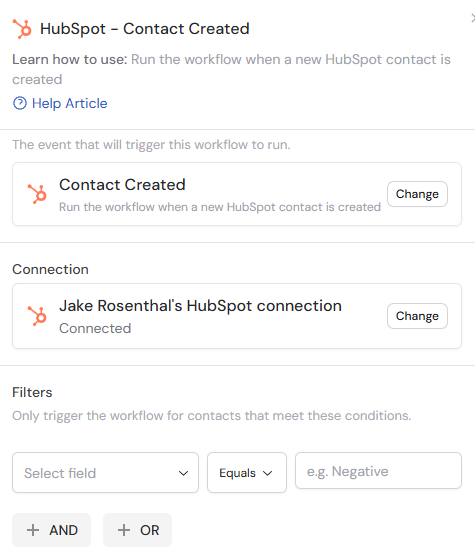
- Add a trigger such as HubSpot Contact Created to activate the Workflow when a new contact is created. Click Add Filter to narrow which contacts trigger the Workflow.
- Add a Look Up HubSpot Record action to find the record you want to associate with. For example, search for a company by domain name using a variable from the trigger.
5
Select the source object type
Choose the object type of the source record: Contacts, Companies, Deals, or Tickets.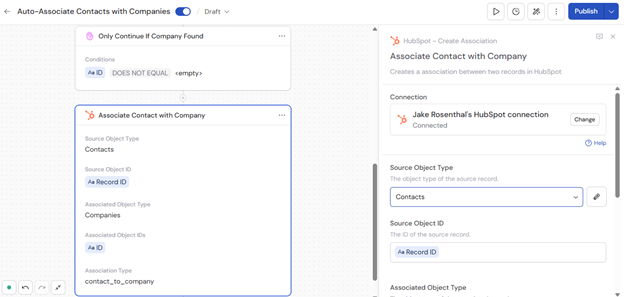
6
Enter the source object ID
Provide the ID of the source record. Type the ID directly or press # to reference a variable from a previous step or trigger.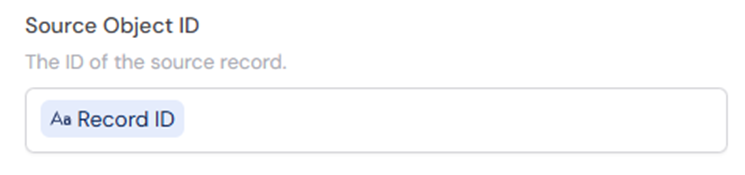
7
Select the associated object type
Choose the object type of the record you want to associate with the source: Companies, Contacts, Deals, or Tickets.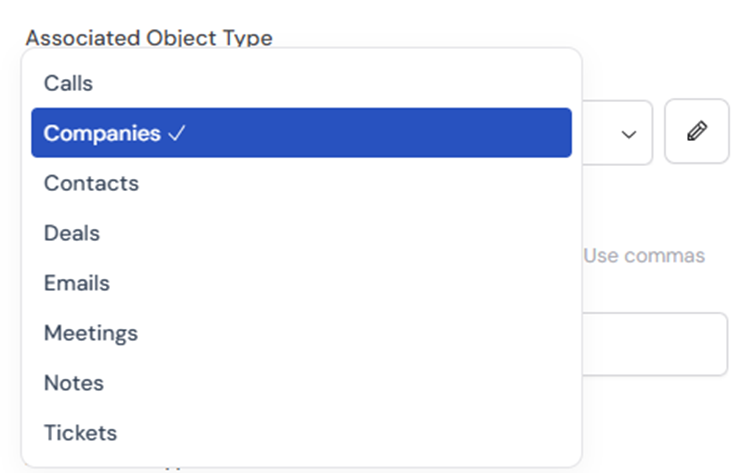
8
Enter the associated object IDs
Provide the IDs of the records to associate with the source record. Type the IDs directly or press # to reference a variable. Separate multiple IDs with commas to create multiple associations at once.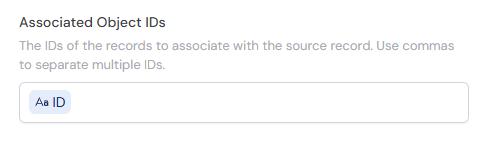
9
Select the association type
Choose the type of association to create. Options vary by the selected object types and include values like 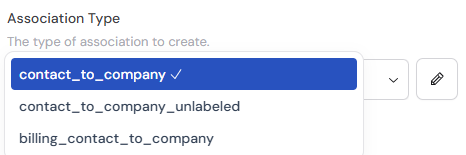
contact_to_company, contact_to_company_unlabeled, and billing_contact_to_company.10
Publish and run the Workflow
Run the Workflow to verify the action works correctly. The output confirms that the association was successfully created between the specified HubSpot records.