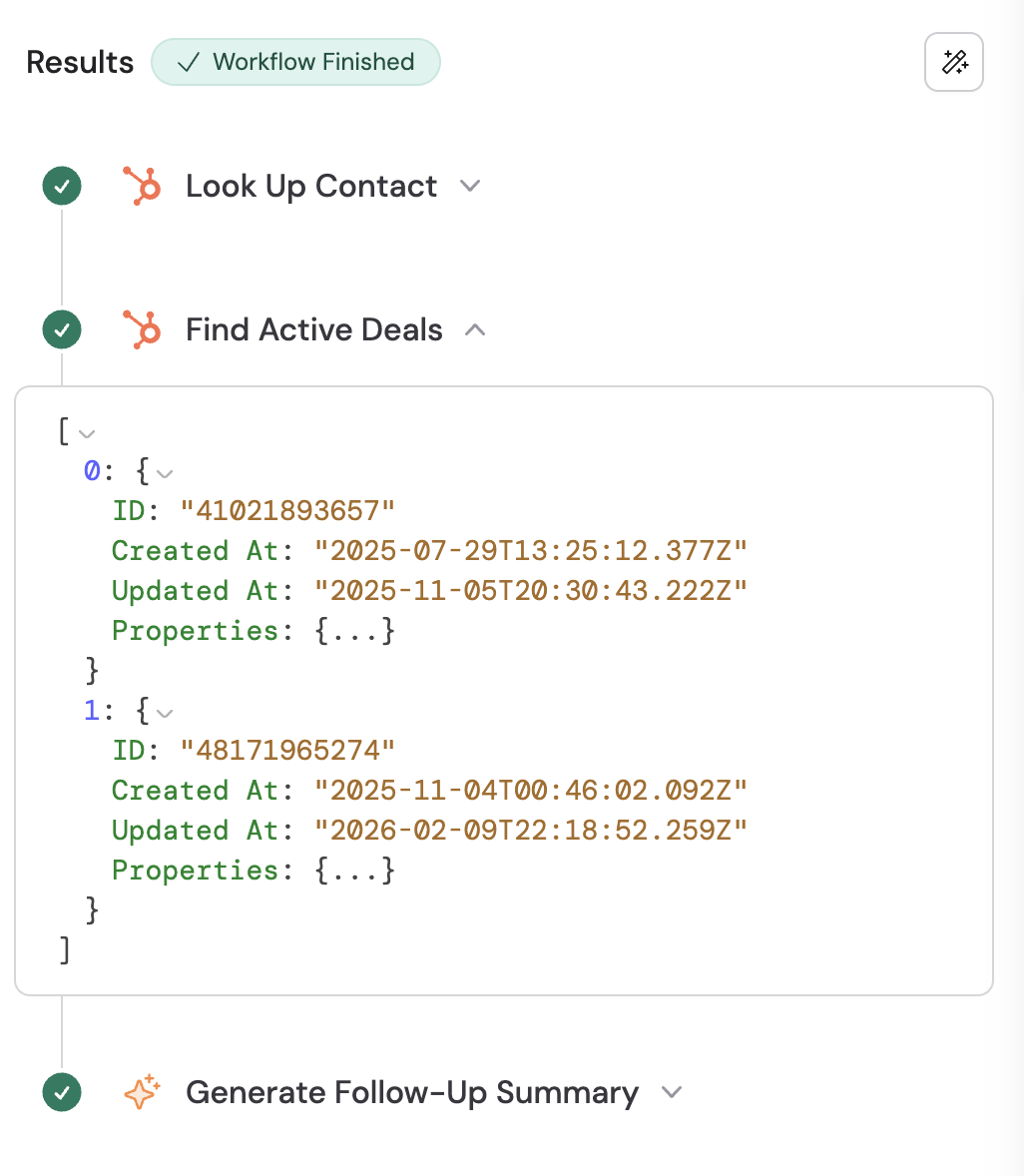
This guide walks through an example Workflow that finds active deals associated with a meeting participant. The Workflow triggers when a meeting ends, looks up the contact by email, retrieves associated deals, and generates a follow-up summary.
1
Add a Find Associated Records action
In the Workflow builder, click the + button between existing blocks. Select Find Associated Records from the action list.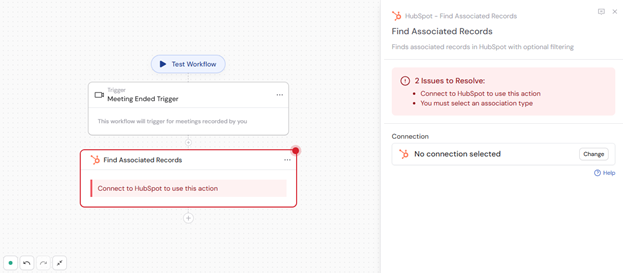
2
Connect your HubSpot account
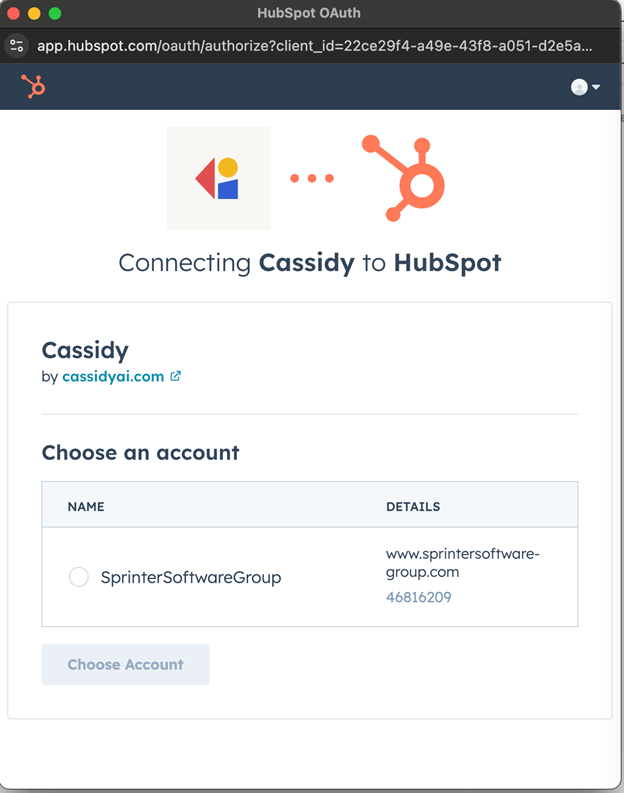
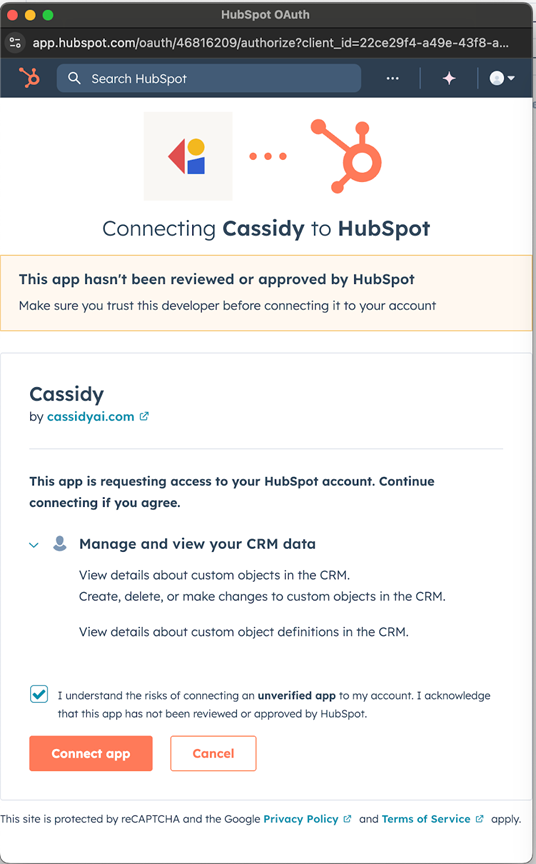
3
Rename the action (optional)
Enter a more descriptive name to make the action easier to reference as a variable later.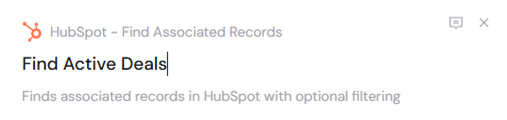
4
Set up preceding actions
Before configuring the Find Associated Records action, add the necessary preceding actions. For example: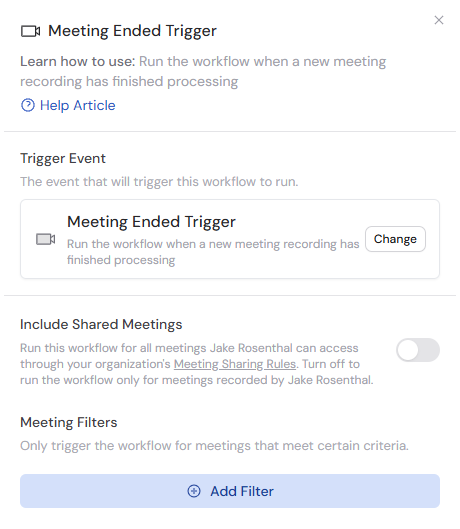
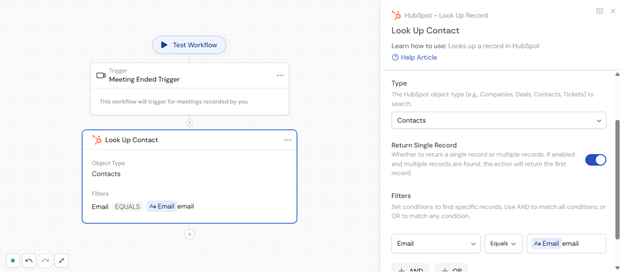
- Add a trigger such as a Meeting Ended trigger.
- Add a Look Up HubSpot Record action to find the contact by email from the trigger.
5
Select the source object type
Choose the HubSpot object type of the source record: Contacts, Companies, Deals, or Tickets.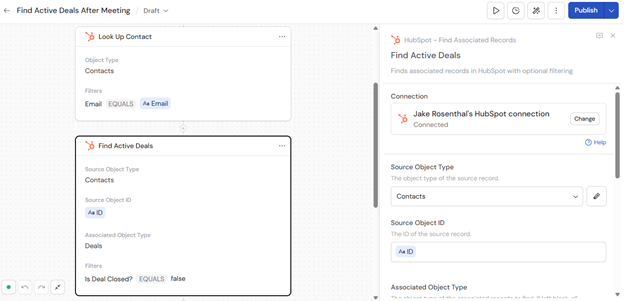
6
Enter the source object ID
Provide the ID of the source record. Type the ID directly or press # to reference a variable from a previous step or trigger.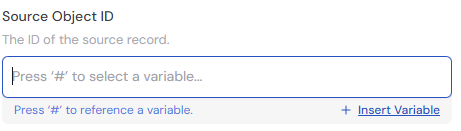
7
Select the associated object type (optional)
Choose the type of associated records to find: Deals, Contacts, Companies, or Tickets. If left blank, all associated records are returned.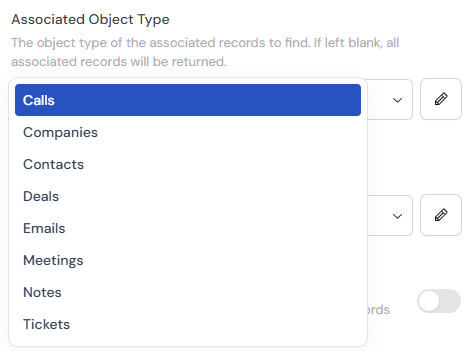
8
Select the association type (optional)
Specify the type of association to filter by, such as 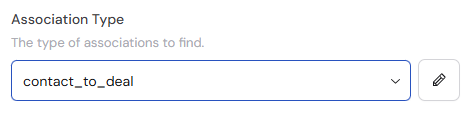
contact_to_deal or deal_to_company. This narrows down the specific relationship between records.9
Toggle return single record (optional)
Enable Return Single Record if you only want one associated record returned. When multiple records match, the action returns the first one.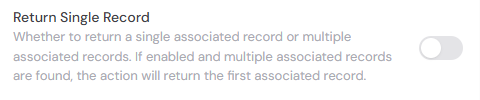
10
Add filters (optional)
Click Add Condition to filter associated records by specific criteria. Select a field, choose an operation (equals, contains, etc.), and enter the value. You can add multiple conditions using AND or OR operators.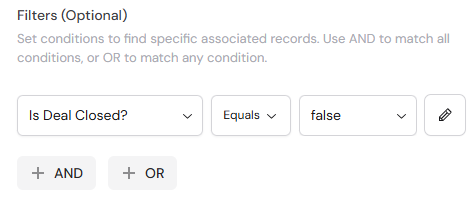
11
Add a follow-up action (optional)
After retrieving associated records, you can add a Generate Text action to create summaries or follow-up content using the record data.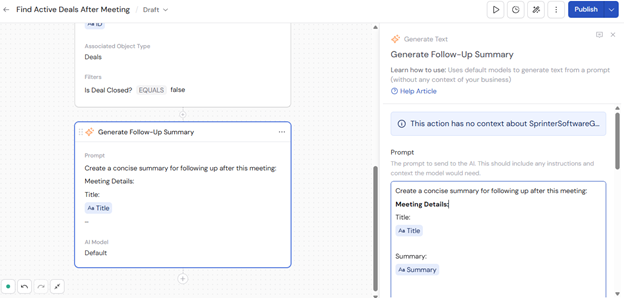
12
Publish and run the Workflow
The action returns the associated record(s) with their properties, which you can reference in subsequent Workflow steps.